Most beginners look at text-to-video AI and think the magic happens inside the prompt box. You type a sentence, wait a few seconds, and somehow a moving scene appears. That looks impressive from the outside, but after working around AI content workflows, I have learned one thing very clearly: the real skill is not just writing prompts. The real skill is learning how to direct the model. That is why I wanted this text-to-video AI explained guide to feel practical, not theoretical.
If you are just starting with AI video generation, you do not need a computer science lecture. You need to understand what the model is doing, what kind of prompts it understands, why some outputs look amazing, why some look cursed, and how to avoid wasting credits on weak generations.
At Editorialge Media LLC, we now think beyond publishing. We are building around media, technology, SaaS, e-learning, and creative tools. So, when I look at text-to-video AI models, I do not see them as toys. I see them as a new production layer for storytelling, explainers, social content, tutorials, education, and product visuals.
If our main AI video creation guide explains the full workflow, this article focuses on the first major engine inside that workflow: turning written ideas into a moving video.
What Is Text-to-Video AI?
Text-to-video AI is a type of generative AI that creates video clips from written prompts. You describe a scene, subject, style, camera movement, mood, lighting, and action. The AI model then generates a short video that tries to match your description.
In simple words, you write something like:
A cinematic close-up of a young creator editing an AI video on a laptop, warm desk lighting, soft background blur, slow camera push-in, realistic style.
Then the model creates a moving video based on that instruction. OpenAI describes Sora as a text-to-video model that can generate videos while maintaining visual quality and following the user’s prompt. OpenAI also explains that Sora is designed to understand and simulate the physical world in motion.
Google’s Veo and Gemini Omni show where the field is moving next. Google describes Veo 3.1 as a video generation model built for filmmakers and storytellers, while Gemini Omni is described as a model that can generate outputs from different input types, starting with video.
So, text-to-video AI is no longer just “write a line and get a clip.” It is becoming a creative direction system.
Text-to-Video AI Explained in Simple Terms
Think of a text-to-video model like a junior video director who has watched a massive amount of visual material and learned patterns.
It has learned things like:
| What The Model Learns | Simple Meaning |
| Objects | What people, cars, rooms, animals, buildings, and products look like |
| Motion | How subjects usually move through space |
| Camera language | What close-up, wide shot, dolly shot, pan, and zoom usually mean |
| Lighting | How daylight, neon light, studio light, or cinematic light affects a scene |
| Style | How anime, documentary, 3D, realistic, or claymation visuals look |
| Context | What usually belongs in a classroom, office, forest, city, or studio |
| Sequence | How frames should connect so the clip feels like a video, not random images |
Technically, modern video models are often based on diffusion and transformer-style architectures. OpenAI’s Sora technical report says it trains text-conditional diffusion models on videos and images of different durations, resolutions, and aspect ratios, using a transformer architecture that works with spacetime patches.
For a beginner, the simple version is this:
The model starts with noise, understands your prompt, predicts what the scene should look like, and gradually builds a moving sequence frame by frame.
That is why your prompt matters. You are not just asking for an image. You are directing time, movement, and visual continuity.
How Text-to-Video AI Models Actually Work
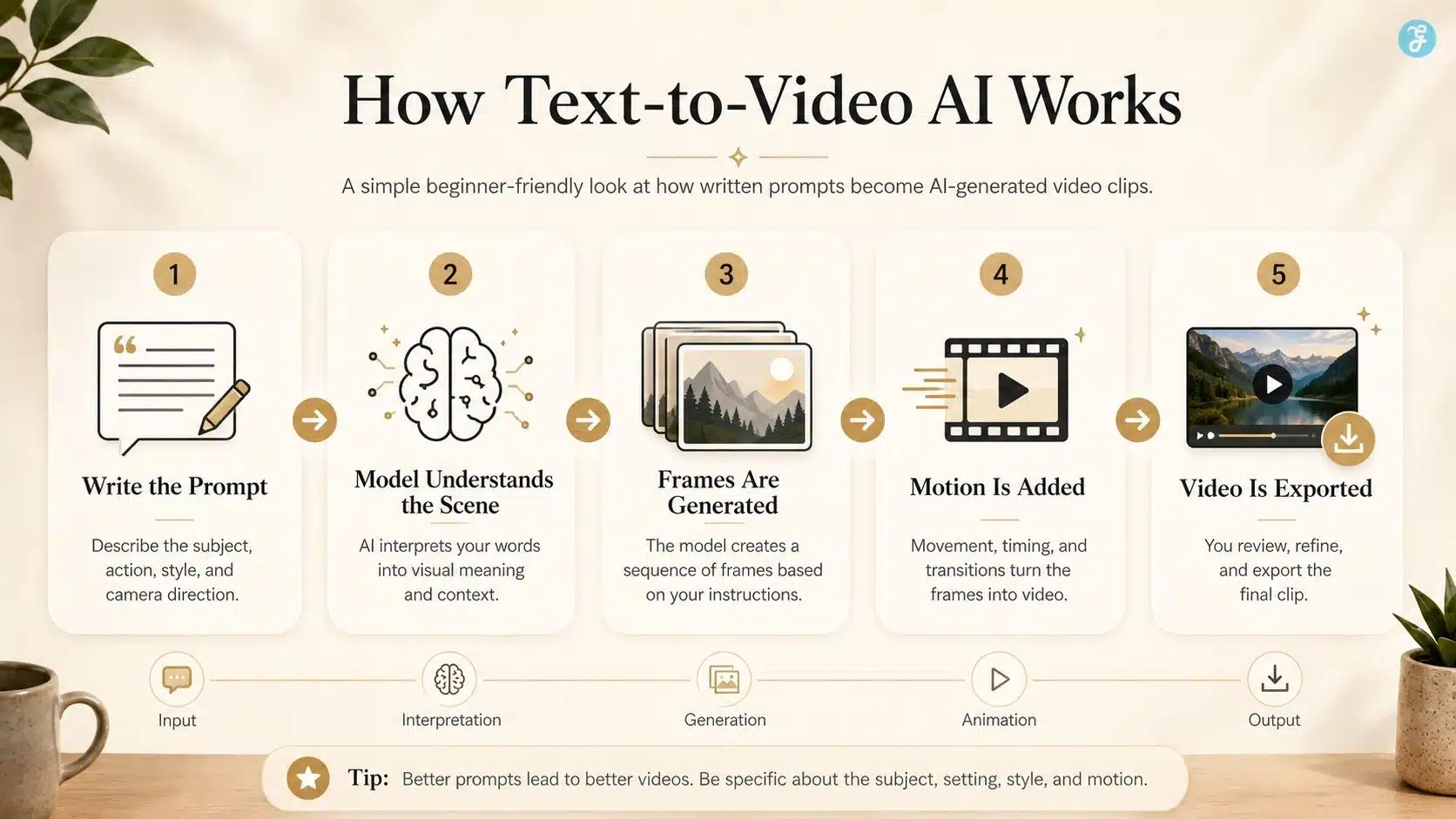
A beginner does not need to know every technical layer, but you should understand the basic process.
| Step | What Happens |
| 1. You Write A Prompt | You describe the scene, action, style, camera, and mood. |
| 2. The Model Interprets Meaning | It identifies the subject, location, movement, and visual style. |
| 3. It Predicts Visual Frames | It creates a sequence of frames that match the prompt. |
| 4. It Adds Motion Logic | It tries to keep objects, people, and camera movement consistent. |
| 5. It Renders The Clip | The system outputs a short video file. |
| 6. You Review And Refine | You adjust the prompt, regenerate, edit, or combine clips. |
The most important beginner lesson is this: AI video is not one perfect generation. It is usually an iterative process. You generate. You inspect. You fix the prompt. You generate again. Then you edit.
Why Text-to-Video AI Feels Different From AI Image Generation
AI image generation creates one frame. Text-to-video AI creates many connected frames. That makes everything harder.
| AI Image Generation | Text-to-Video AI Generation |
| One still frame | Multiple moving frames |
| Easier to control | Harder to keep consistent |
| Mistakes are easier to hide | Mistakes become visible in motion |
| Great for thumbnails and concept art | Great for scenes, motion, and storytelling |
| Prompt controls appearance | Prompt controls appearance, movement, timing, and camera |
This is why a beautiful AI image can be easier to make than a clean AI video. A video model has to understand not only what something looks like, but how it should behave over time.
That is also why beginners often get strange results: warped hands, unstable faces, melting objects, odd walking motion, camera drift, or scenes that change style halfway through. The model is trying to solve many problems at once.
What Makes A Good Text-to-Video Prompt?
A good text-to-video prompt gives the model a clear direction.
A weak prompt says:
Make a video about AI.
A better prompt says:
A realistic 9:16 vertical video of a young content creator planning an AI video on a laptop in a cozy studio. Warm desk light, soft background blur, slow camera push-in, focused mood, clean modern workspace.
The second prompt works better because it gives the model visual instructions.
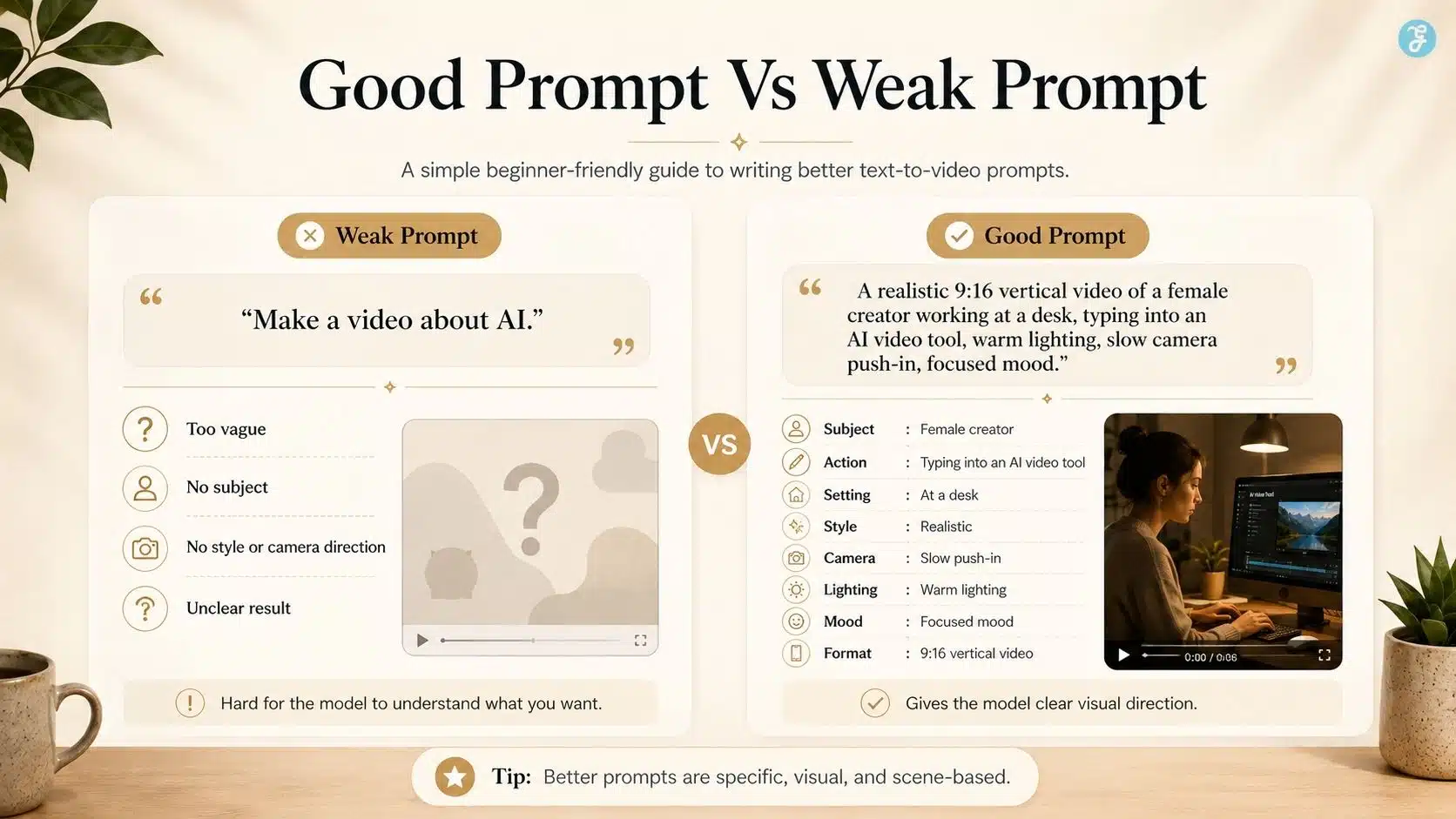
A strong beginner prompt usually includes:
| Prompt Part | Example |
| Subject | A young content creator |
| Action | Planning an AI video on a laptop |
| Setting | Cozy modern studio |
| Style | Realistic documentary style |
| Lighting | Warm desk lighting |
| Camera | Slow camera push-in |
| Mood | Focused and creative |
| Format | 9:16 vertical video |
Google’s Veo prompt guide recommends describing style, lighting, character details, location, and other cinematic details when prompting video models.
That advice matches what I have seen in practical AI workflows. The model gives better results when you think like a director, not like a search user.
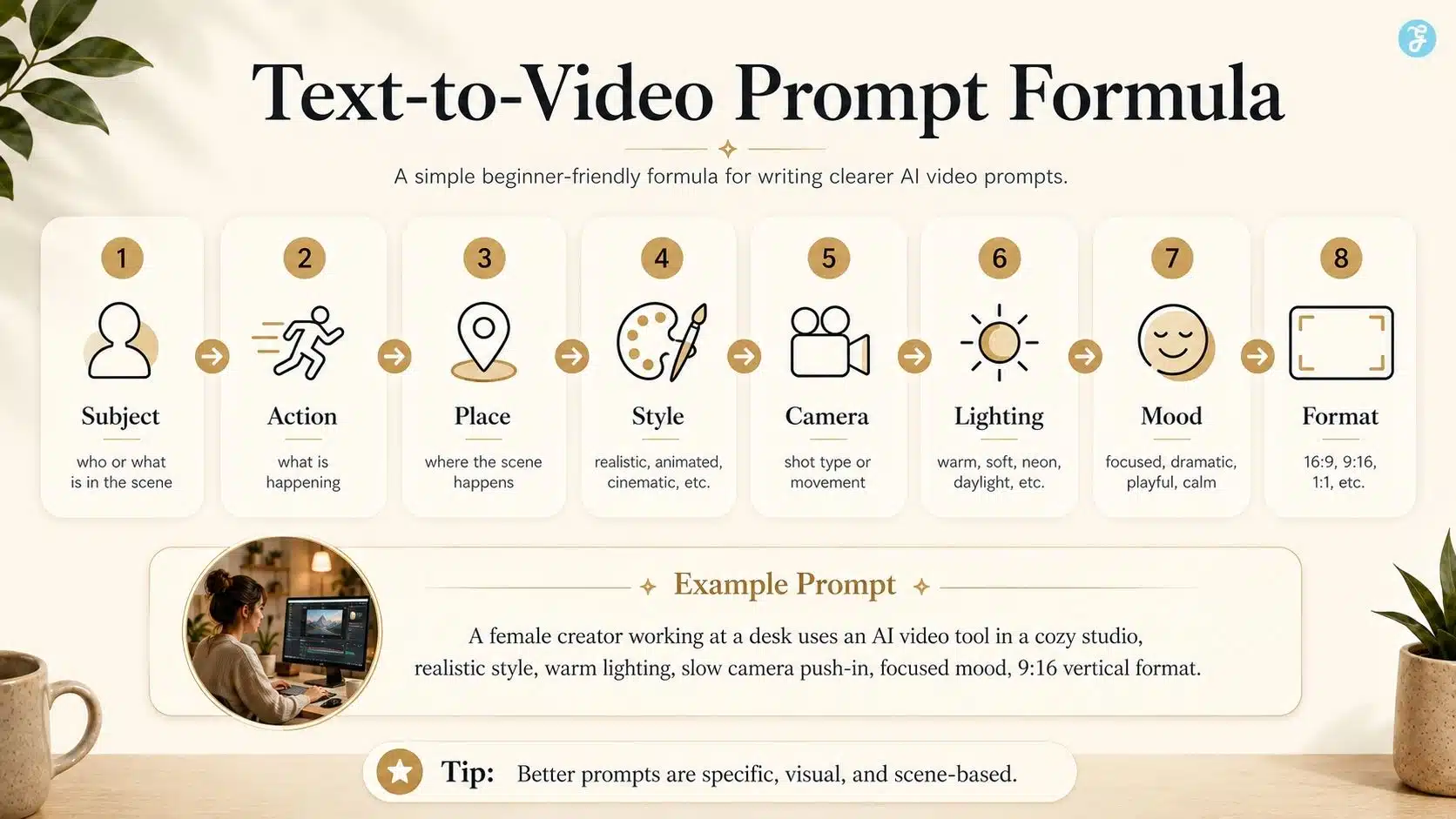
My Beginner Prompt Formula For Text-to-Video AI
Here is the simple formula I would give any beginner:
Subject + Action + Place + Style + Camera + Lighting + Mood + Format
Example:
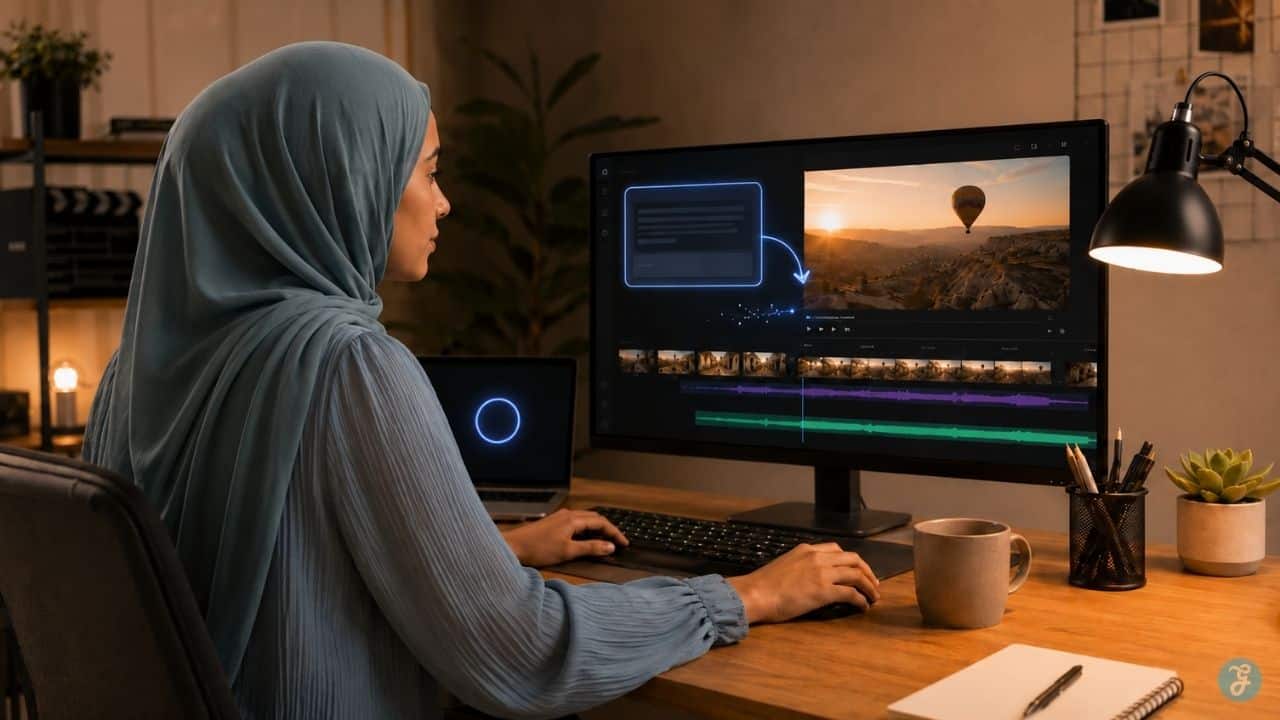
A female video creator wearing a beige hijab edits an AI-generated video on a large monitor in a clean studio workspace. Realistic style, warm natural lighting, slow cinematic camera push-in, calm, focused mood, 16:9 landscape format.
This prompt is useful because it tells the model:
- Who is in the scene
- What she is doing
- Where the scene happens
- How the video should look
- How the camera should move
- What emotional tone to create
- What format to follow
For beginners, this is much better than trying to write poetic prompts. Poetic prompts can sound nice, but video models need concrete direction.
Beginner-Friendly Text-to-Video Prompt Examples
Here are a few practical examples for different use cases.
| Use Case | Prompt Example |
| Educational Video | A clean 2D animated explainer showing how AI turns written prompts into video scenes, simple icons, smooth transitions, bright background, and beginner-friendly style. |
| Social Media Reel | A vertical 9:16 video of a creator looking at a laptop as AI video clips appear on screen, fast-paced modern style, energetic lighting, smooth camera movement. |
| SaaS Product Concept | A realistic office scene where a marketer uses an AI dashboard to create video content, clean UI visuals, professional lighting, and subtle camera pan. |
| YouTube Intro | A cinematic 16:9 shot of a digital studio with floating video thumbnails, a glowing timeline interface, a slow zoom-in, and a modern tech atmosphere. |
| Brand Storytelling | A warm documentary-style shot of a small creative team planning AI-powered content on a whiteboard, natural lighting, soft camera movement. |
Notice that each prompt has a clear visual goal. The model is not being asked to “make something cool.” It is being given a scene to direct.
What Text-to-Video AI Is Good At
Text-to-video AI is already useful for many beginner-friendly content formats.
| Best Use | Why It Works |
| Concept scenes | You can visualize ideas quickly |
| Social media clips | Short clips work well with AI generation |
| Explainer visuals | Abstract ideas can become simple scenes |
| B-roll | AI can create supporting visuals for narration |
| Mood shots | Cinematic atmosphere is often easier than complex action |
| Product-style visuals | Helpful when no real footage is available |
| Storyboarding | Great for testing visual direction before production |
For example, if I am writing an article about AI video creation, I may not need to film in a real studio every time. I can generate concept visuals that show a creator workflow, editing timeline, prompt interface, or video production system. That saves time. But I still need to review the output like an editor.
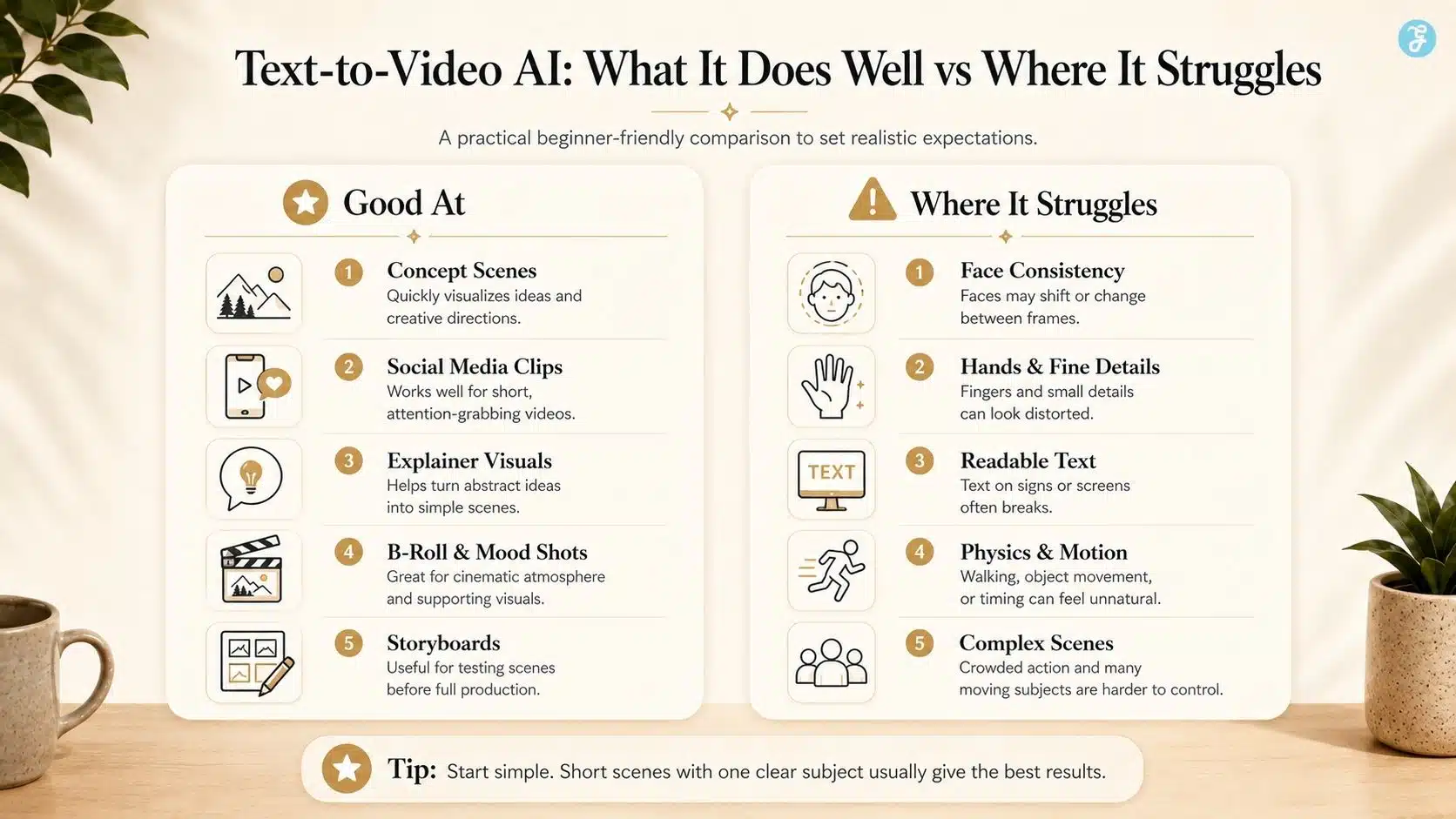
Where Text-to-Video AI Still Struggles
This is where beginners need realistic expectations. Text-to-video AI can look amazing, but it still struggles with consistency and logic.
| Common Problem | What It Looks Like |
| Face inconsistency | The person’s face changes between frames |
| Hand errors | Fingers bend, merge, or disappear |
| Text distortion | Words on screens, signs, or labels become unreadable |
| Object instability | Items appear, disappear, or change shape |
| Physics issues | Walking, jumping, pouring, or collisions look wrong |
| Style drift | The visual style changes during the clip |
| Over-motion | The camera or the subject moves too much |
| Poor prompt obedience | The output ignores part of the instruction |
Runway’s Gen-4 announcement focuses heavily on consistency, saying the model can use visual references with instructions to create images and videos with consistent styles, subjects, and locations. That tells us something important: consistency is one of the biggest problems AI video companies are trying to solve.
So, if your first output is messy, that does not mean you are bad at AI video. It means the technology still needs direction, iteration, and editing.
How To Get Better Results From Text-to-Video AI
The best beginner improvement is to reduce complexity.
Do not ask for:
A crowded futuristic city with 20 people running, flying cars, rain, explosions, neon signs, dramatic camera rotation, and a robot dog jumping across traffic.
That prompt asks for too much.
Start with:
A cinematic shot of a futuristic city street at night, neon lights reflecting on wet pavement, slow camera movement, one person walking under an umbrella, realistic style.
That is more controllable.
Use Short Clips First
Most text-to-video tools work better when you create short scenes. Instead of generating one 60-second video, create five 6-second clips and edit them together.
Keep One Main Subject
The more subjects you add, the more the model has to track. Beginners should use one main person, product, location, or action.
Avoid Text Inside The Video
Generated text often breaks. Add titles, captions, labels, and branding later in editing software.
Use Clear Camera Direction
Use phrases like:
- Slow push-in
- Static camera
- Wide establishing shot
- Close-up shot
- Smooth pan left
- Over-the-shoulder shot
- Product close-up
Control The Style
Do not mix too many styles. “Realistic cinematic anime documentary 3D watercolor” is not helpful. Pick one visual language.
Text-to-Video AI Models Vs Image-to-Video Workflows
Text-to-video and image-to-video are closely related, but they are not the same.
| Method | Starts With | Best For | Main Challenge |
| Text-to-video | Written prompt | Fresh concepts, abstract scenes, cinematic ideas | Less visual control |
| Image-to-video | Existing image | Character consistency, product visuals, brand scenes | Needs a strong base image |
For beginners, text-to-video is great when you want creative freedom. Image-to-video is better when you already know exactly how the scene should look.
This is why I often recommend creating a clean base visual first when brand consistency matters. A tool like ImagineLab can help create the starting image, and then a video model can animate it later.
So, text-to-video is not always the final answer. Sometimes it is the first draft of the visual idea.
How Text-to-Video Fits Into A Real Content Workflow
A proper text-to-video workflow looks like this:
| Step | Practical Action |
| 1. Define The Message | What should the viewer understand after watching? |
| 2. Write A Short Script | Keep the idea tight and spoken naturally |
| 3. Break It Into Scenes | One idea per scene |
| 4. Write Scene Prompts | Add subject, action, setting, style, camera, and lighting |
| 5. Generate Short Clips | Create multiple options |
| 6. Pick The Cleanest Output | Do not choose only the prettiest clip |
| 7. Add Voiceover And Captions | Make the video understandable |
| 8. Edit Manually | Fix pacing, transitions, branding, and final flow |
| 9. Review For Ethics And Copyright | Check realism, rights, and disclosure |
| 10. Export For Platform | Use the right aspect ratio and format |
This is where beginners often go wrong. They expect the model to produce a finished video. In reality, the model produces raw material. You still need editorial judgment.
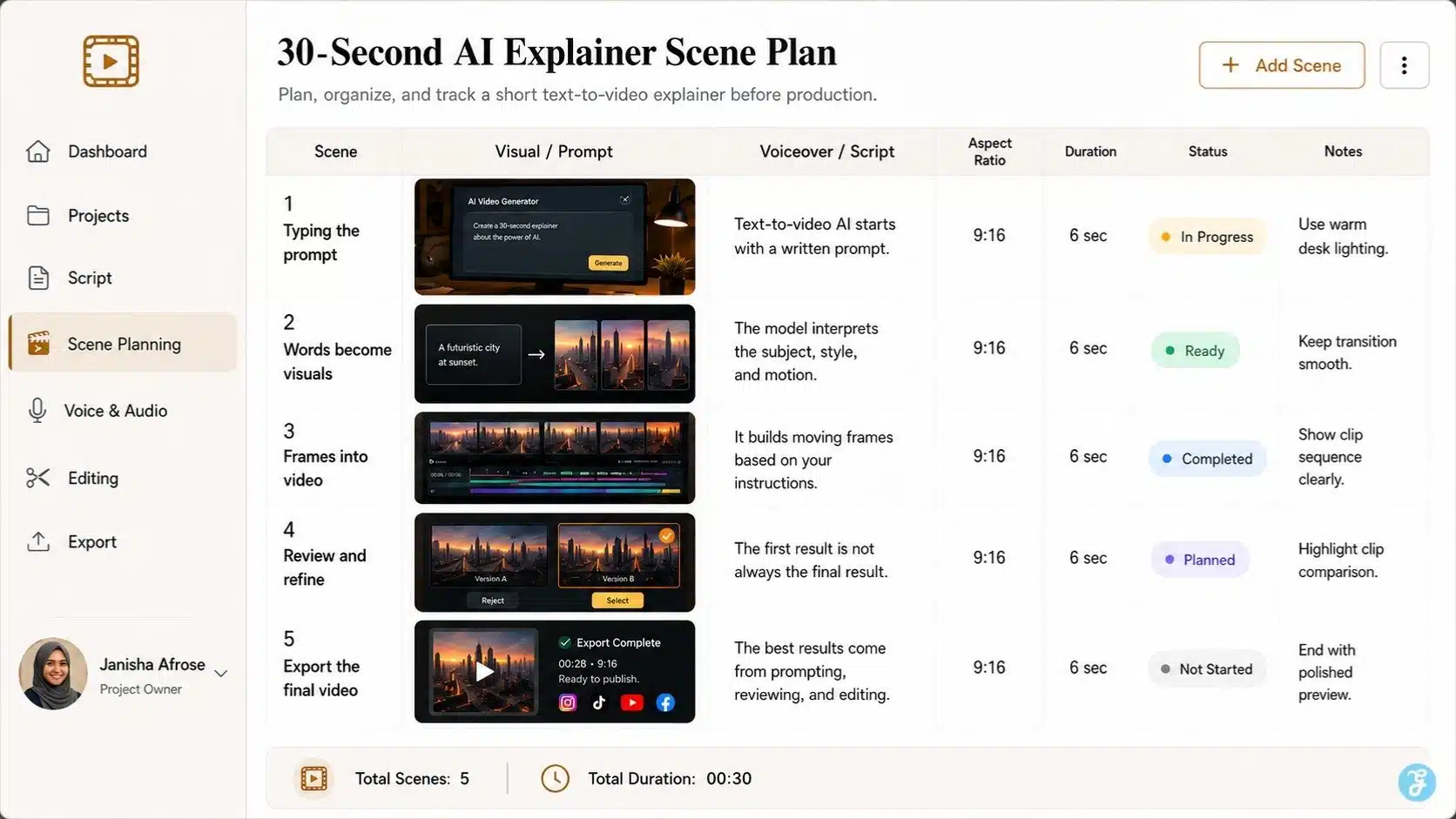
A Practical Example: Creating A 30-Second AI Explainer
Let’s say I want to create a short video explaining “how text-to-video AI works.” I would not generate the full video in one prompt. I would break it into scenes.
| Scene | Visual Prompt Direction | Voiceover Idea |
| 1 | Creator typing a prompt into an AI video interface | “Text-to-video AI starts with a written prompt.” |
| 2 | Words transforming into visual frames | “The model interprets the subject, scene, style, and motion.” |
| 3 | Video timeline showing short generated clips | “It creates moving frames based on your instructions.” |
| 4 | Editor reviewing clips and removing bad outputs | “But the first version is not always the final version.” |
| 5 | Final video exported for social media | “The best results come from prompting, reviewing, and editing.” |
This is how I would approach it as a content workflow. The model creates scenes. The creator builds the story.
What Beginners Should Look For In Text-to-Video AI Tools
The tool you choose matters, but not as much as beginners think. A strong workflow can survive tool changes.
Still, these are the features I would look for:
| Feature | Why It Matters |
| Prompt-to-video generation | Core function for text-to-video |
| Aspect ratio control | Needed for YouTube, TikTok, Reels, LinkedIn |
| Camera movement settings | Helps direct the scene |
| Style options | Useful for realism, animation, ads, and explainers |
| Image reference support | Helps improve consistency |
| Character consistency | Important for storytelling |
| Audio support | Useful for more complete clips |
| Editing controls | Helps fix or extend outputs |
| Commercial usage clarity | Important for brand and business content |
Adobe says Firefly video is designed with commercial safety in mind and trained on licensed content such as Adobe Stock and public domain content where copyright has expired, though commercial usage eligibility depends on the model used.
That is the kind of detail beginners should check before publishing client work, ads, course content, or brand assets.
Do You Own Text-to-Video AI Outputs?
This is not always simple. Ownership and usage rights depend on:
- The tool’s terms
- The model used
- The source material
- Whether copyrighted characters or styles were used
- How much human input and editing did you add
- Your local copyright law
- Whether the output resembles a real person or protected work
So, do not assume every AI video is automatically safe for commercial use.
My practical advice is simple:
- Read the tool terms.
- Avoid copyrighted characters.
- Avoid copying living artists’ exact styles for commercial work.
- Do not generate real people without permission.
- Keep your prompts and project files.
- Add human editing and arrangement.
- Disclose realistic AI content where needed.
YouTube requires creators to disclose realistic, altered, or synthetic content when viewers could mistake it for a real person, place, scene, or event. It does not require disclosure for clearly unrealistic content, animation, special effects, or basic production assistance. That makes disclosure part of the workflow, not an afterthought.
The Best Beginner Use Cases For Text-to-Video AI
Text-to-video AI is strongest when the goal is fast visual communication.
Good beginner use cases include:
- Blog article visual clips
- YouTube intro scenes
- TikTok/Reels concept videos
- Educational explainers
- SaaS product concept visuals
- Social media ads
- Mood boards
- Course lesson intros
- Storyboards
- Brand storytelling clips
Bad beginner use cases include:
- Complex fight scenes
- Accurate medical demonstrations
- Legal or political realism
- Fake news scenes
- Deepfake-style impersonation
- Videos requiring precise product accuracy
- Scenes with lots of readable text
The more accuracy your content needs, the more careful you should be.
My Honest Take On Text-to-Video AI For Beginners
Text-to-video AI is powerful, but it is not magic. It is best used as a creative assistant, not a replacement for thinking. It can help you move faster, test ideas, create visual drafts, produce social clips, and add B-roll to content. But it still needs human direction.
The beginner who gets the best results is not the one who knows the most tool names. It is the one who knows how to describe scenes clearly, review outputs honestly, and edit the final result with taste. In other words, prompting is not typing. Prompting is directing.
Final Thoughts: Text-To-Video AI Explained Without The Hype
If I had to keep this text-to-video AI explained guide to one lesson, it would be this: do not treat the model like a magic button. Treat it like a creative crew member that needs direction.
Tell it what to show. Tell it how the scene should move. Tell it what mood to create. Tell it what style to follow. Then review the result like an editor, not a fan.
Text-to-video AI models are already changing how beginners create video content, but the best results still come from human planning, clear storytelling, ethical judgment, and smart editing. That is the real workflow.
AI can generate the footage. You still have to create the meaning.
Frequently Asked Questions About Text-To-Video AI Explained
1. What Is Text-To-Video AI?
Text-to-video AI is a type of AI video generation that creates moving video clips from written prompts. You describe the scene, style, action, and camera movement, and the model generates a video based on that instruction.
2. Is Text-To-Video AI Good For Beginners?
Yes, it is beginner-friendly if you start with short clips and simple prompts. Beginners should focus on one subject, one scene, clear motion, and simple camera direction.
3. What Makes A Good Text-To-Video Prompt?
A good prompt includes the subject, action, setting, style, lighting, camera movement, mood, and format. The more specific and visual your prompt is, the easier it is for the model to follow.
4. Can Text-To-Video AI Replace Video Editors?
No. Text-to-video AI can generate raw clips, but editing is still needed for pacing, captions, voiceover, transitions, branding, and final quality control.
5. Is Text-To-Video AI Safe For Commercial Use?
It depends on the tool, terms, source materials, and how the content is used. Always check commercial rights, avoid copyrighted characters, get consent for real people, and disclose realistic AI-generated content when required.