As technological advancements continue to move forward at breakneck speed, the tools available for video enhancement have taken a leap forward. Among these tools, Topaz Video Enhance AI stands out with its ability to upscale, denoise, and restore footage using advanced artificial intelligence (AI) algorithms.
In this comprehensive guide, we’ll delve into the intricacies of Topaz Video Enhance AI, providing a step-by-step tutorial on how to make the most out of this cutting-edge software.
Exploring Topaz Video Enhance AI
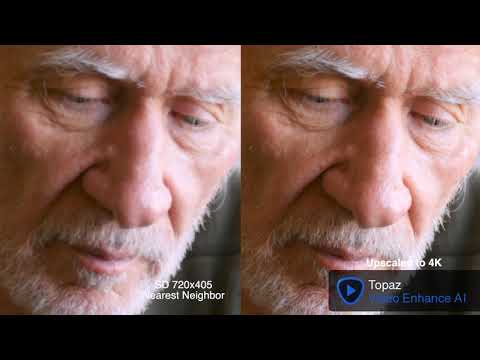
Topaz Video Enhance AI is a standalone software that uses machine learning (ML) to intelligently upscale, clean, and rejuvenate footage. It’s a versatile tool that can transform low-resolution videos into high-resolution masterpieces, making it an invaluable asset for video editors and filmmakers.
System requirements
To run Topaz Video Enhance AI smoothly, you’ll need to meet certain system and hardware requirements:
- Operating system: For Windows users, the software supports Windows 10 and 11 (build 19041 v2004 and above). For Mac users, the software requires macOS 10.14 Mojave and above for CPU support and macOS 10.15 Catalina and above for GPU support.
- Processor: The software requires an Intel HD 5000 iGPU or any AMD CPU from 2016 or above.
- System memory: At least 8GB of system memory is needed, although 16GB is recommended for optimal performance.
- Graphics card: An Intel HD 5000 (on CPU DirectX 12, compatible with all Windows and Mac 10.15 and above) is required.
- Dedicated graphics memory: A minimum of 2GB is needed, but 8GB is recommended for better performance.
Check out a thorough comparison between Topaz Photo AI and Gigapixel. Make an informed call on the best software.
How to use Topaz Video Enhance AI: A guide
Understanding the basics of Topaz Video Enhance AI is one thing, but knowing how to use it effectively is another. Here’s a step-by-step guide on how to use this advanced tool:
Step 1: Importing videos
Begin by clicking the center of the screen. This will pop up a dialogue box, allowing you to select the videos you wish to enhance. You can either select multiple videos or drag and drop them directly into the app. Additionally, the selected videos will be visible at the bottom of the screen.
Step 2: Choosing AI processing models
Once your videos are imported, it’s time to choose the appropriate AI models for enhancement. The software offers various AI Processing models that you can choose from based on your specific needs.
Step 3: Output settings
Next, adjust the output settings according to your preference. The software offers in-built standards for output, or you can create custom settings. You can also choose to extract and save your video as a picture or video sequence.
Step 4: Setting output name
By default, the output name will be displayed along with the height, width, and scale of the output video. You can customize this by unchecking the “Use default output name” box and entering your desired output name.
Step 5: Previewing the output
Before you proceed with the final output, you can generate a 30-frame rendered preview of your video. This allows you to check the enhancements before processing the entire video.
Check out our detailed review of Synthesia AI– an amazing video editing AI tool and learn about its features and alternatives today!


How to use Topaz Video Enhance AI
Step 6: Trimming the output
To save on processing time, you can trim only the parts of the video you need. Simply drag the slider along the video’s timeline to select the start and end timestamps. The highlighted portion of your timeline will be processed as the enhanced output.
Step 7: Final output processing
Finally, click on the “Start Processing” button to initiate the video processing. Your video will be displayed frame by frame until the processing is completed.
Delve into the top five ai video editing tools and make the best investments on your editing journey today!
What can Topaz Video Enhance AI do?
Topaz Video Enhance AI is an all-in-one tool that can perform a variety of tasks:
- Upscale footage: One of the software’s most potent features is its ability to upscale videos from SD or HD to 4K or even 8K. Upscaling through the application’s Proteus AI Model offers numerous parameters that users can adjust to enhance their videos.
- Denoise footage: Topaz Video Enhance AI is also effective at removing noise from high ISO footage. By increasing the “Reduce Noise” parameter, users can quickly eliminate unwanted noise in their videos
- Increase frame rates: The software can convert the frame rate of a video from 25fps to 3fps. Users can customize the frame rate settings within the app.
- Deinterlace videos: The software is proficient at deinterlacing videos, resulting in a smooth, natural finish with few or no artifacts in the final output.
- Restoration of old footage: Topaz Video Enhance AI can restore old or inferior-quality footage, improving its resolution and overall quality. However, the effectiveness of this feature can be different depending on the original footage quality.
Dive into a world of creative possibilities and bring your storytelling to life with AI-powered video editing tools.

Using the power of AI video tools
Wrapping up
Topaz Video Enhance AI is a potent tool for video editing and post-production. With its advanced AI capabilities, it can upscale, denoise, and restore footage, providing stunning results.
Whether you’re an experienced video editor or a novice, this software can help you transform your videos into high-resolution masterpieces. Take the time to explore and experiment with its features and its impressive results.