For beginners looking to gain experience with machine learning and AI, it can be difficult to access huge datasets and vast amounts of computing power to process your workloads. One option to overcome this challenge is Google Colab. This is a free tool from Google that provides resources such as GPU, TPU, and Python libraries to help you gain experience and further develop your skills.
Follow this tutorial to learn what Google Colab is and how to start using the tool.
What is Google Colab?
Google Colaboratory (Colab) is a version of Jupyter Notebook as a service that allows you to write and run Python code through your browser.
Jupyter Notebook is free and open source created by the Jupyter Project. A Jupyter notebook is like an interactive experiment notebook that contains not only notes and data, but also code that can manipulate the data. Code can run within a notebook, and notebooks can capture code output. Unlike applications such as Matlab and Mathematica, which pioneered this model, Jupyter is a browser-based web application.
Google Colab is built around Project Jupyter code and hosts Jupyter notebooks without requiring any local software installation. However, while Jupyter notebooks support multiple languages such as Python, Julia, and R, Colab currently only supports Python.
Colab notebooks are stored in your Google Drive account and can be shared with others just like any other Google Drive file. Notebooks also include an autosave feature, but simultaneous editing is not supported, so collaboration must occur serially rather than in parallel.
Colab is free but has limitations. There are several types of code that are prohibited, including media services and cryptocurrency mining. The available resources are also limited and vary based on demand, but Google Colab offers a pro version with more reliable resources. There are other cloud services based on Jupyter Notebooks, such as Microsoft’s Azure Notebooks and Amazon’s SageMaker Notebooks.
Advantages of Google Colab
Colab enables enterprise data analysts and analytics developers to collaborate on data analysis and manipulation problems. They can write, run, and modify core code in tight loops and develop documentation in Markdown format, LaTeX, or HTML.
Notebooks can include embedded images as part of the document or as generated output. Additionally, once sufficient testing and debugging is complete, the completed analysis code, along with documentation, can be copied to other platforms for use in production.
Google Colab runs directly within your browser, eliminating the need for complex configuration setup or installation. It also includes preinstalled Python libraries that require no setup to use.
How to use Collaboratory
Colaboratory requires a Google Account.
When you visit for the first time, you will see a screen similar to the following. Welcome to the joint laboratory A notebook with video introductions and links to basic information on how to use Colab.
Create a workbook
from file menu, click new notebook Create a workbook.

If you’re not already signed in to your Google Account, you’ll be prompted to sign in.
Notebooks are given generic names by default. Click in the file name field to rename it.


IPython is the predecessor of Jupyter Notebook, so the file type IPYNB is an abbreviation for “IPython Notebook.”
This interface allows you to insert different types of cells (mainly text and code). These cells have their own shortcut buttons below the menu bar. put in menu.
![[挿入]The tab is selected and the dropdown contains[コード セル],[テキスト セル]and[セクション ヘッダー セル]You will be given the option to include.](https://www.techtarget.com/rms/onlineimages/burke4-f_mobile.jpg)
Because notebooks are meant to be shared, they have a lot of features for structured documents.
code, debug, iterate
You can insert Python code and run it in a code cell. The code can be completely standalone or imported from various Python libraries.
A notebook can be treated as a rolling log of work, where earlier code snippets are no longer executed in favor of later code snippets, or it can be treated as an evolving set of code blocks intended for continuous execution. of runtime The menu provides the following run options: run all, run before or execute focused cellmatches either approach.
![[実行時]The tab is selected and the dropdown contains[すべて実行],[前に実行],[フォーカスされたセルを実行],[選択範囲を実行],[後で実行]You will see options such as:](https://www.techtarget.com/rms/onlineimages/burke5-h_mobile.jpg)
As shown above, there is a run icon at the far left of each code cell. Type the code in a cell and click the run icon to run the code immediately.
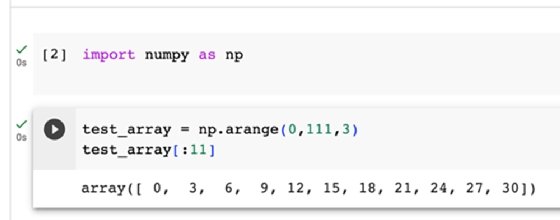
If the code encounters an error, the error output will be displayed below the cell. When you fix the problem and press Run again, the error information will be replaced with the program output. The first line of code imports the source NumPy library into its own cell. arrange function. Colab comes preloaded with many common libraries for easy import into your program.
Text cells provide basic rich text using Markdown formatting by default, and you can insert images, HTML code, and LaTeX formatting.
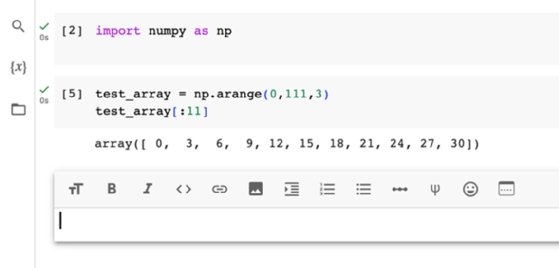
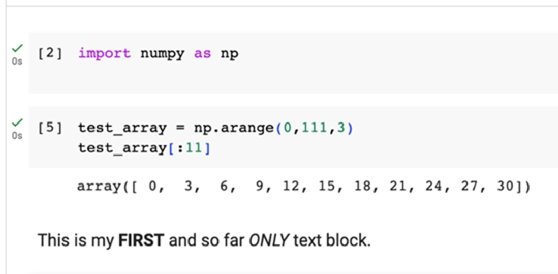
Add text to the left side of a text cell and the formatted output will appear on the right side.

When you stop editing a block, only the final formatted version is displayed.
Get data into notebook
After you become familiar with the interface and use it for initial test coding, you will eventually need to provide your code with data to analyze or manipulate.
Colab can use code cells to mount a user’s Google Drive onto the VM hosting the notebook.
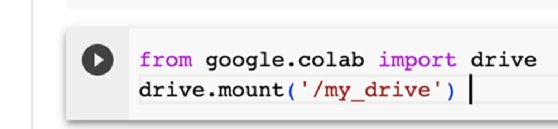
When you click Run, Google will ask for permission to mount the drive.

Once you allow the connection, you’ll be able to access your files in Google Drive. /my_drive path.
If you don’t want to allow access to Drive Space, you can instead upload a file mounted as a drive or a network file space from your local machine.

File Access provides many features for reading data in different ways. For example, importing the Pandas library gives you access to functions such as: read_csv and read_json.
save and share
By default, Colab opens notebooks in collaboration notebook folder below my drive On Google Drive.

of file The menu allows you to save notebooks in your version history as named revisions and relocate them using: moveor as a copy on Drive or GitHub. You can also download and upload notebooks. Jupyter-based tools have wide compatibility, so you can create notebooks in one location and upload and use them in another location.
![[ファイル]tab is selected,[ドライブ内で検索],[プレイグラウンド モードで開く]Options such as are selected.](https://www.techtarget.com/rms/onlineimages/burke14-h_mobile.jpg)
can be used share Click the button in the top right to give other Google users access to your notebook and copy the link.
Google also provides sample notebooks that demonstrate available resources such as pre-trained image classifiers and language translators to address common business problems such as working with BigQuery and performing time series analysis. We also provide links to introductory Python coding notebooks.