

Whether we like it or not, AI is being implemented in almost every app and website we use on a regular basis. From editing images to planning trips and doing other tasks on our digital devices, AI is increasingly coming into play.
That also applies to web searches. Instead of just typing “best bars in Paris” or “how does the moon affect the tides?”, you can type them into the Google box and interact with the AI to get potentially more helpful answers. Bots like ChatGPT and Claude now offer web searches, and Google has added its own dedicated AI mode. This is explained here.
This more conversational way of searching the web may feel more natural and result in faster responses, but it also introduces some inaccuracy. This is just how AI works. Google itself acknowledges that “AI responses may contain errors” when using AI mode, so keep that in mind.
Questions also remain about the use of energy and the ethics of an AI scraping the work without compensation or acknowledgment from the human writer (the AI bot has never actually visited the Parisian bar, just regurgitated existing information). With this in mind, if you want to avoid Google AI mode, we’ll also explain how to do that.
Try using Google AI mode
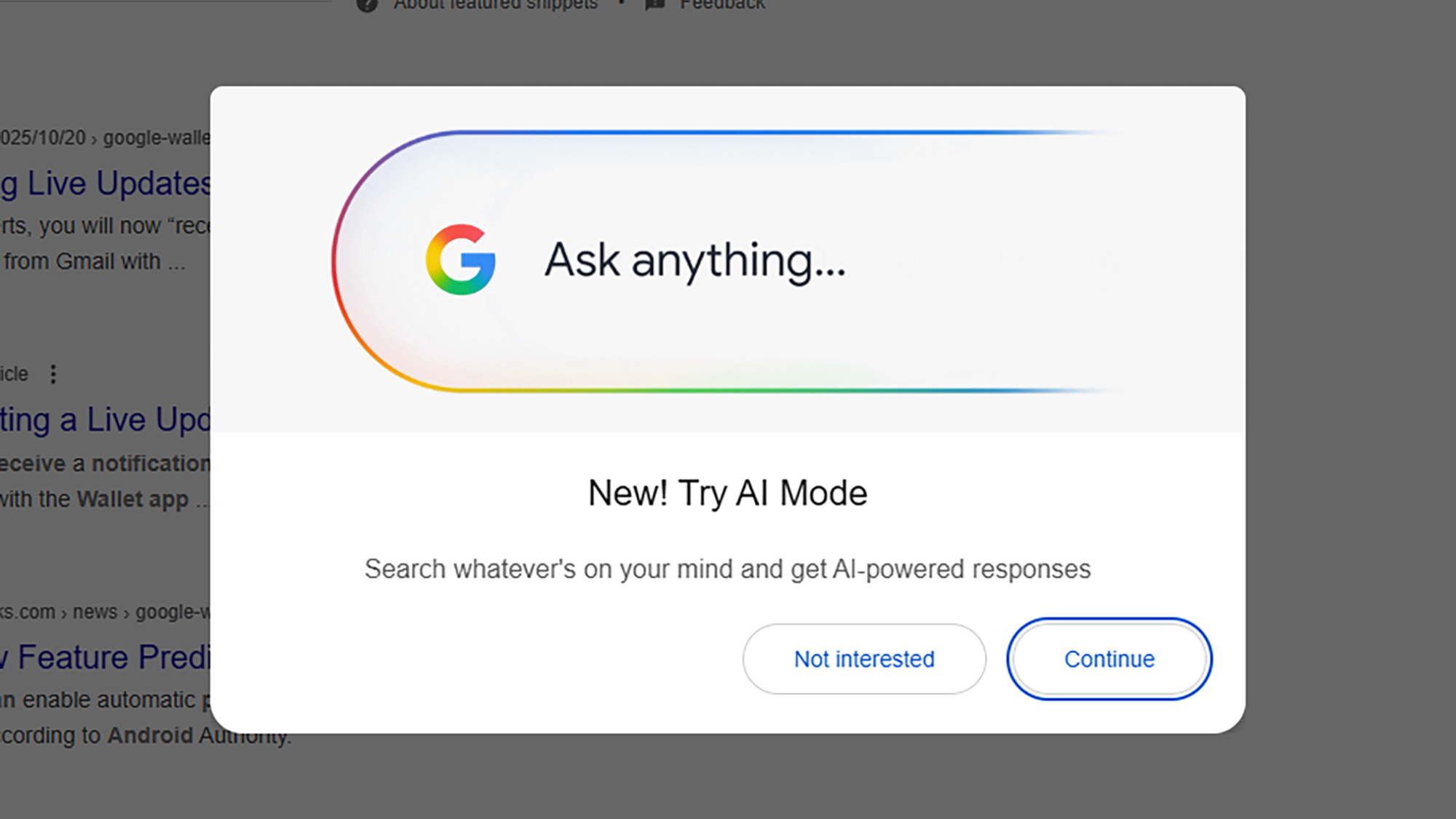
The next time you visit Google, you may be prompted to try AI mode through a large pop-up dialog, but if not, AI mode The button to the right of the search box on the Google homepage. Clicking this will take you to an AI mode interface that asks you to “ask detailed questions and get detailed answers.”
You can then enter any query you want. Perhaps you want to know what the best smartphones are under $500, or what craft activities are best for kids under 5. There’s a microphone button on the right side if you’d like to vocalize your search requests, as well as photo and paperclip icons for uploading images and files respectively.
For example, you can upload an image of your broken bike and ask AI mode for the best way to repair it, or you can give it a multi-page PDF and ask it for important points. This kind of versatility makes AI mode several times more useful than a standard Google search, which returns a series of links to other places on the web.
When you do a regular search without images or attachments, AI mode searches the web for answers and displays them in a condensed format. You’ll see small web link icons directing you to the websites from which the information was obtained, and large previews of those sites on the right.
One reason to use AI mode is to keep the conversation going and allow you to ask any follow-up questions you want in addition to the main question. Perhaps you want to limit the original search in some way, ask Google more questions about the search results, or have AI mode explain one of the answers.
Access or bypass AI mode history
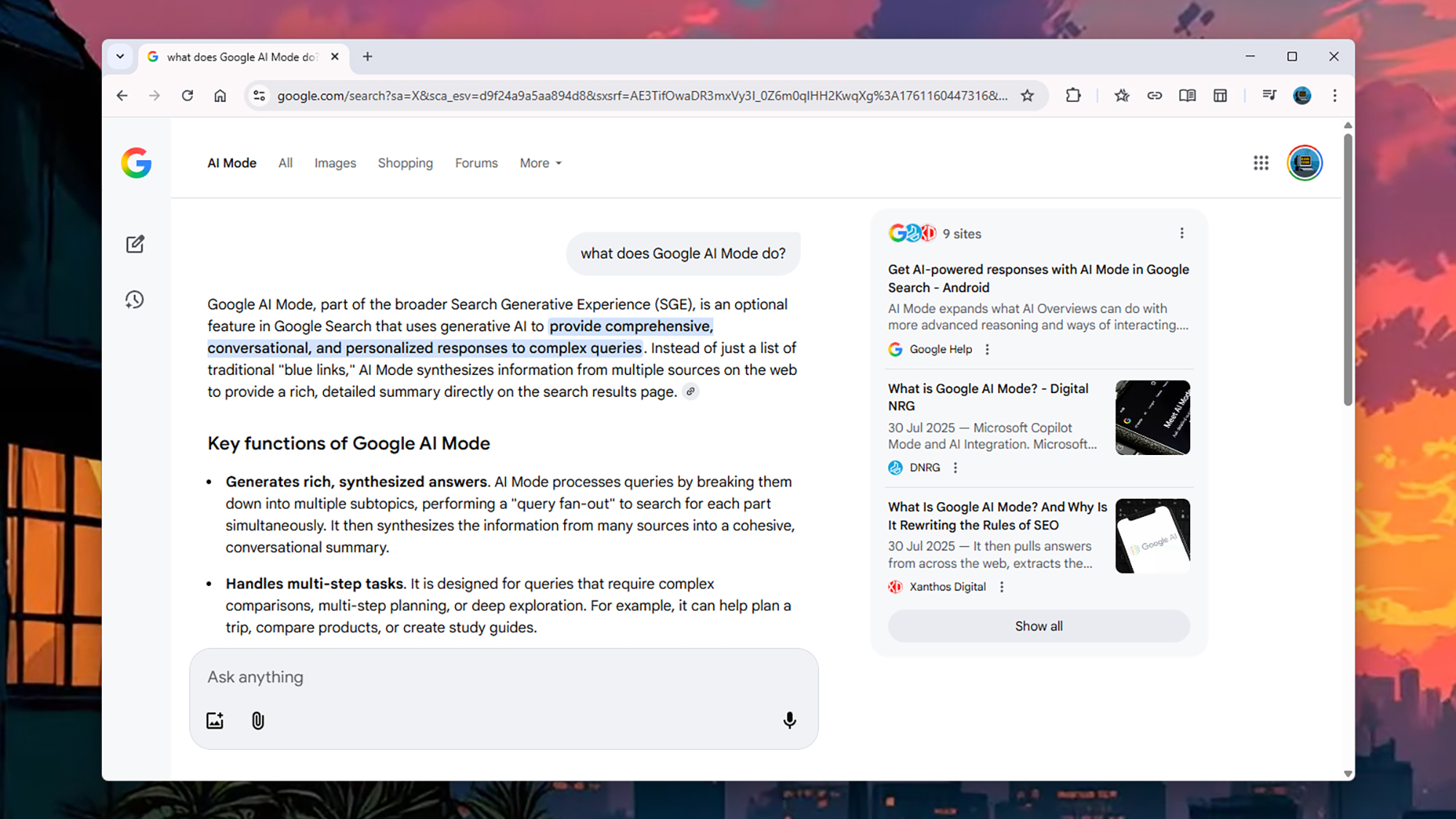
Beyond the basics, Google AI Mode has a few other features you should know about. At the end of each answer you will see “thumbs up” and “thumbs down” buttons to rate the quality of the output provided. There is also a share icon (smaller than icon) that you can use to share your results with others.
On the left, there are options to start a new search (pen in a square) and to access your AI mode search history (clock symbol). You can share or delete searches using the three dots next to each search. You can also delete your entire AI mode search history using the three dots at the top of the list.
You can also manage your AI Mode history the same way you manage your history for other Google apps and services. You do this through your Google Account Activity page. From here, you can delete a previously run AI Mode Search tool, return to the original AI Mode Search tool, or tell Google to automatically remove it after a certain period of time.
At the top of the AI mode screen, you’ll see the usual Google search categories: image and shopping. You can also click all Perform a standard Google search. This should give you an idea if regular search is right for you. On the other hand, if you do a regular Google search, AI mode Click in the upper left corner to switch to the new AI interface.
As for how to turn off AI mode, you can’t do that. Google, like just about every other company, is making big bets on AI. All you can do is avoid it (and AI Overview) and do a Google search as usual. Quitting Google doesn’t really work either. Alternative search engine DuckDuckGo also has AI elements built into it, but it’s easier to ignore than Google’s AI mode for now.

2025 Holiday Gift Guide


