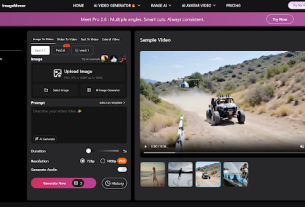
Photobombs, messy backgrounds, electrical wires, or dated logos are examples of unnecessary elements that can quickly destroy the quality of a good video. This kind of distraction not only ruins an artistically constructed image, but especially if it refers to social media, marketing, or storytelling, it reduces the overall visual quality of the material and makes it look unprofessional.
Thanks to advanced AI-powered tools, you can now easily remove objects from your videos without any editing skills. In this article, you’ll learn how to use AI to gradually remove unwanted objects from videos, as well as key tools and helpful tips to produce flawless, polished results.

Part 1: Filmora Walkthrough: Erase Anything in 3 Clicks
Wondershare’s Filmora is a powerful video editor that is extremely easy to use and packed with advanced AI features. For example, AI Video Object Remover lets you remove items such as people, text, logos, watermarks, and moving objects from videos with just a few marks with a brush.
Filmora incorporates smart object recognition, brush and box selection modes, as well as automatic content filling to precisely remove unwanted objects without sacrificing the natural aspects or high quality of your video.
Step-by-step guide to remove objects from videos via Filmora
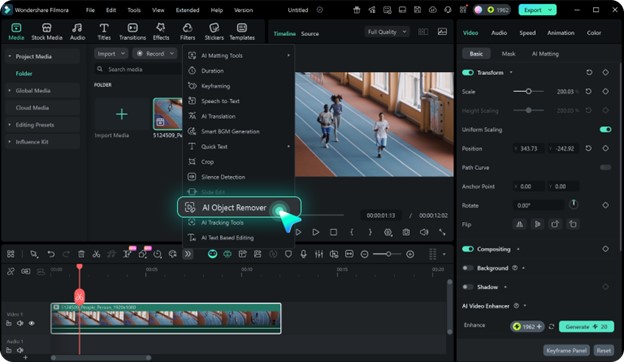
Step 1: Import videos/photos and choose AI Object Remover
Drag the video or photo into Filmora and drag it to the timeline. First select the clip, then select AI Object Remover from the toolbar.
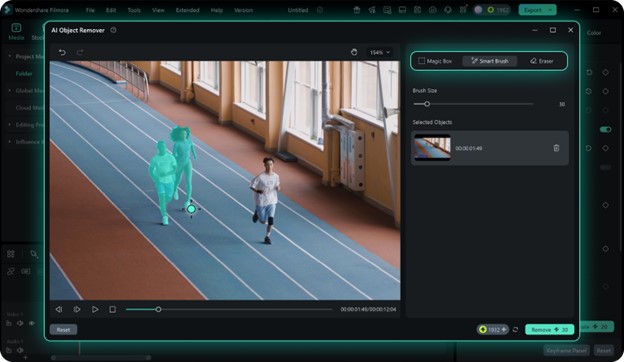
Step 2: Mark the parts to be removed
Use Magic Box or Smart Brush to highlight the objects you want to remove. Alternate between brush and eraser to make precise selections,[削除]You can run it by clicking .
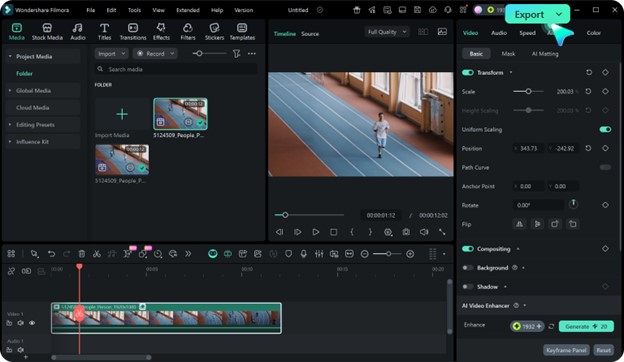
Step 3: Save the video
Once the cleanup is complete, Filmora’s AI content fill tool automatically blends the background so the results look very natural. Click “Export” to save the video.
Part 2: What AI can erase: from photobombers to logos
Modern AI tools like Wondershare Filmora allow you to remove not only simple objects but also many other elements in your video. Editing is natural and almost invisible, as AI has the ability to recognize and remove stationary and moving objects while preserving the background.
Generally, this object remover can be used to remove from videos:
- People and photographer: strangers, passersby, or unwanted subjects in the frame
- Text and subtitles: Hardcoded captions, CTAs, or sensitive information
- Logo and branding: Company logo, overlay, or competitor branding
- Watermarks: unnecessary marks that clutter the visuals
- Background distractions: power lines, dirt, shadows, or random objects
- Moving objects: cars, animals, or dynamic elements that are tracked across the frame
The main advantage of AI is its ability to identify objects in different video frames and erase areas filled with surrounding pixels. This way, the product will be clean, consistent, and professional with no visible gaps.
Part 3: 7 reasons why Filmora’s AI video object remover is better than other tools
Incredibly, Wondershare Filmora combines cutting-edge AI technology with a beautiful and simple user interface for creative people. It’s easy to use to create social media clips, marketing videos, and professional video footage because it delivers fast, precise, and natural-looking results without the complexity of traditional editing tools.
- Autofill content: It can use nearby pixels to uniquely reconstruct the background content, making it appear as if the deletion never happened.
- Dynamic object tracking: Moving objects can be automatically tracked and removed frame by frame (and Remove people from videos), saving you the frustration of working frame by frame in a very tedious way.
- Intelligent recognition: Equipped with a smart AI detection system, it properly identifies selected items while avoiding accidental deletion of duplicate or similar items.
- No skills required: Skill levels are considered for beginners and professionals. It’s also designed so that you can just brush objects and the AI will do the rest.
- High quality output: The original video quality, such as HD or 4K resolution, will not be degraded. Keep your videos looking great and professional.
- Delete multiple objects at once. Even if you want to delete multiple unwanted items at the same time, you can do so easily.
- Flexible selection tools: Smart Brush is a tool for less common areas, while Box Selection is great for fixed objects like logos, text, and watermarks.
Part 4: Filmora vs. Canva vs. Media.io: Who Will Win?
| Features/Tools | wonder share film mora | Canva magic eraser | Media.io AI Video Object Remover |
| platform | Desktop (Win/Mac) | Online (browser-based) | Online (browser-based) |
| Support video editing | Yes, tracks moving objects | No, only photos | Yes, supports moving objects |
| Types of removable objects | People, text, logos, watermarks, animals, trees, etc. | people and objects in photos | People, text, logos, watermarks, objects |
| Delete multiple objects | Yes, multiple objects at once | No, one object per edit | Yes, with timeline adjustment |
| Tracking moving objects | Frame-by-frame AI tracking | not applicable | AI tracks moving objects |
| output quality | HD/4K storage | High quality images | Good resolution depending on upload |
| processing speed | Fast (local processing) | fast (small image) | Moderate (depends on upload/download speed) |
| Ease of use | Advanced controls that are beginner-friendly | Very simple and minimal options | Simple and reasonable controls |
| Ideal for these people | Professional video creators, vloggers and marketers | Quickly edit photos and post to social media | Quick editing of online videos, short clips |
Part 5: Frequently Asked Questions (FAQ)
Q1: Can I use Filmora to remove moving objects from my video without blurring the background?
of course! Filmora has a feature called AI Video Object Remover that works frame by frame to remove moving objects while preserving overlapping and hidden elements to make your videos look smooth and professional.
Q2: Can I use Canva Magic Eraser for video editing?
No, Canva Magic Eraser is for photos only. To achieve video object deletion, it is better to use desktop AI solutions such as Filmora or online tools such as Media.io.
conclusion
With the AI Video Object Removal tool, you can now remove unwanted objects in your videos very easily. Whether the problem is a random passerby in a vlog or a distracting logo in a marketing clip, methods like this can help you save time, increase visual appeal, and give your content a more professional look without having to redo the entire shoot.
Filmora’s AI Video Object Remover is one of the available features and is very advanced as it understands motion and accurately removes objects from videos, completely filling the background.