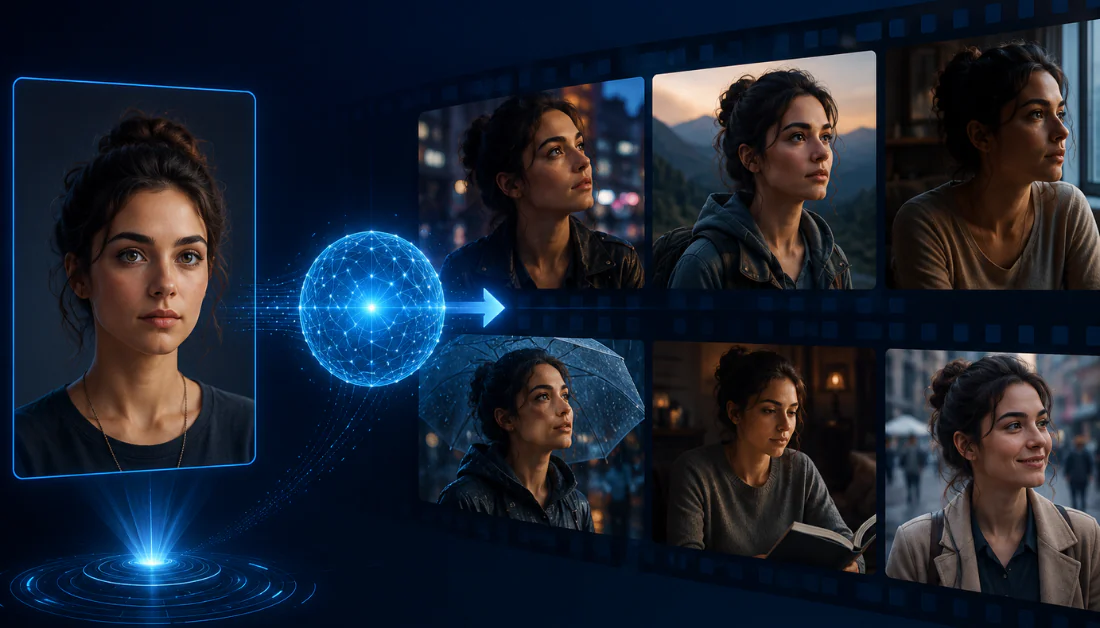
Have you ever scrolled past a video that looked real for a second… then immediately made you do a double-take?
That split-second confusion is becoming more common than most people realize. Video models are improving so quickly that even casual viewers are starting to question what’s real and what isn’t.
One of the tools driving that shift is Vidu AI. It’s already used by millions across 200+ countries, turning simple text, images, or references into high-quality videos in just seconds.
What makes it interesting isn’t just the speed. It’s the way a single prompt can now become a full cinematic scene, complete with motion, style, and even audio. The barrier between idea and finished video is getting smaller every day.
In this Vidu AI review, I’ll discuss the pros and cons, what it is, who it’s best for, and its key features. Then I’ll show you how I used it to generate videos from reference images, including one showing its character consistency capabilities.
I’ll finish the article by comparing Vidu AI with my top three alternatives (Kling AI, Hailuo, and Luma Dream Machine). By the end, you’ll know which AI video generator is right for you!
Verdict
Vidu AI is a quick and easy tool that creates high-quality 1080p+ videos with text, images, or references. It works well for quick, viral videos, but it has limited editing control, and the results depend heavily on how you write your prompt.
Pros and Cons
- Videos generated in as little as 10 seconds with fast processing speeds
- 1080p+ videos with smooth motion and cinematic color
- Large template library with styles optimized for viral clips, anime, and product visuals
- Supports text-to-video, image-to-video, and reference-to-video with consistent characters
- The Q3 model supports built-in AI sound effects at 48 kHz for more complete videos
- User-friendly interface and a mobile app that’s beginner-friendly
- Affordable plans with credit systems and regular top-ups
- API access available for developers and businesses building AI video applications
- Trusted by millions of users across 200+ countries
- No timeline editor for proper post-production inside the platform
- Results can vary a lot depending on how complex the prompt is
- Output quality can vary depending on the prompt and tool
- Relies heavily on prompt structure for the best results
- No refunds, even in cases like accidental purchases
What is Vidu AI?
Vidu AI is an AI video generator that turns text prompts, images, and reference content into cinematic videos. It’s great for creators, marketers, and storytellers who want fast, high-quality video creation without filming.
Generation Workflows
Vidu is not just one of those tools that does one thing halfway decent. It actually covers a pretty impressive range of workflows:
- Text to Video
- Image to Video
- Reference to Video
With Reference to Video, you can feed it a reference image or character, and it builds a video around that. For anyone doing brand work or consistent character storytelling, that’s pretty valuable.
Additional Tools
What surprised me most was the additional tools baked in. For example, there’s an AI Sound Effect Generator and an AI Image Generator right alongside the video tools.
This really comes in handy, especially for people who juggle multiple platforms to get what Vidu handles in one tab. That alone can save you hours.
It’s available as a web platform, so there’s nothing to download or install (always appreciated). And for developers or bigger operations, there’s an API.
Trusted by Millions of Creators
Millions of creators across 200+ countries are already using it. After spending some time with it myself, that number really doesn’t surprise me.
Bottom line: Vidu AI isn’t just another AI video generator. It feels like it was designed by people who get what modern content creators actually need.
Who is Vidu AI Best For?
Vidu AI is best for creators and marketers who want quick, stylized videos for social media, ads, or short stories instead of full cinematic productions:
- Social media creators and YouTubers can quickly turn ideas into unique, viral-worthy short clips for TikTok, Reels, or Shorts using text-to-video and image-to-video.
- Marketers and ad teams can generate multiple ad versions and product videos, making it easier to test different styles and find what performs best.
- Anime, game, and fictional storytellers can keep characters and scenes consistent across shots with reference tools, making it useful for story concepts and world-building.
- AI hobbyists and experimental filmmakers can easily try out different video styles and ideas in minutes.
- Culture and tourism content creators can turn places, stories, and experiences into engaging visual content that feels immersive and shareable, helping bring destinations to life more creatively.
- Developers and larger teams can use the API to plug video, image, and audio generation directly into their own apps, workflows, or automated content pipelines.
Vidu AI Key Features
Here are Vidu AI’s key features:
- Text to Video: Turn text prompts into video clips.
- Image to Video: Upload images and turn them into cinematic videos.
- Reference to Video: Upload reference images to create videos with consistent characters, objects, and scenes.
- Templates: Browse hundreds of templates for viral or repeatable video styles.
- AI Sound Effects Generator: Turn text prompts into realistic sound effects, background ambience, and music.
- AI Image Generator: Turn text prompts into high-quality images. Change styles, combine different elements, and tweak them afterward by resizing, refining, or upscaling.
- Vidu Q3: A model that creates videos with built-in audio, so they’re ready to use without adding sound later.
- Vidu Claw: An OpenClaw-powered AI marketing tool that doesn’t just create one asset at a time. It plans the entire process and builds everything from the idea and storyboard to the final video.
- API Platform: Access Vidu’s tools through APIs to integrate video, image, and audio generation into your own apps or workflows.
How to Use Vidu AI
Here’s how I used Vidu AI to generate videos from reference images:
- Sign Up for Vidu AI
- Select Reference to Video
- Upload Reference Images
- Add a Prompt
- Tweak the Settings & Generate
- Go to Image to Video
- Upload Images
- Add a Prompt & Generate
Step 1: Sign Up for Vidu AI

Head over to vidu.com and click Try Vidu.
Step 2: Select Reference to Video
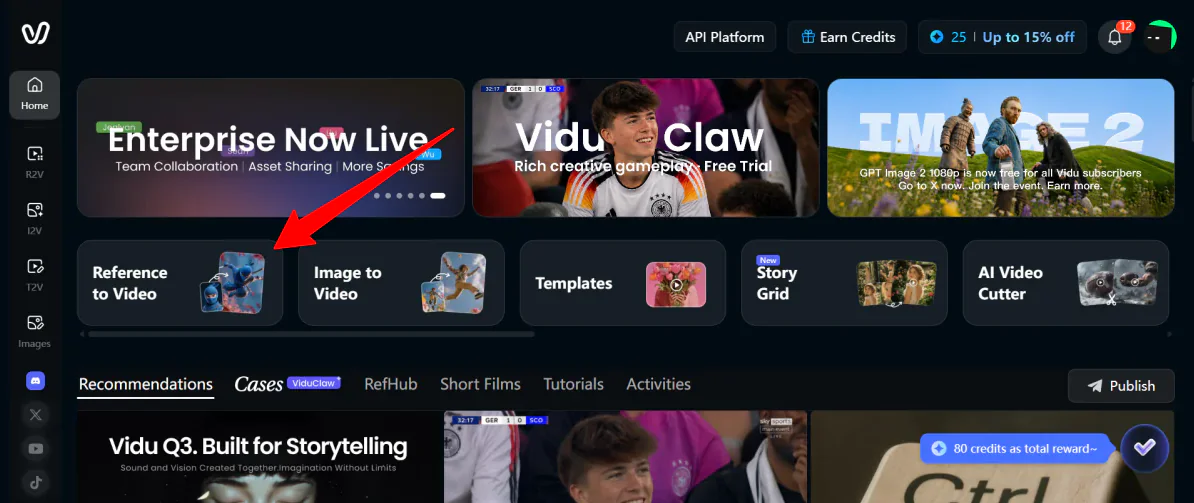
Next, select Reference to Video. It’s Vidu’s flagship feature.
Standard image-to-video just moves a single starting picture. Reference-to-video goes further by keeping the subject’s key features consistent while placing them in new scenes.
Step 3: Upload Reference Images
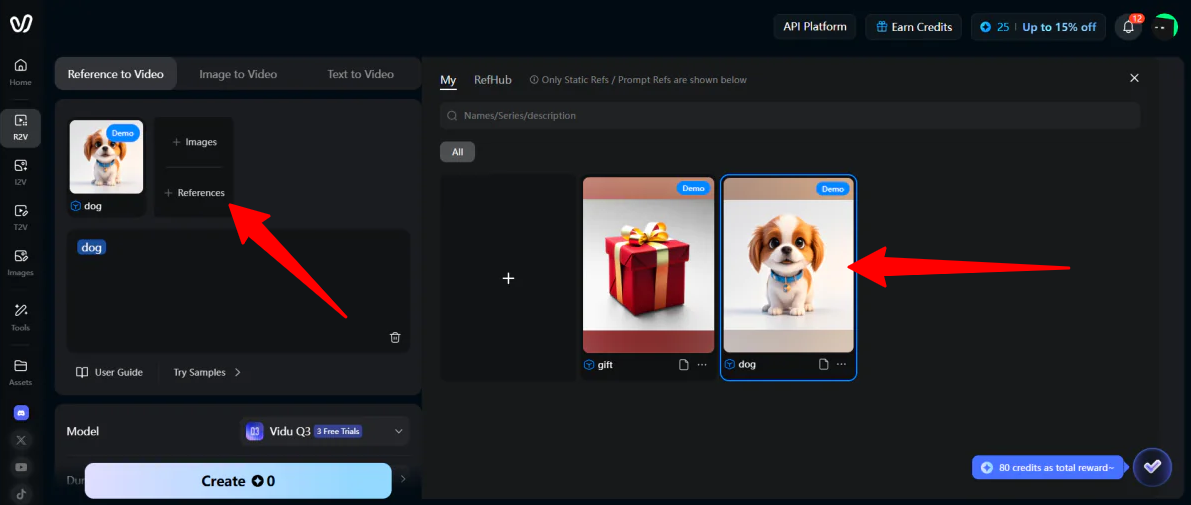
You can upload up to 7 images of your character from different angles.
If you’re short on assets, you can do what I did: tap into Vidu’s built-in RefHub directory and select the Dog Asset Pack.
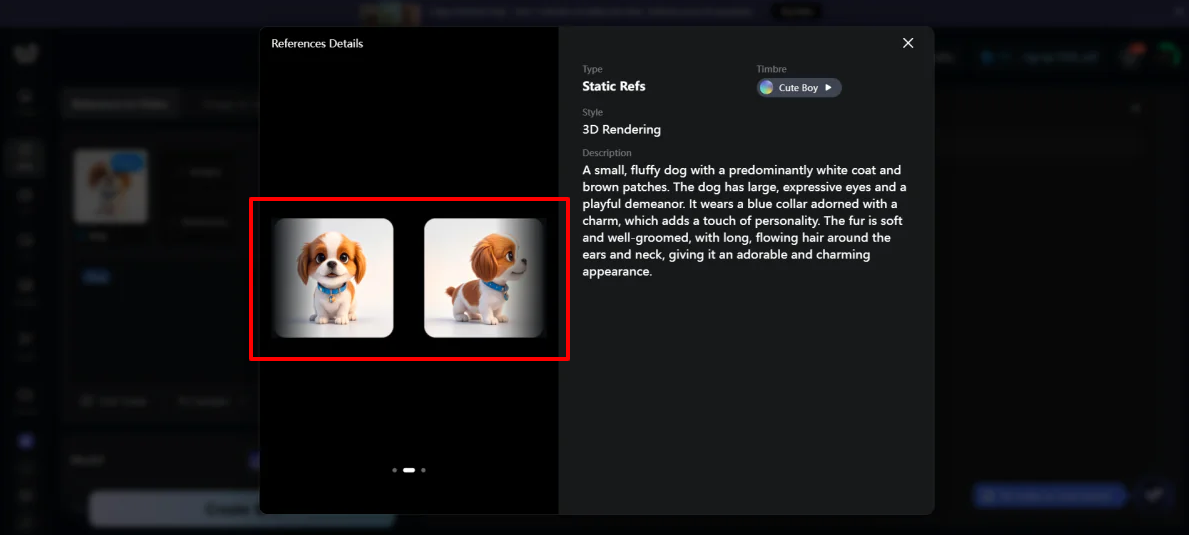
It has high-quality images of the same dog from different angles, which helps Vidu keep the character looking consistent.
Step 4: Add a Prompt
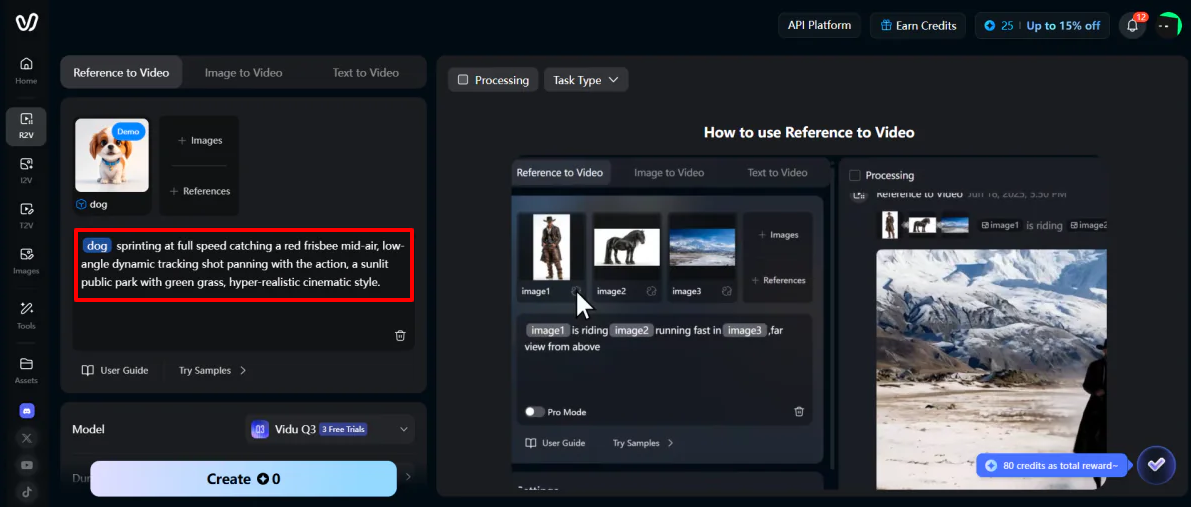
Once you’ve selected your reference images, it’s time to give Vidu a prompt.
Vidu reads your prompt step by step. If the order is messy, the result can get confused.
Write your prompts in a clear, ordered way:
[Subject] ->[Action]->[Camera Movement]->[Environment]->[Style/Mood]
Feel free to copy and paste my exact test prompt to get the structure down and make your own adjustments:
“Dog sprinting at full speed catching a red frisbee mid-air, low-angle dynamic tracking shot panning with the action, a sunlit public park with green grass, hyper-realistic cinematic style.”
Step 5: Tweak the Settings & Generate

Before you generate, set the options like this for the best results:
- Model: Pick Vidu Q3 (Pro). It automatically adds sound to match what’s happening in the video, like wind or footsteps.
- Duration: Set it to 8 seconds. This helps keep the video stable and prevents weird visual changes.
- Mode: Choose Cinema. These moves look more natural and realistic.
Then click Create.
After a short wait, your video will finish processing. The final clip should stay consistent from start to finish, including small details like the dog’s collar.
Also, turn up the volume. You’ll notice Vidu’s Q3 model automatically adds sound effects that match what’s happening on screen, making the video feel more immersive without any extra editing! Pretty cool and a big time-saver.
Step 6: Go to Image to Video
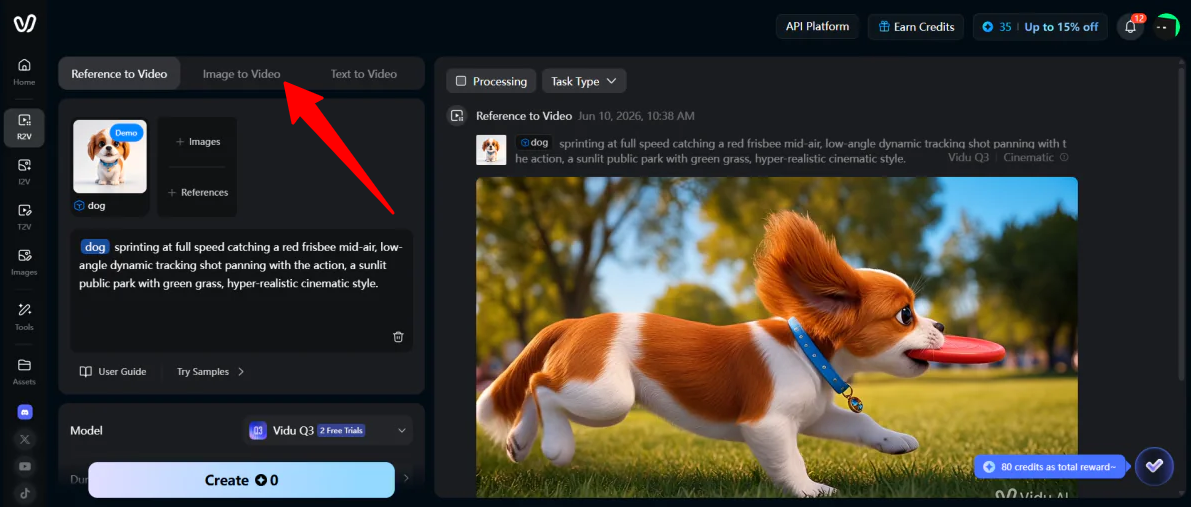
Now that you know how to lock down character consistency, what happens if you don’t want to rely on a text prompt to guess your camera movements? What if you have an exact starting and ending scene, and you want the AI to cleanly morph between them?
For that, we leave Reference to Video behind and switch over to Vidu’s Image to Video tool.
Step 7: Upload Images
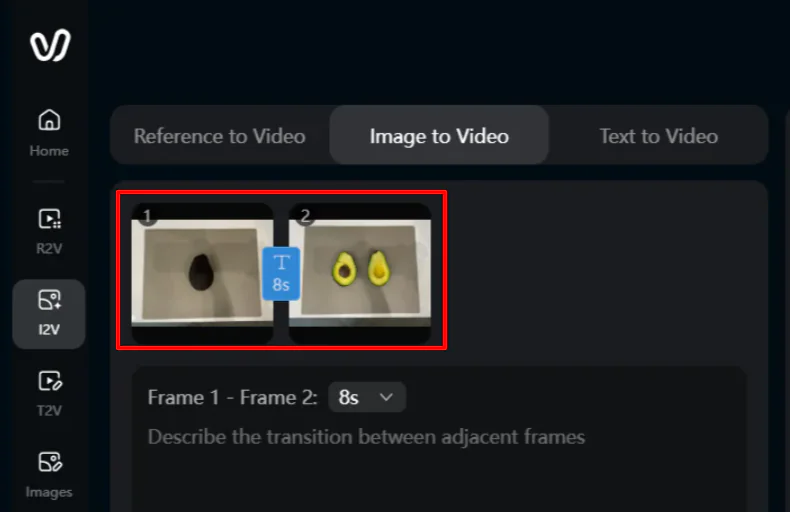
For my second workflow test, I uploaded an uncut avocado on a cutting board into the First Frame slot, and a photo of that same avocado split cleanly in half into the Last Frame slot (I took these with my phone).
By keeping the background, lighting, and cutting board identical in both photos, I forced Vidu’s Q3 engine to focus entirely on animating the physical transition of the avocado slicing open.
Step 8: Add a Prompt & Generate
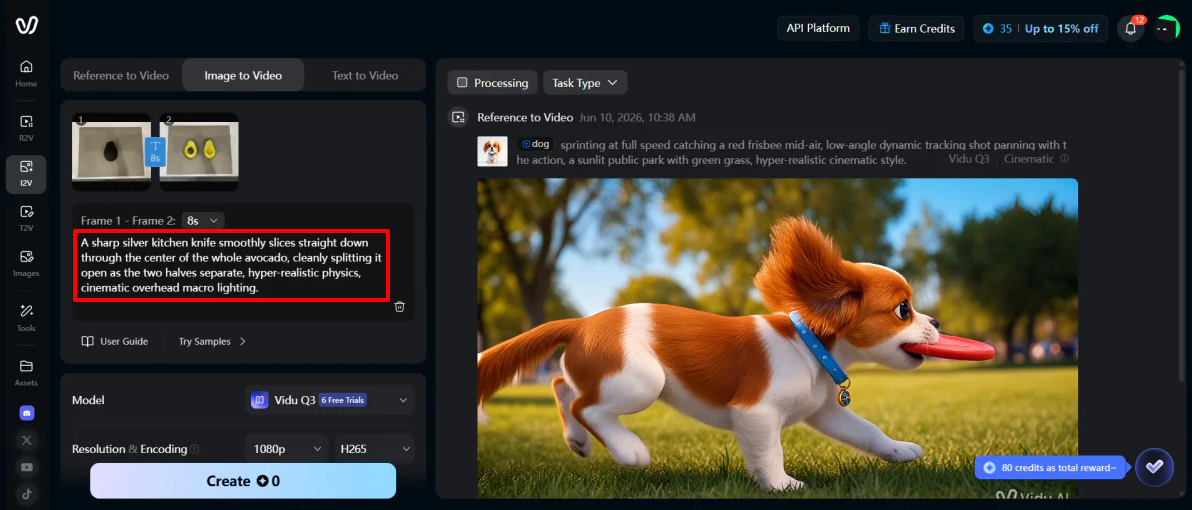
Next, I added my prompt:
“A sharp silver kitchen knife smoothly slices straight down through the center of the whole avocado, cleanly splitting it open as the two halves separate, hyper-realistic physics, cinematic overhead macro lighting.”
I kept the same settings as the Reference to Video I made and hit Create.
A few minutes later, my video was generated.
Pretty impressive! It matched my prompt and looked incredibly real, even down to the reflection of the avocado half on the knife.
But there were two areas where I noticed it fell short: it sliced the avocado down the middle (as the prompt stated), but completely ignored the pit (you have to cut around it in real life).
Also, there were some weird, grainy, patchy areas formed on the cutting board that got worse as the video went on.
So those are some of the features that come with Vidu AI, specifically the newest Q3 model. Despite some of these minor imperfections, I was impressed by how well it followed the prompt and turned a simple idea into a realistic video in just a few minutes.
Like any AI video generator, it’s not perfect. But the results are often good enough for content creation, marketing, and creative projects.
Top 3 Vidu AI Alternatives
Here are the best Vidu AI alternatives I’ve tried.
Kling AI
The first Vidu AI alternative I’d recommend is Kling AI. It quickly turns text or images into cinematic videos with realistic motion, sound, and even lip-synced dialogue.
Take a look at what I made using Kling:
At first, I couldn’t believe how real it looked.
Both tools are strong AI video generators that let you create short, high-quality clips without cameras or editing software.
However, Kling AI stands out for its more advanced motion control and better prompt accuracy for cinematic scenes. It also comes with useful features, such as multi-shot generation, built-in audio, and lip sync.
While Vidu AI has some of these things (such as high-quality video generation and built-in audio), Vidu AI is faster and more beginner-friendly. It leans more toward animation-style content, while Kling focuses on more cinematic, multi-shot scenes.
Choose Kling AI for more cinematic videos. Otherwise, choose Vidu AI for faster, simpler creation with templates.
Read my Kling AI review or visit Kling AI!
Hailuo
The next Vidu AI alternative I’d recommend is Hailuo. It’s a simple and fast video generator that turns prompts and images into cinematic short clips in just a few minutes. It’s especially popular for generating viral social media content.
Both tools are very easy to use and help create short, high-quality clips without traditional editing.
However, Hailuo stands out for its more natural motion, better prompt understanding, and cinematic feel that looks like it was actually filmed on set.
Meanwhile, Vidu offers more structured creation options like image-to-video, reference-to-video consistency, templates, and built-in sound effects. It gives you more tools to control the final output.
For realistic cinematic clips, choose Hailuo. For more structure, templates, and built-in sound, choose Vidu AI.
Read my Hailuo review or visit Hailuo!
Luma Dream Machine
The final Vidu AI alternative I’d recommend is Luma AI. I tested it by turning a product image into a cinematic video in just a few minutes:
It’s far from perfect, but it felt surprisingly realistic with very little effort.
Both tools make it easy to generate videos from text, images, or references without editing skills.
However, Luma AI stands out for its more lifelike motion, better scene understanding, and creative features, such as keyframes, loops, and prompt editing. It also feels more flexible for experimenting with ideas, especially if you want more control over the creative direction.
Meanwhile, Vidu AI has stronger anime and viral outputs.
If you’re interested in generating more cartoon-like/anime-style videos or short clips with more viral potential, choose Vidu AI. Otherwise, use Luma AI to generate realistic marketing videos for products.
Read my Luma AI review or visit Luma AI!
Vidu AI Review: The Right Tool For You?
After testing Vidu AI, I came away genuinely impressed with how quickly it turns simple ideas into high-quality videos.
The Reference to Video feature stood out the most. I was impressed to see that it actually kept characters consistent across scenes better than I expected. It even added realistic sound effects, which I initially did not expect.
What I liked most was how smooth the whole workflow felt. You can turn images into videos or build reference-based scenes in just a few clicks.
But it’s not flawless. When I tried more complex scenes like cutting an avocado in half, it struggled getting the physics and details right. It also leans heavily on how well you structure your prompt, and there’s no built-in timeline editor for fine-tuning scenes after generation.
Overall, Vidu AI is best if you’re trying to produce content quickly for social media, ads, or experiments. But if you want more control, you might want to consider one of these alternatives:
- Kling AI is best for cinematic storytelling and multi-shot scenes.
- Hailuo is best for short clips that feel realistic, especially for social media.
- Luma Dream Machine is best for creating realistic marketing videos for physical products.
Thanks for reading my Vidu AI review! I hope you found it helpful. Sign up for Vidu AI and get 20 credits free and 5 credits daily for logging in.
Frequently Asked Questions
Is Vidu AI free to use?
Yes, Vidu AI has a free plan with free credits. You can sign up for free and make videos from text, images, or references without paying up front.
Is Vidu AI a Chinese company?
Yes, Vidu AI is a Chinese company.
Is Vidu AI safe to use?
Yes, Vidu AI is safe to use and is a legitimate platform with millions of users worldwide.
Is Vidu worth it?
Yes, Vidu AI is a good choice if you want to create quick, stylized short videos with AI without spending much time editing.