
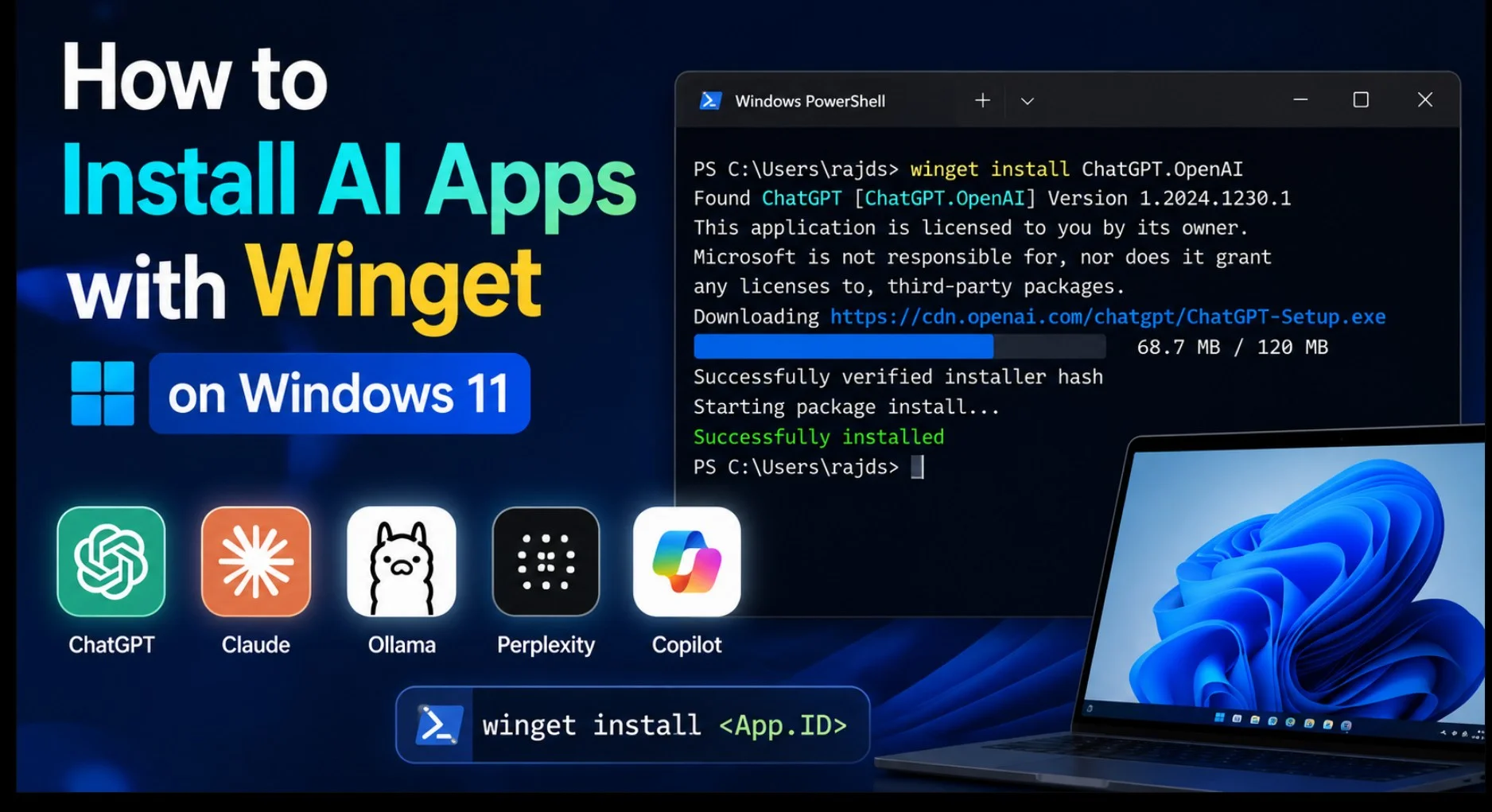
Installed a fresh copy of Windows 11 on your PC and are now thinking you need to spend the whole afternoon hunting down installers, then you should know why Winget is worth learning. Microsoft’s package manager ships built into Windows 11, and it turns “download the .exe, click through the wizard, uncheck the toolbar” into a single line you paste into your terminal.
The same trick works for AI apps. Whether you want Claude on your desktop, Ollama running local models, or LM Studio for offline chat, most of them install with one command. No browser, no publisher hunting, no wondering whether you grabbed the real download or a lookalike.
I’ve installed all of these on my own Windows 11 machine, and a few of them come with gotchas worth knowing before you run the command. Let’s go through it properly.
Why Use Winget for AI Applications?
Winget is the official Windows Package Manager, made by Microsoft and bundled with the App Installer on Windows 11 and modern Windows 10. That “official” part matters more than it sounds.
When you run winget install, you’re pulling the app from a verified manifest that points at the publisher’s real installer. You skip the search-engine ads, the fake download buttons, and the mirror sites that wrap installers in junk. For AI tools especially, where sketchy “ChatGPT” clones are everywhere, that verification is a genuine safety win.
A few other reasons it’s become my default:
- Speed. One command versus a five-step manual install.
- Silent installs. Add
--silentand it skips the click-through wizards. - Clean updates.
winget upgradehandles new versions without you visiting a single website. - Easy removal.
winget uninstallpulls the app cleanly. - Scriptable. You can install ten tools in one line, or save your whole setup to a file and replay it on a new machine.
For developers and anyone who rebuilds PCs often, that last point alone is worth it.
Before You Begin
First, confirm Winget is actually there. Open Windows Terminal, PowerShell, or Command Prompt and run:
winget --versionIf you see a version number, you’re set. If the command isn’t recognized, your App Installer is probably outdated. Open the Microsoft Store, search for App Installer, and update it. That fixes it in the vast majority of cases.
A few things worth knowing:
- Winget needs Windows 10 version 1809 (build 17763) or later. Windows 11 always qualifies.
- Most installs run fine without administrator rights, but a few (especially Docker Desktop) require an elevated terminal. If an install fails due to permissions, reopen your terminal as an admin and try again.
- Winget won’t appear until you’ve logged into Windows at least once, since the Store registers it in the background.
That’s the whole setup. Now the fun part.
Best AI Apps You Can Install with Winget
Every package ID below was verified against Microsoft’s official winget repository. Copy the command exactly, since IDs are case-sensitive.
| Application | Purpose | Winget Package ID | Install Command |
|---|---|---|---|
| Claude Desktop | Anthropic’s AI chat app | Anthropic.Claude |
winget install Anthropic.Claude |
| Claude Code | Anthropic’s terminal coding agent | Anthropic.ClaudeCode |
winget install Anthropic.ClaudeCode |
| Ollama | Run local LLMs | Ollama.Ollama |
winget install Ollama.Ollama |
| LM Studio | Desktop app for local models | ElementLabs.LMStudio |
winget install ElementLabs.LMStudio |
| Jan | Offline AI chat (local + API) | Jan.Jan |
winget install Jan.Jan |
| Perplexity | AI-Powered Answer Engine | Perplexity.Perplexity |
winget install Perplexity.Perplexity |
| Cursor | AI-first code editor | Anysphere.Cursor |
winget install Anysphere.Cursor |
| Google Antigravity | Agent-first dev platform | Google.Antigravity |
winget install Google.Antigravity |
| Upscayl | AI image upscaler | Upscayl.Upscayl |
winget install Upscayl.Upscayl |
| Visual Studio Code | An editor that hosts AI extensions | Microsoft.VisualStudioCode |
winget install Microsoft.VisualStudioCode |
A couple of notable absences, stated honestly so you don’t waste time hunting:
- The official OpenAI ChatGPT desktop app isn’t in the regular Winget catalog. It ships through the Microsoft Store, so its install is really a Store install:
winget install --id 9NT1R1C2HH7J --source msstore. Skip the third-partylencx.ChatGPTpackage, which is an unofficial browser wrapper.
Install Popular AI Apps Using Winget
1. Install Claude Desktop

Anthropic’s desktop app gives you Claude in a proper window instead of a browser tab.
winget install Anthropic.ClaudeHeads up on a common mix-up: Anthropic.Claude is the desktop chat app. The command-line coding agent is a separate package, Anthropic.ClaudeCode. People install one, expecting the other constantly. Both share the same claude.exe name, which occasionally confuses Winget’s tracking, so if winget list only shows one after installing both, that’s a known quirk, not a failed install.
2. Install ChatGPT (Using Winget via the Microsoft Store source)

ChatGPT is the one big AI app that installs a little differently. OpenAI doesn’t publish it to the normal Winget catalog — the official app lives in the Microsoft Store. Winget can still install it, though, because it reaches Store packages through the msstore source. OpenAI’s own documentation lists this exact command as a supported method, so it’s not a workaround:
winget install --id 9NT1R1C2HH7J --source msstore --accept-package-agreements --accept-source-agreementsThat long 9NT1R1C2HH7J string is the Store’s product ID for ChatGPT — Store packages use these codes instead of the friendly Publisher.App IDs you see elsewhere. For unattended or scripted installs, add --silent:
winget install --id 9NT1R1C2HH7J --source msstore --accept-package-agreements --accept-source-agreements --silentOnce it’s installed, launch it from Start and sign in. The handy trick worth knowing: press Alt + Space to summon the Companion Window from anywhere in Windows, so you can ask ChatGPT something without leaving whatever app you’re in.
3. Install Claude Code

Claude Code is Anthropic’s terminal-based coding assistant. It reads your project files, runs commands, and handles Git workflows from the command line.
winget install Anthropic.ClaudeCodeThe Winget package installs a native binary, so you don’t need Node.js. Worth knowing: Winget installs don’t auto-update. Anthropic’s docs are explicit about running winget upgrade Anthropic.ClaudeCode periodically. The first time you launch it, you’ll sign in with your Anthropic account.
4. Install Ollama

Ollama is the easiest way to run large language models locally. Everything stays on your machine, which means privacy and no API bills.
winget install Ollama.OllamaOnce installed, pull a model from your terminal:
ollama run llama3.2That downloads the model and drops you into a chat prompt. Ollama runs a local service at http://localhost:11434, so other apps can talk to it. Start with a smaller 3B-to-7B model if you’re on a laptop; the giant ones will crawl without a strong GPU.
5. Install LM Studio
If you’d rather click than type, LM Studio is Ollama’s graphical cousin. It’s a desktop app for discovering, downloading, and chatting with local models, no terminal required.
winget install ElementLabs.LMStudioNote the publisher ID is ElementLabs.LMStudio, which trips people up since they expect “LMStudio” as the first part. After installation, open it, browse the in-app model catalog, and download whatever fits your hardware.
6. Install Jan
Jan is a clean, open-source alternative to LM Studio. It runs models like Llama and Mistral fully offline, and it can also connect to remote APIs like OpenAI if you want both in one place.
winget install Jan.JanIt’s a good pick if you want a privacy-first ChatGPT-style interface without a cloud account. Everything runs locally by default.
7. Install Perplexity
Perplexity is an AI answer engine — a search-focused assistant that gives sourced, cited answers rather than a plain chat window. The official desktop app puts it in its own window with quick-access shortcuts.
winget install Perplexity.PerplexityDon’t confuse it with Perplexity.Comet, which is Perplexity’s separate web browser, or the various third-party clients that merely tag themselves “perplexity.” The Perplexity.Perplexity ID is the official desktop app.
8. Install Cursor
Cursor is an AI-first code editor built on VS Code’s foundation, with chat, autocomplete, and agentic editing baked in.
winget install Anysphere.CursorThe publisher is Anysphere, hence the ID. On first launch, Cursor offers to import your existing VS Code extensions, themes, and keybindings, so the switch is painless. One field note: if the install ever reports success but the app doesn’t appear, a security tool blocking downloads.cursor.com is the usual culprit.
9. Install Google Antigravity
Antigravity is Google’s agent-first development platform, where AI agents plan and execute coding tasks across an editor, terminal, and browser.
winget install Google.AntigravityOne thing to know before you install: Google recently reshuffled this branding. The current Google.Antigravity package is the newer standalone agent platform, while the original tool was renamed “Antigravity IDE.” Because that transition is still settling, double-check which one you’ve got after installing (the splash screen tells you), and expect the package to shift as Google finalizes the naming.
10. Install Open WebUI
Open WebUI is a self-hosted, browser-based AI chat interface — think of it as a private ChatGPT–style front end that runs on your own machine and connects to local models (via Ollama) or any OpenAI-compatible API.
winget install OpenWebUI.OpenWebUIThat installs the Open WebUI desktop build. Heads up: it’s an early release (0.0.20 at the time of writing), so expect it to evolve quickly. It pairs naturally with Ollama — install Ollama.Ollama first to run models locally, then point Open WebUI at it. Note there’s also a server version of Open WebUI installed via pip or Docker; that’s the heavier, multi-user route, while the winget package is the quick desktop path.
11. Install Upscayl
Not a chatbot, but a genuinely useful AI tool: Upscayl enlarges and enhances low-resolution images using AI models, all locally.
winget install Upscayl.UpscaylOne requirement worth checking first: Upscayl needs a Vulkan-compatible GPU. Many integrated graphics chips won’t work, though there’s no harm in trying. It’s free, open-source, and great for rescuing old photos.
12. Install Visual Studio Code
Not an AI app on its own, but it’s the home base for most AI coding work, thanks to extensions like Claude, Copilot, and Continue.
winget install Microsoft.VisualStudioCodeOnce it’s in, install your AI extension of choice from the Extensions panel, and you’re coding with assistance in minutes.
A note on AnythingLLM
You’ll see AnythingLLM in a lot of Winget lists, and the package (MintplexLabs.AnythingLLM) does technically exist. In practice, I’d steer you away from installing it this way. The Winget manifest lags far behind the actual app, and the install frequently fails at the download step because the publisher’s installer link doesn’t cooperate with Winget. For AnythingLLM specifically, grab the installer from the official site (anythingllm.com) or run it via Docker, which is what the project itself points people to.
These aren’t AI apps in their own right, but they’re the tools most AI work sits on top of, and they each install with one Winget command. I’m labeling them separately so the distinction is honest: a code editor or a Python runtime isn’t “an AI app”; it’s what you run AI tools inside or on top of.
| Tool | Why is it useful for AI work | Install Command |
|---|---|---|
| Python 3.13 | Runtime behind nearly every AI/ML library | winget install Python.Python.3.13 |
| Miniconda | Lightweight Python + environment manager for ML | winget install Anaconda.Miniconda3 |
| Anaconda | Full data-science Python distribution | winget install Anaconda.Anaconda3 |
| Docker Desktop | Many AI tools ship as containers | winget install Docker.DockerDesktop |
| Git | Version control for any coding project | winget install Git.Git |
| Windows Terminal | A far nicer place to run all these commands | winget install Microsoft.WindowsTerminal |
| Obsidian | Markdown notes with a big ecosystem of AI plugins | winget install Obsidian.Obsidian |
| PowerToys | Power-user utilities; its Advanced Paste has an optional AI paste mode if you add an OpenAI key | winget install Microsoft.PowerToys |
A couple of honest caveats: Python packages in Winget are version-specific (there’s no reliable generic Python.Python.3), so name the version you want. And PowerToys earns its place here on utility alone; its only “AI” feature is one optional paste mode, so don’t install it expecting an AI app.
How to Find More AI Apps in Winget
The list above isn’t everything. The AI tooling space moves fast, and new apps land in Winget constantly. The fastest way to see what’s available right now is to search by tag:
winget search --tag aiThat returns every package the maintainers have tagged with “ai,” which surfaces tools that don’t show up in a plain name search. It’s the single most useful command in this whole article for discovery, since it stays current without anyone updating a list.
You can also search by keyword when you know roughly what you want:
winget search llm
winget search "image upscale"
Always grab the value from the ID column, not the display name. The display name has spaces and won’t work as an install target; the ID will. If you’re curious about a package before committing, winget show prints the publisher, version, and installer details so you can confirm it’s the real thing.
How to Update All Your AI Apps
To see what updates are waiting:
winget upgradeThat lists every upgradable app, including ones you didn’t install through Winget. To update a single app:
winget upgrade Anthropic.ClaudeCodeOr update everything at once:
winget upgrade --allI run winget upgrade --all every couple of weeks, it keeps the whole toolkit current in one shot. Just remember some AI apps (Claude Code included) only update through this command, not on their own.
How to Uninstall AI Apps
Removing an app is just as clean. Use the ID to be precise, which avoids ambiguity when names overlap:
winget uninstall ElementLabs.LMStudioNote that uninstalling won’t always wipe config folders or downloaded models. With Ollama, for instance, your pulled models linger in your user folder, so clear those manually if you’re reclaiming disk space.
Common Winget Errors (and Fixes)
“No package found matching input criteria.” Usually, a stale source cache. Refresh it and retry:
winget source updateAlso, double-check the ID’s spelling and capitalization.
“A source is unavailable.” Reset your sources to defaults:
winget source reset --forcePermission or elevation errors. Reopen Windows Terminal as administrator. Machine-wide installs like Docker need it.
Download failures mid-install. Almost always a network issue, sometimes a corporate proxy, VPN, or antivirus is blocking the publisher’s download server. Cursor and AnythingLLM are common victims of this. Retry on a clean connection.
Microsoft Store dependency. A few packages (including the official ChatGPT app) come from the msstore source, not the main repo. Those need the Store working and your account signed in.
Winget not recognized at all. Your App Installer is outdated. Update it from the Microsoft Store, or grab the latest release from Microsoft’s official GitHub.
Tips for Power Users
Install several tools in a single command by listing IDs with spaces:
winget install Ollama.Ollama ElementLabs.LMStudio Jan.JanSetting up a new machine? Export everything you’ve got installed to a file:
winget export -o my-ai-apps.jsonThen, on the new PC, replay the whole list:
winget import -i my-ai-apps.jsonKeep that JSON in your cloud drive, and a fresh Windows install goes from bare to fully loaded in one command. One caveat from the field: very large import files sometimes only check for upgrades instead of installing, so if it stalls, split the list into smaller batches. For genuinely reproducible dev environments, look into winget configure with a YAML file, which handles settings and dependencies too.
Frequently Asked Questions
Sort of. OpenAI’s official app isn’t in the standard Winget catalog; it lives in the Microsoft Store. You can install it via the Store source with winget install --id 9NT1R1C2HH7J --source msstore. Avoid third-party “ChatGPT” packages, since they’re unofficial wrappers.
Yes. Run winget install Anthropic.Claude for the desktop app. Just don’t confuse it with Anthropic.ClaudeCode, the separate command-line coding tool.
Absolutely. winget install Ollama.Ollama grabs Ollama, and Jan (Jan.Jan) and LM Studio (ElementLabs.LMStudio) install just as easily for running models locally.
Run winget search --tag ai. It lists every package tagged as AI-related, which is the best way to discover new tools without relying on a hand-maintained list.
Not on a schedule by itself. You run winget upgrade --all to update everything on demand. Some apps like Claude Code specifically require this manual step, since they don’t self-update when installed through Winget.
Yes. It’s Microsoft’s official package manager and installs from verified publisher manifests, which is far safer than random download sites. The main caution is sticking to official package IDs rather than lookalike community packages.
Wrapping Up
Once Winget clicks for you, going back to manual installers feels genuinely tedious. For AI apps in particular, it solves two problems at once: it saves you time, and it keeps you away from the fake-download minefield that surrounds popular tools like ChatGPT and Claude.
My honest advice: install your core AI stack with the commands above, run winget search --tag ai whenever you want to see what’s new, and get in the habit of running winget upgrade --all every week or two. And if you ever rebuild your PC, that exported package list will have you back up and running in minutes instead of an afternoon.


