Those of you who have taken advantage of the best ChatGPT plugins may know that AI chatbots can become very powerful and perform a wide variety of functions. While looking for what else this AI chatbot can do, I stumbled across another plugin that allows you to create videos directly within ChatGPT itself. And when we say video, we mean full-fledged AI videos with stock footage, narration, and even subtitles. So, for those interested in creating videos with ChatGPT, let’s dive right in.
Step 1: Install Visla ChatGPT Plugin
The first thing you need to do is install the Visla plugin, the main driver for creating videos in ChatGPT. But keep in mind that for that you need to enable and learn how to use the ChatGPT plugin. Once done, follow these steps:
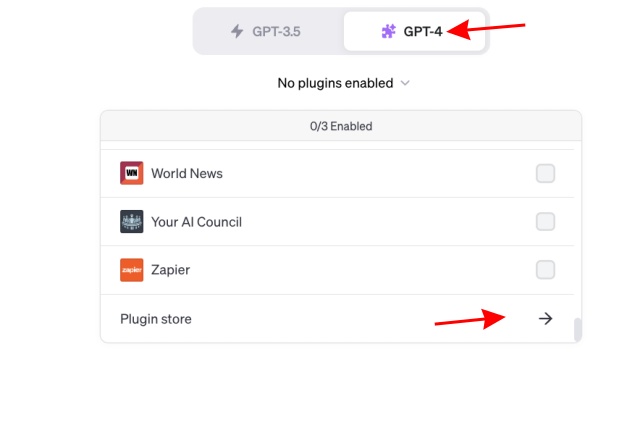
- On the ChatGPT main screen, click the Plugins drop-down menu and selectplugin store”

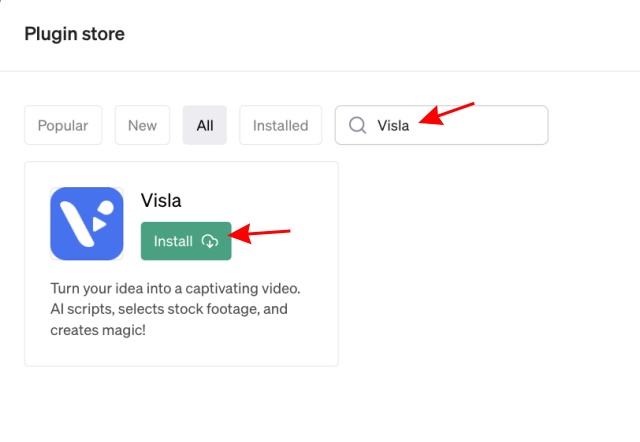
- Type “” in the plugin store.Vislain the search box and click .install” button.

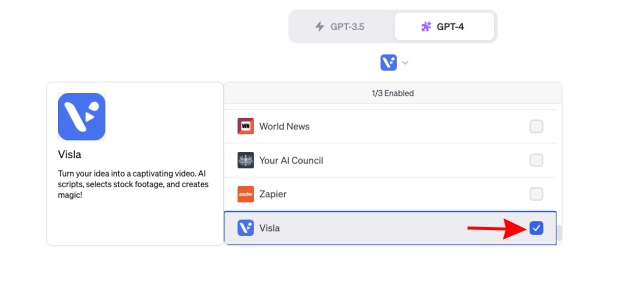
- Finally, select Visla as the main plugin from the GPT-4 dropdown menu and follow the steps below.

Step 2: Plan and produce your video with Visla
- Activate the Visla plugin in ChatGPT 4 and enter the following prompts:
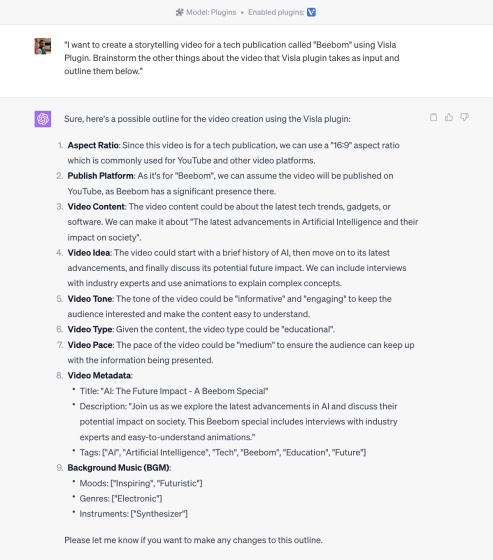
“I want to make a storytelling video [Insert Topic] Use the Visla plugin. I’ve brainstormed other things about the video that the Visla plugin takes as input, and I’ve outlined them below. ”
- This prompts ChatGPT to create an outline for the requested video. As you can see, it’s pretty detailed. Please check the contents and request changes if necessary.

- If all is well, enter the following prompts:
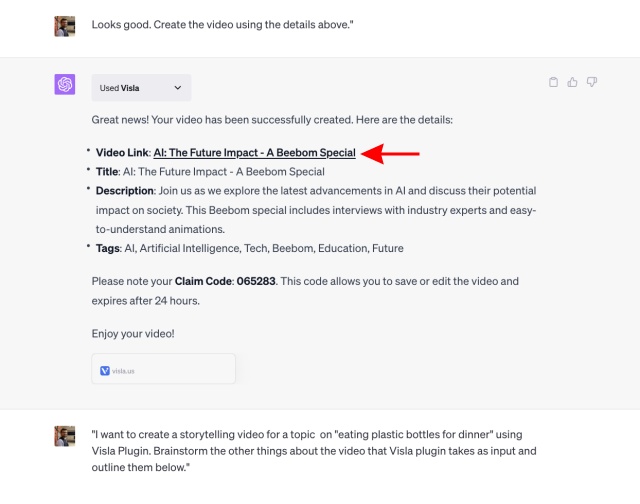
“This looks good. Please make a video using the details above.”
- Visla will generate the video and display the link. Clicking on the video link will take you to the AI video on a new page.

- The link you open will host the video and its transcript. You can easily play videos. Narrations and videos contain copyrighted sounds that can be removed by asking Visla Premium to remove them.

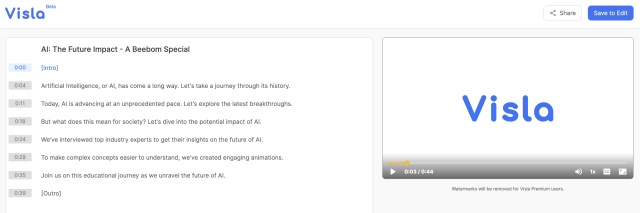
- You can now choose to export videos using free stock footage or get a premium subscription to access Storyblocks’ video and sound library.
Creating a video with ChatGPT is very easy. Note that you can do this with any type of topic, as long as you explain and modify it as needed.
Creating videos with Visla AI: first impressions
We examined a series of videos generated on various topics using ChatGPT together with Visla AI. The AI video you see below is one such piece that the ChatGPT plugin sent me. The output is decent considering the entire video was generated with just one prompt of him from my side. The narration could certainly be better, but it’s good enough for short videos.

As you may have noticed, in the video Use free stock footage combined with narration. Visla AI also offers a premium subscription, giving users access to a premium stock footage library and improved audio and text production limits.planning begins Only $19/month. For more information, please visit Visla AI’s official website.