
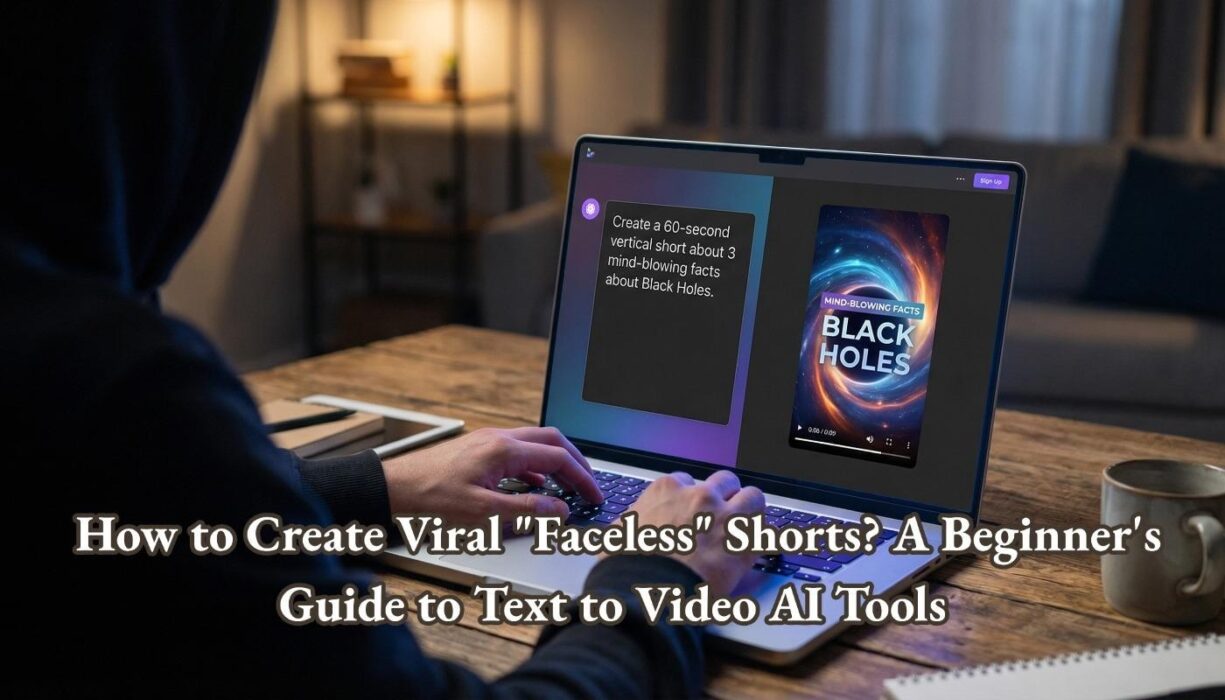

introduction
Have you ever wanted to start a YouTube channel or grow your TikTok following, but the thought of getting in front of the camera makes you freeze? Or do you have a great idea but don't have the thousands of dollars needed to set up a professional camera, lights, and microphone?
you are not alone. And more importantly, you no longer need to let those barriers get in your way.
We are currently witnessing a major shift in content creation. The rise of generative AI has ushered in a new era of “faceless channels.” This is an account that generates millions of views without the creator ever showing their face. What is the secret weapon behind this phenomenon? Text to video technology.
This comprehensive guide takes away the complexity. We'll show you exactly how to turn a simple sentence (script or idea) into a professional, engaging video in minutes. After completing this tutorial, you'll have the ability to create AI videos from text and add high-quality content to your social feeds on autopilot.
Take a peek into the future of video production.
Understand the power of Text to Video AI tools
Before we get into the buttons and settings, it's important to understand what the AI Text to Video Tool actually does.
In the past, video production was a linear and expensive process: write the script, hire actors, shoot, edit the footage, add narration, then render.
text to video This technology compresses this entire workflow into a single click. These advanced AI models (such as InVideo AI, Runway, and Fliki) analyze text prompts to understand context. Then, automatically:
1. Generate the script. If you don't have it, the AI will create it for you.
2. Select stock media: AI examines millions of royalty-free clips and images that match your keywords.
3. Add narration: Apply human-like AI voices to narrate your text.
4. Sync and edit: Cut your video to the beat of background music and automatically add subtitles.
Why is this a game changer for TeknoBird readers?
● speed: What used to take 5 hours now takes 10 minutes.
● Fee: Most tools offer free trials or affordable slots compared to hiring an editor.
● Scalability: You can run 5 different TikTok channels in 5 different niches at the same time.
Step-by-step guide: How to generate video from text
This tutorial focuses on real-world scenarios. Creating a “faceless” educational short film for TikTok/Reels about “Space Facts”.
Use common workflows for top-level generation tools (such as MindVideo AI). This is currently one of the most accessible ways for beginners to get started.
Step 1: Define your niche and create a prompt
The quality of the output is 100% dependent on the quality of the input. Most beginners fail because they write vague prompts like “Create a video about space.” To get viral-worthy results, you need to be specific.
Prompt expression:
[Topic] + [Platform/Format] + [Tone/Style] + [Voice Preference]
Example prompt:
“Create a 60-second vertical short for TikTok that features three surprising facts about black holes. Keep the language simple and evocative. Use a deep, energetic American male voice. Add subtitles in the center.”
Being specific allows the AI Text to Video Tool to instantly choose the right aspect ratio (9:16) and the right footage style.
Step 2: Sign up and choose your workflow
1. Go to the website of your Text to Video platform of choice.
2. Sign up (usually involves a one-click login through Google).
3. In the dashboard, look for the option labeled “Text to Video,” “AI Text to Video,” or “Create New AI Video.”
[Possible Screenshot: Showing the dashboard interface with the ‘Create New’ button highlighted]
Note: Some platforms offer different modes. Be sure to select the “Generative Video” mode, not just the standard video editor.
Step 3: Enter scripts and configure settings
[作成]Click to display a command box (similar to ChatGPT).
1. Paste the prompt. Copy the text from step 1 into the box.
2. Select a workflow: When the tool asks, select the “YouTube Shorts” or “TikTok” setting. This makes the aspect ratio vertical (9:16).
3. Advanced settings: Some tools allow you to preload assets. If you have a specific logo or intro image you'd like to include, please upload it here. However, for pure text-to-video workflows, you typically want AI to handle everything.
Step 4: Generate and preview draft
Click. “Generate video” button.
Now, wait. AI processing typically takes 1-3 minutes. During this time, the engine synthesizes the narration, matches keywords like “black hole” against the stock library, and animates text overlays.
Once completed, you will see a preview of the video. Please watch till the end.
What to look for:
●Isn't the pace too slow?
● Are the clips related? (Example: Did you see a donut instead of a black hole?)
●Is the pronunciation of technical terms correct?
Step 5: Edit and adjust output
AI rarely delivers a 100% perfect video on the first try. You become the director here.
Most modern Text to Video tools allow you to edit using text commands. This feature is better known as “magic editing.”
Example of modification:
● problem: This video shows a photo of a typical star, not a black hole.
● repair: Type the following in the edit box: “Change the footage in the second scene to an animation of a swirling black hole.”
● problem: The music is too sad.
● repair: Instructions: “Change the background music to bright synthwave.”
This step is very important. to Create AI video from text To actually get views, you need to turn your AI rough draft into a polished gem.

(alt: edit and adjust output)
Step 6: Export and download
Once you're satisfied with the preview, do the following:
1. Click Export.
2. Select 1080p (always choose a high resolution; TikTok and YouTube's algorithms penalize low-quality 720p videos).
3. Watermark: If you are using the free version, you may see a watermark. This is fine for personal testing. If you have a professional channel, consider upgrading to remove it.
4. Download the MP4 file to your device.
3 pro tips to optimize your AI videos
Now that you understand the basics, how can you stay ahead of the competition? Here are three optimization techniques that top creators use when using AI Text to Video tools.
Tip 1: It’s all about the “hook”
Audience retention is the most important metric on social media. The AI might generate a standard intro like “Hello, today we're going to talk about space.” This is boring.
optimization: Manually edit the script in the first 3 seconds. Use “hook”.
● bad: “This is a fact about the universe.”
● good: “You wouldn't believe what would happen if you fell into a black hole.”
Force Text to Video tools to start instantly with impactful visuals.
Tip 2: Customize your voice for empowerment
Although text-to-speech (TTS) voices for robots have improved, viewers still prefer personality. Many tools allow you to “clone” your voice or choose a “hyper-realistic” voice.
If you're creating a technical tutorial, choose clear, crisp audio. If you're creating a scary story video, choose a slow, low-pitched audio. Matching the mood of the audio and the visual content is a hallmark of professional video.
Tip 3: Combine AI and human elements
The best way to create an AI video from text is do not have It's perfectly clear that they are AI.
optimization:
● Add your own custom branding or intro/outro.
●Uses the trendy “B-roll”. If you have a popular meme, manually upload the image to the AI tool and mix it with AI stock footage. This hybrid approach keeps your audience engaged because it feels culturally relevant.

(Alternative: Combining AI and human elements)
Conclusion and breakdown
The barrier to entry for video creation has become virtually zero. We've moved from a world where video production required expensive equipment and years of editing experience to one where all you need is a creative idea and the right AI Text to Video Tool.
Whether you want to build a faceless YouTube empire, market your small business, or just create cool content for your friends, this technology is at your fingertips.
Let's summarize the homework:
1. Idea: Consider your niche (technology, history, horror, motivation).
2. prompt: Create a specific script or creative prompt.
3. Generate: Create AI videos from text using tools.
4. Refine: Edit footage to ensure relevancy.
5. post: Upload it to TikTok or YouTube Shorts.
The only thing missing now is your creativity. Why not open a new tab and generate your first video today?
FAQ: Frequently asked questions about Text to Video AI
Q1: Are videos generated by AI copyright free?
Generally yes. Most paid subscriptions to Text to Video platforms include licenses for the stock footage and music used. However, if you use the free version, you may not have commercial rights to monetize your videos on YouTube. Be sure to check the “Terms of Use” for the specific tool you are using.
Q2: Can I use these tools on my mobile phone?
yes! Many platforms clearly understand the mobile-first world. Some have dedicated apps (available in APK or App Store), while others have responsive web browsers that allow you to generate videos directly from your smartphone's browser.
Q3: Will channels using AI be banned from YouTube?
No, YouTube does not ban AI content. However, they recently introduced a policy that requires creators to label their content as “synthetic” or “AI-generated” if it depicts a realistic scene. AI-generated content can be monetized as long as it is transparent and the content provides value (entertainment or education).
Q4: What is the learning curve for the Text to Video tool?
Incredibly low. If you can send a text message or compose an email, you can use these tools. The “Prompt-to-Video” interface is specifically designed for non-technical users. You should be able to get used to the basic workflow within 15 to 30 minutes of experimenting.
Learn more: Our Resorts – Curated Resort Experiences for Every Traveler
More information: IPTV Sweden – Sweden's best IPTV provider with local and international channels
See more: lil Pepe – Lil Pepe builds momentum among the next generation of crypto communities


