

Advances in artificial intelligence have made the creation of generative videos and motion-tracking video elements so easy that they can be completed in the blink of an eye. With these advancements, you can create AI video avatars that speak to you from a still photo, as if it were the first recorded one. In this article, we will take a closer look at such AI tools. Additionally, you can learn how to use AI to remove and replace video backgrounds.
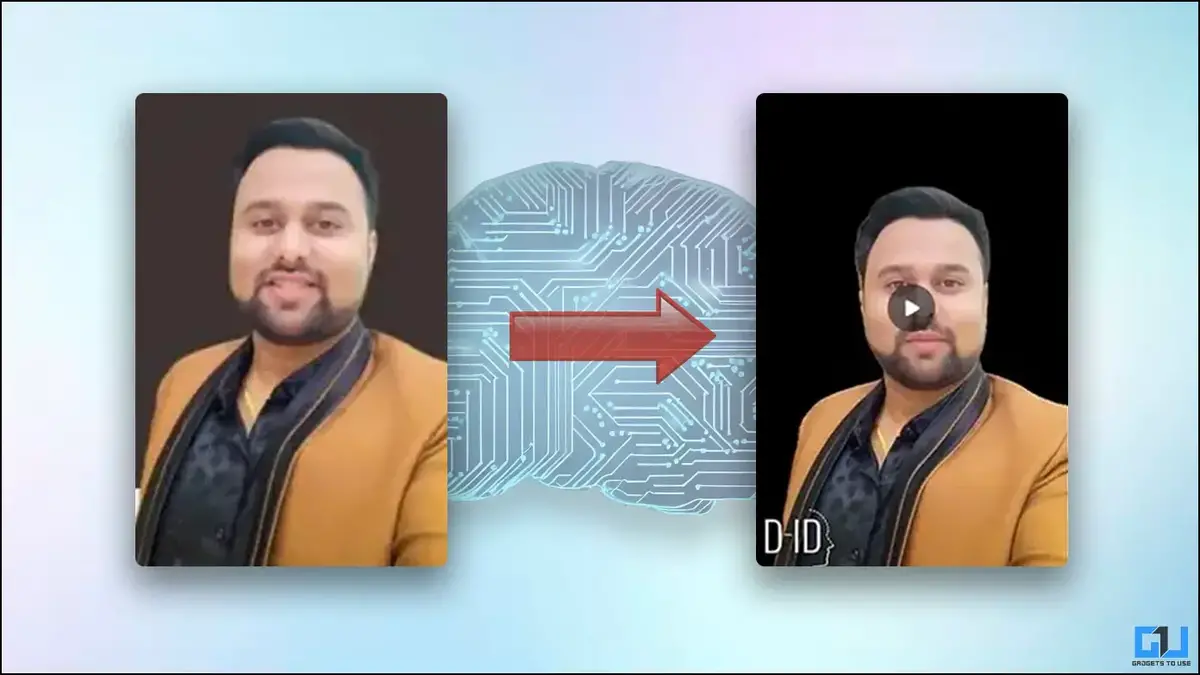
How to create an AI avatar video
Thanks to free online AI tools, it’s easy to create an AI avatar video that speaks to you from a static image. Upload your image to the AI tool, select your desired preset and wait for the magic to work.
AI instantly generates stunningly accurate and lifelike looking avatar video talks. Once generated, you can use it in various video projects and YouTube videos to reach out to your audience and followers. Below, we describe such an AI tool after testing.
Method 1 – Create an AI Avatar Video Using Canva
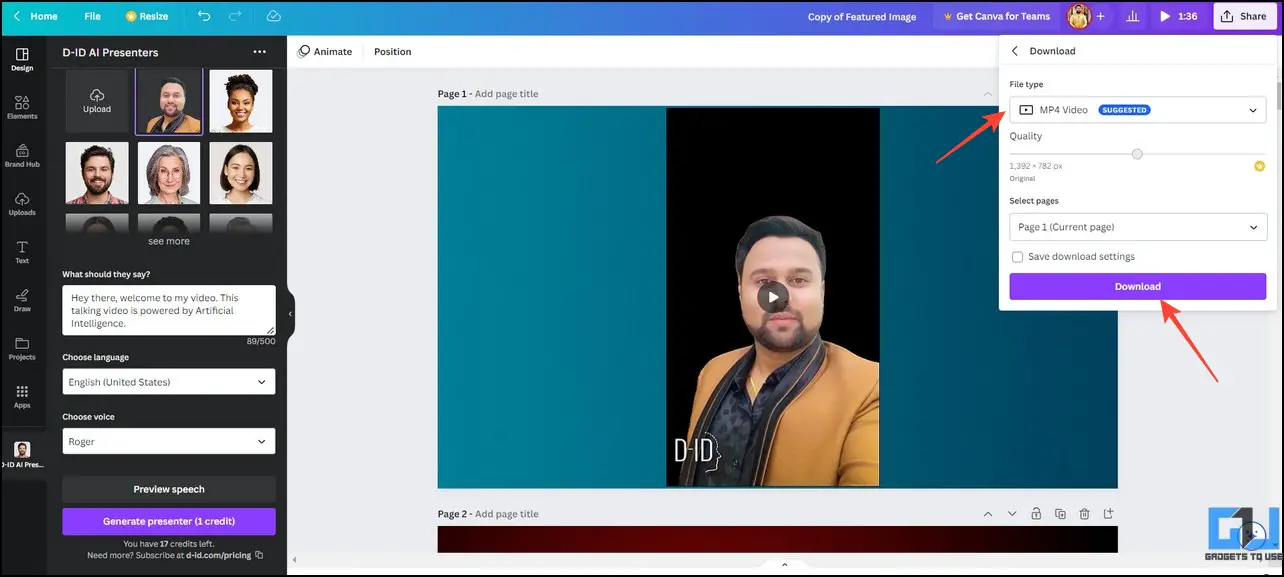
Canva is a popular online tool for creating or editing images. A new update allows you to link a range of apps to your Canva account, allowing users to implement AI into their project drafts. D-ID AI Presenter is an app that allows users to create AI avatar videos in her Canva workspace. Here’s how to set it up and use it in Canva.
1. Sign in to your Canva account and app.
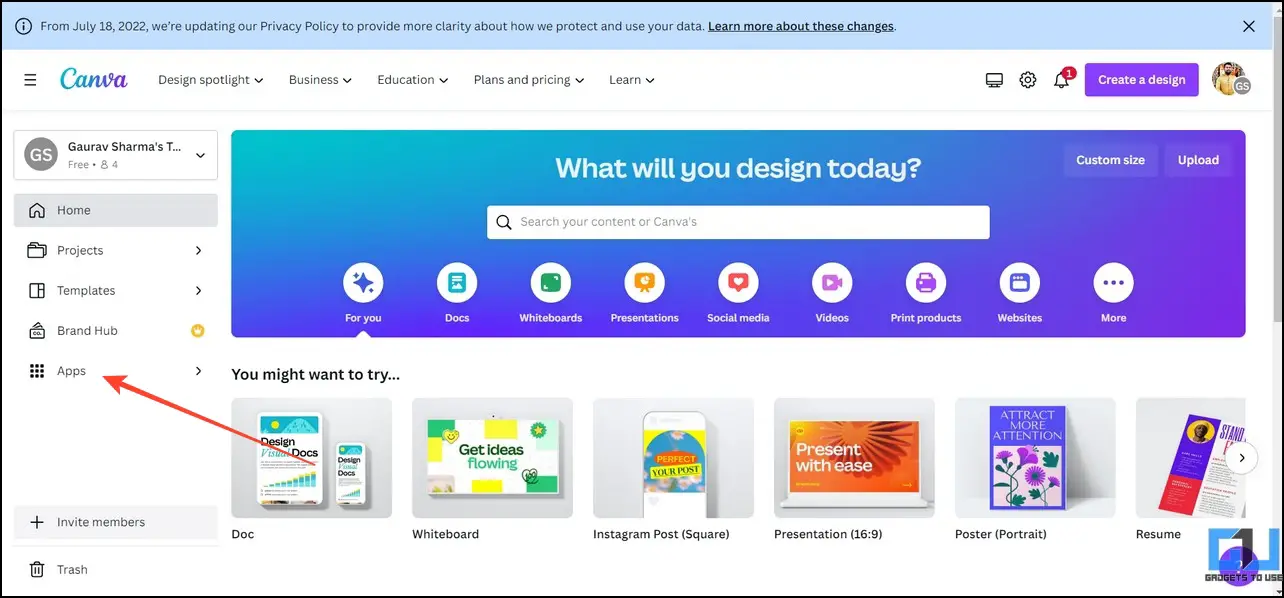
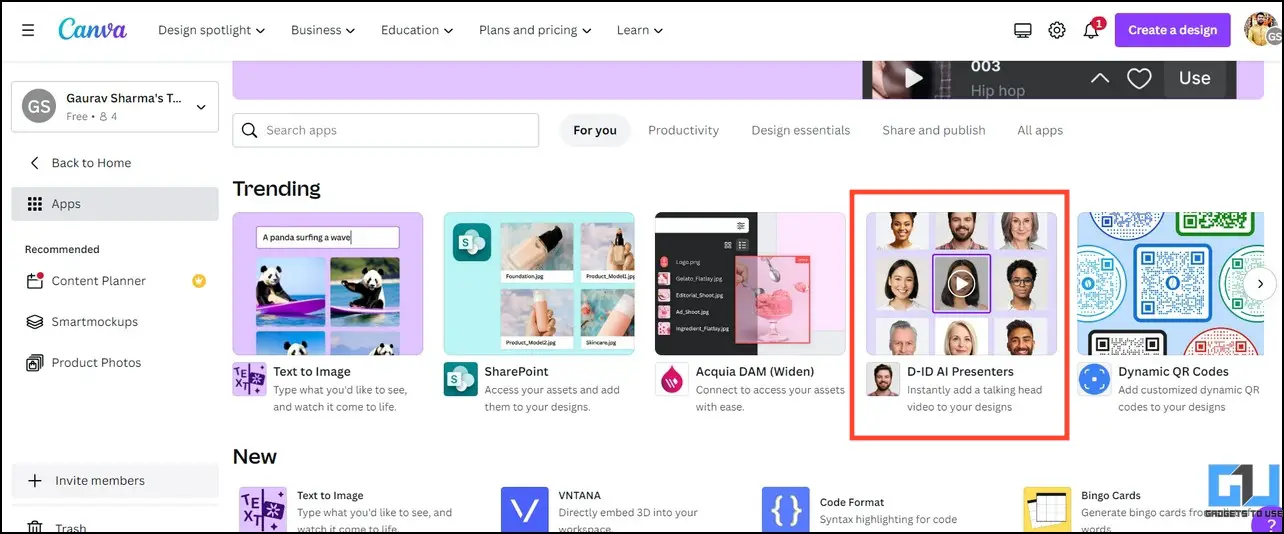
2. Refer to the list on the right to D-ID AI Presenter Click to add it to your workspace.
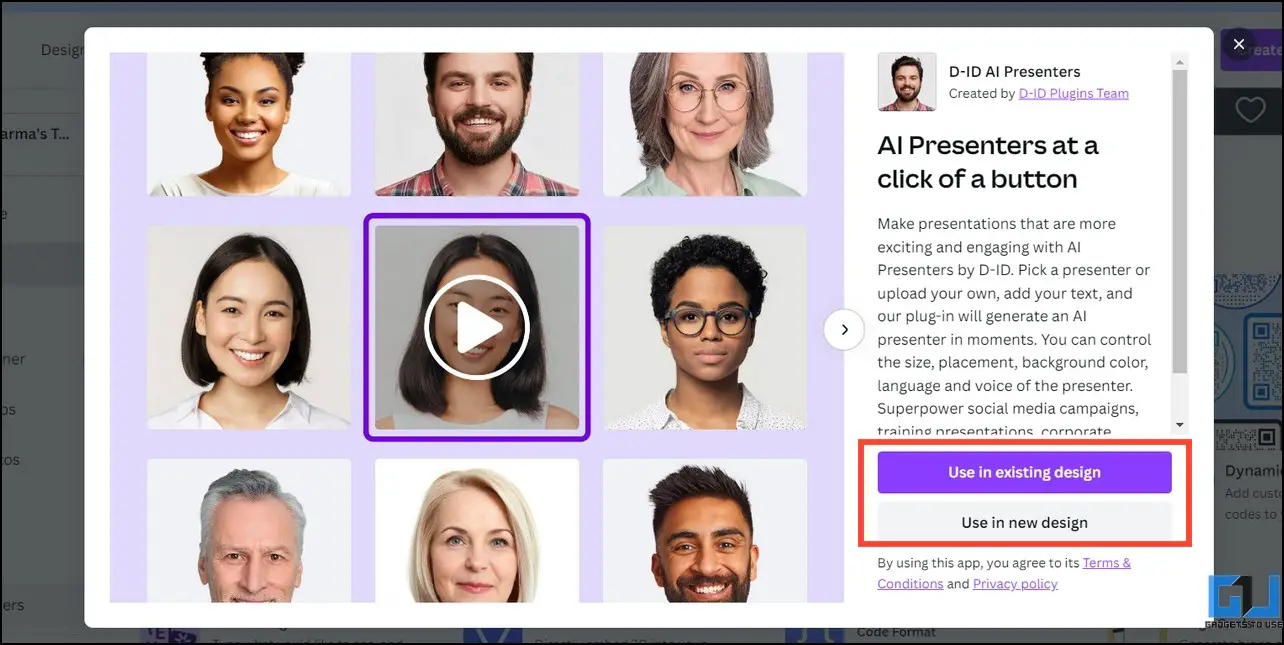
3. click use an existing design Select dimensions for an existing project or start a project from scratch. Use in new designs button.
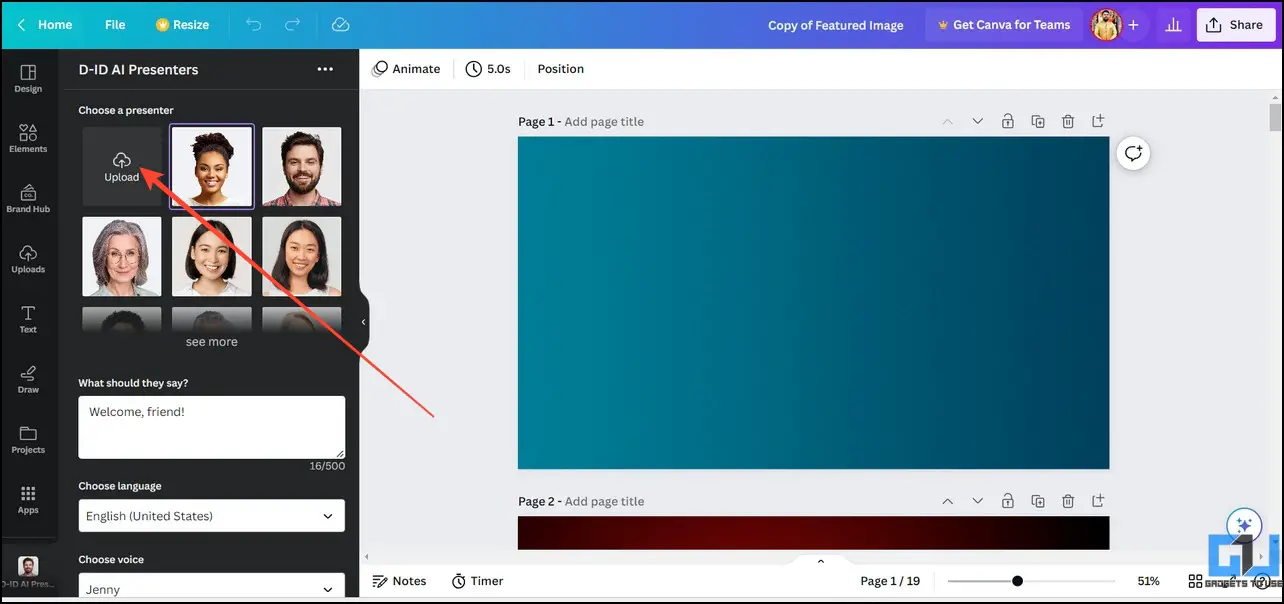
Four. Then click upload Click to import your still image into Canva.
Tips: For best results, remove the background from your selected photo so your face is clearly visible.
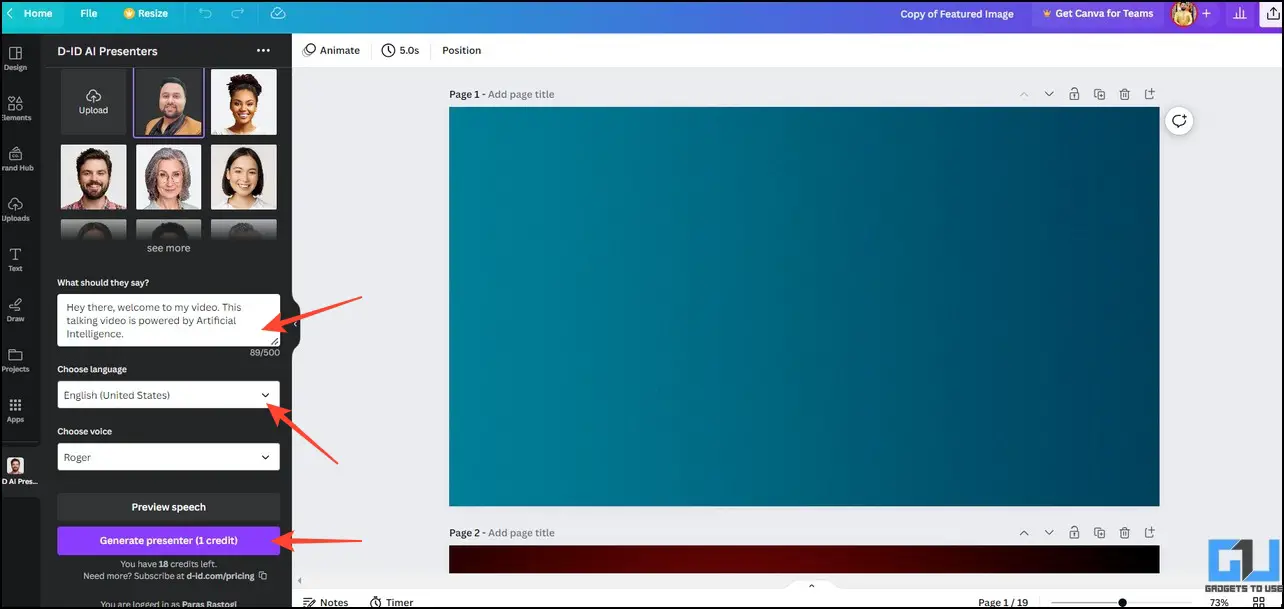
Five. Select the uploaded photo, Text description For video, select your preferred language and voice to generate a video avatar.click Generate Presenter Click the button to process.
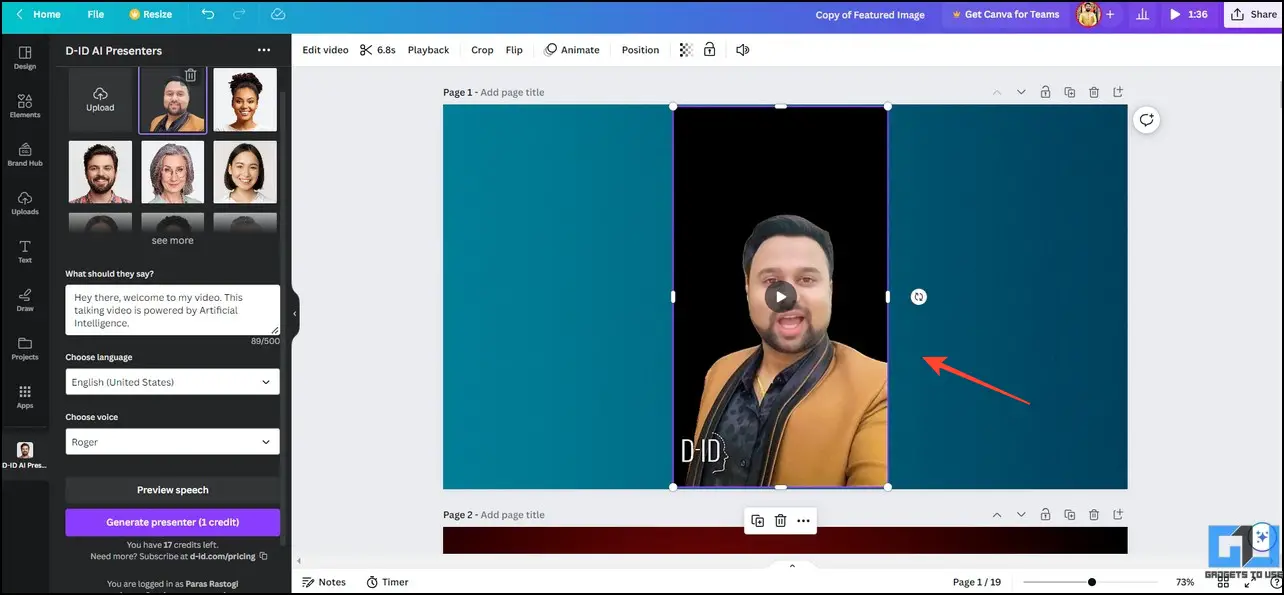
6. Place the video avatar on the canvas and click. play Click to preview.
7. finally click share Press on the top right to download.
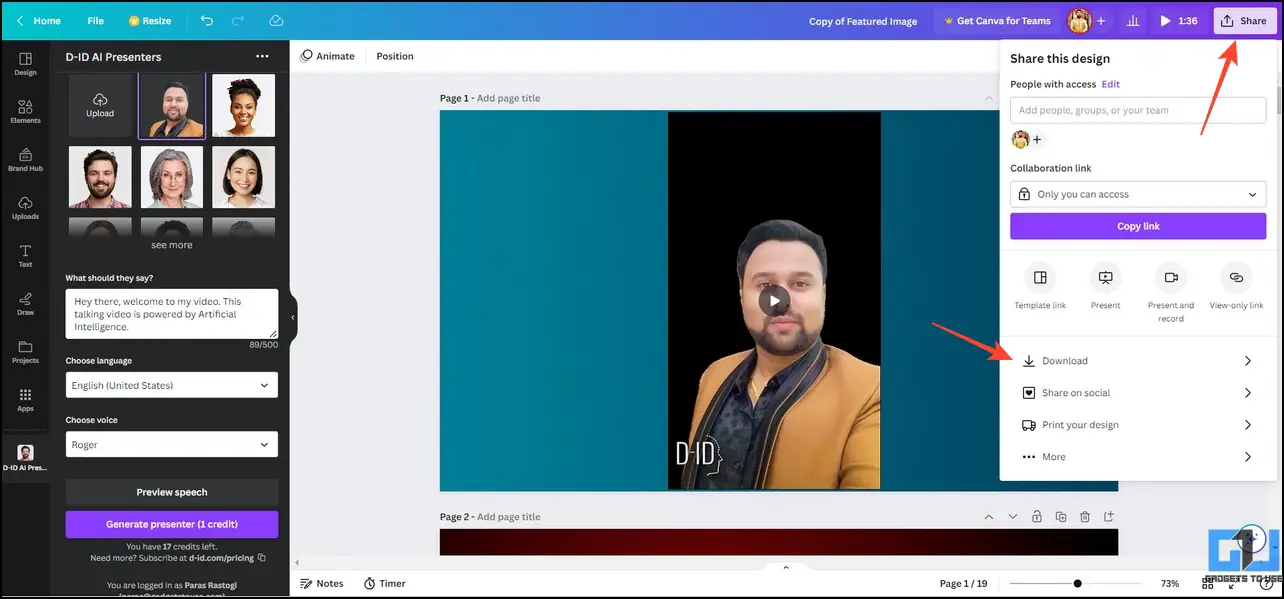
8. Select your desired video format and click download Save to your device.
Strong Points
- Simple and easy-to-use UI
- Combines the features of both Canva and DID Presenter in one place
Cons
- 20 credits for free plan
- Text-to-speech is limited to 500 words on the free plan.
- The generated video will have a watermark
Method 2 – Create your own AI avatar video using D-ID Studio
In addition to integrating the D-ID Presenter app into Canva, you can directly access the online D-ID Studio to create your own AI video avatar from still images in seconds. To create your avatar, follow these steps:
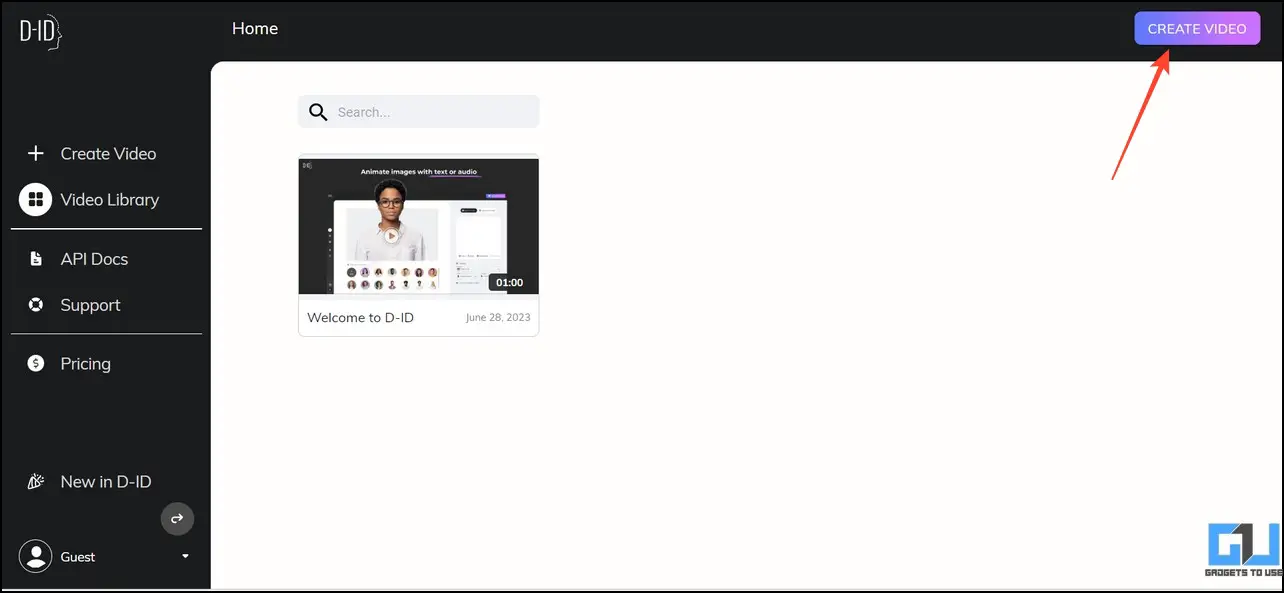
1. Open D-ID Studio and click . make a video Start a new project.
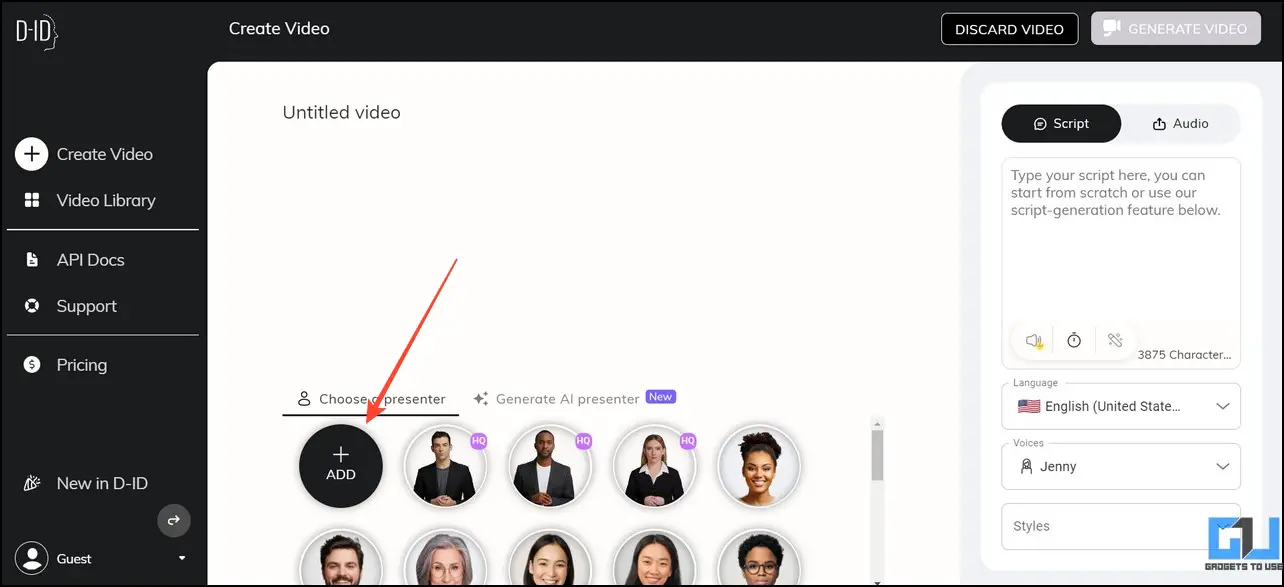
2. Go to the Presenters section and click addition Upload a still image.
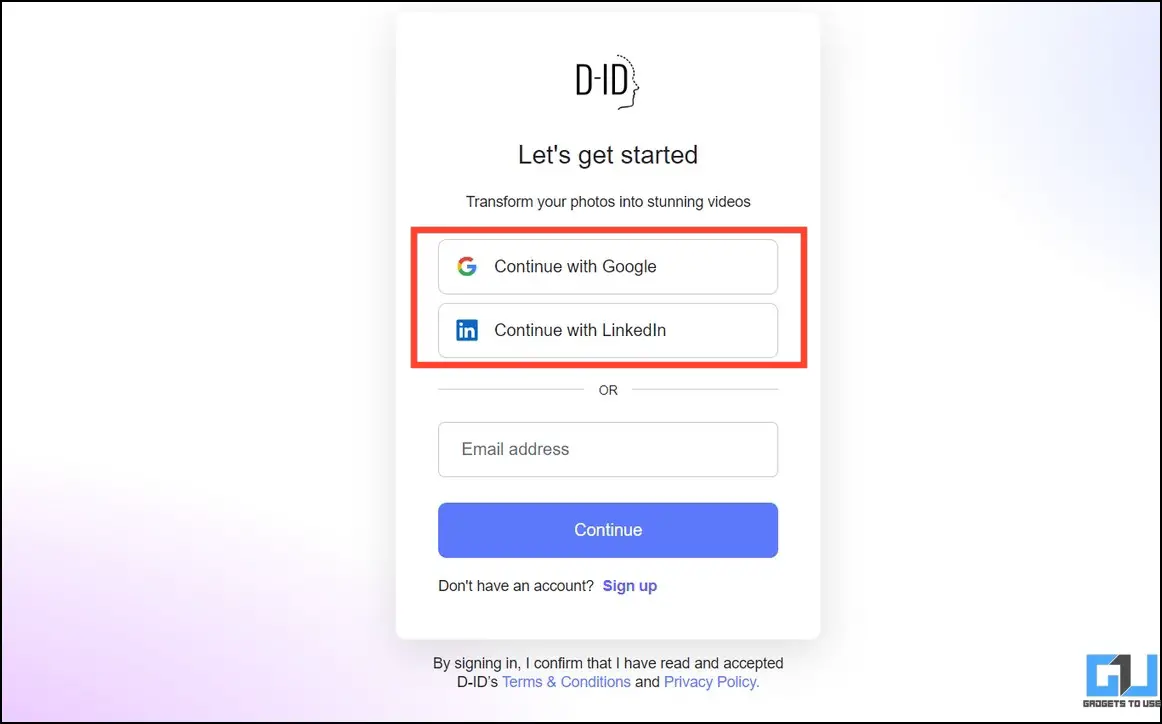
3. Sign in to the service when prompted. Google Sign In makes creating an account easy.
Four. Select the uploaded image and enter a text script Make your avatar speak and select your preferred voice model.click Generate video Click the button to create your own AI video avatar.
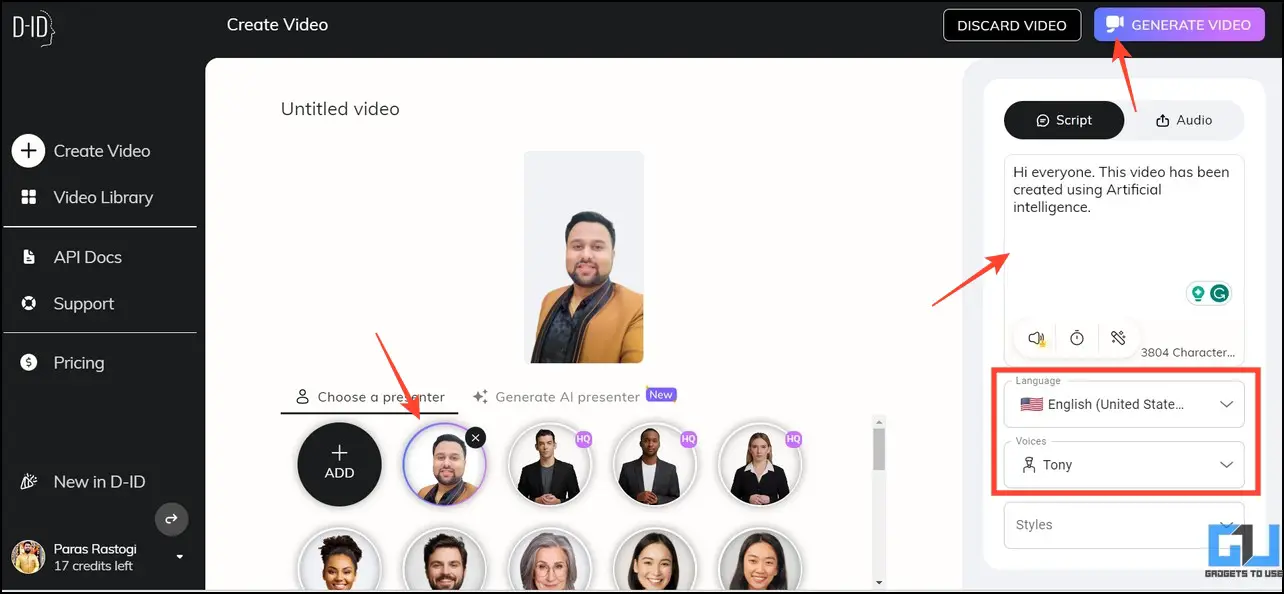
Five. Then click generation continue.
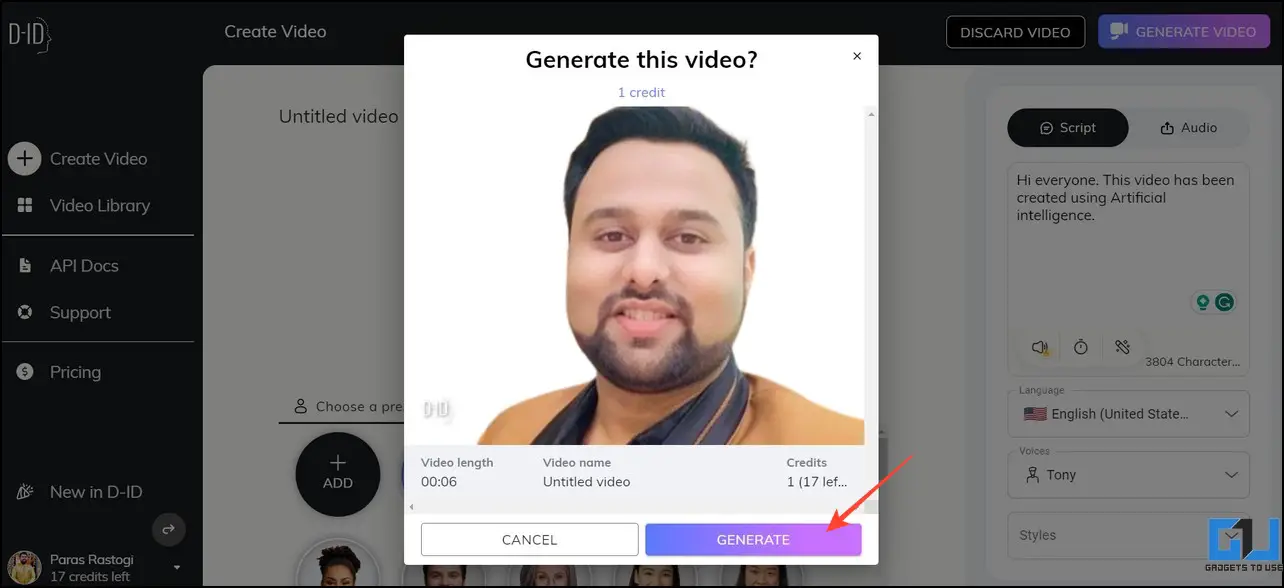
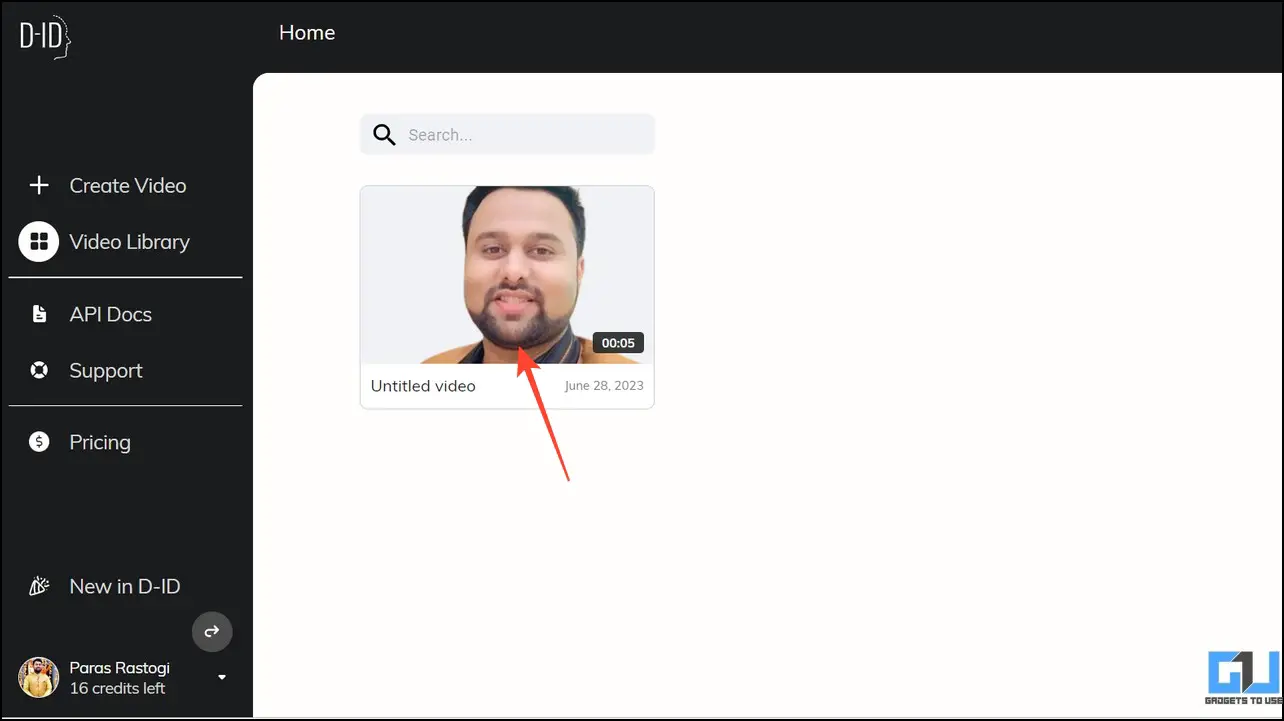
6. Wait for AI to process the video, then click the project thumbnail to open it.
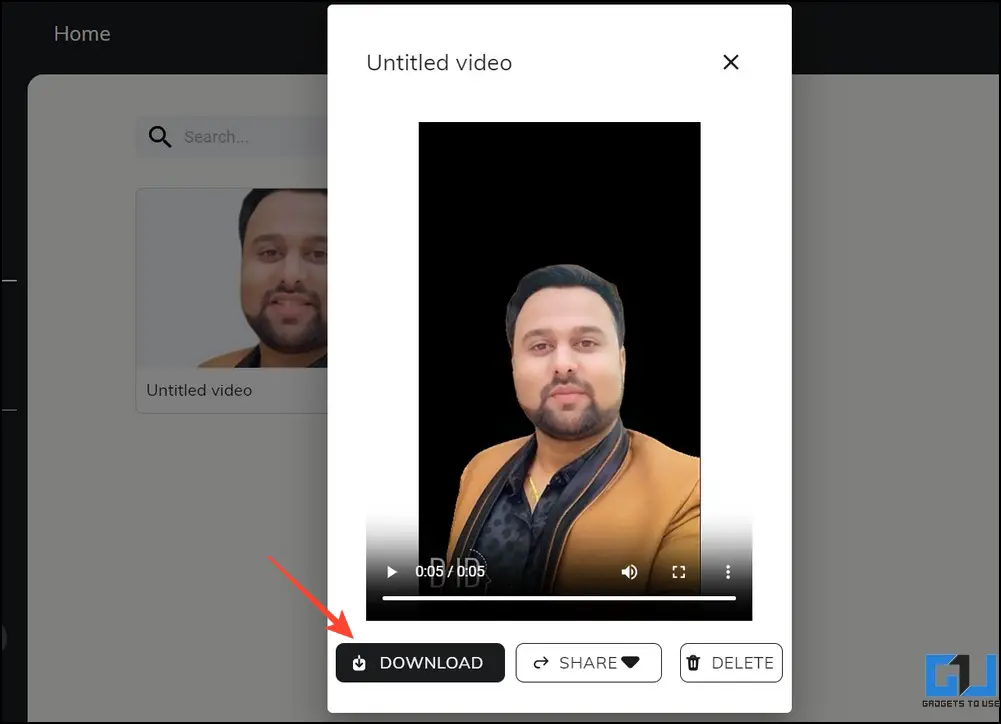
7. click play Preview and click your AI-generated video avatar. download Save to your device.
Strong Points
- Generate realistic AI avatars from photos
- Easy video creation with simple UI
- Supports up to 3875 characters as text script
Cons
- 20 credits for free plan, these credits are used based on video length
- The generated video will have a watermark
Method 3 – Try Heygen AI
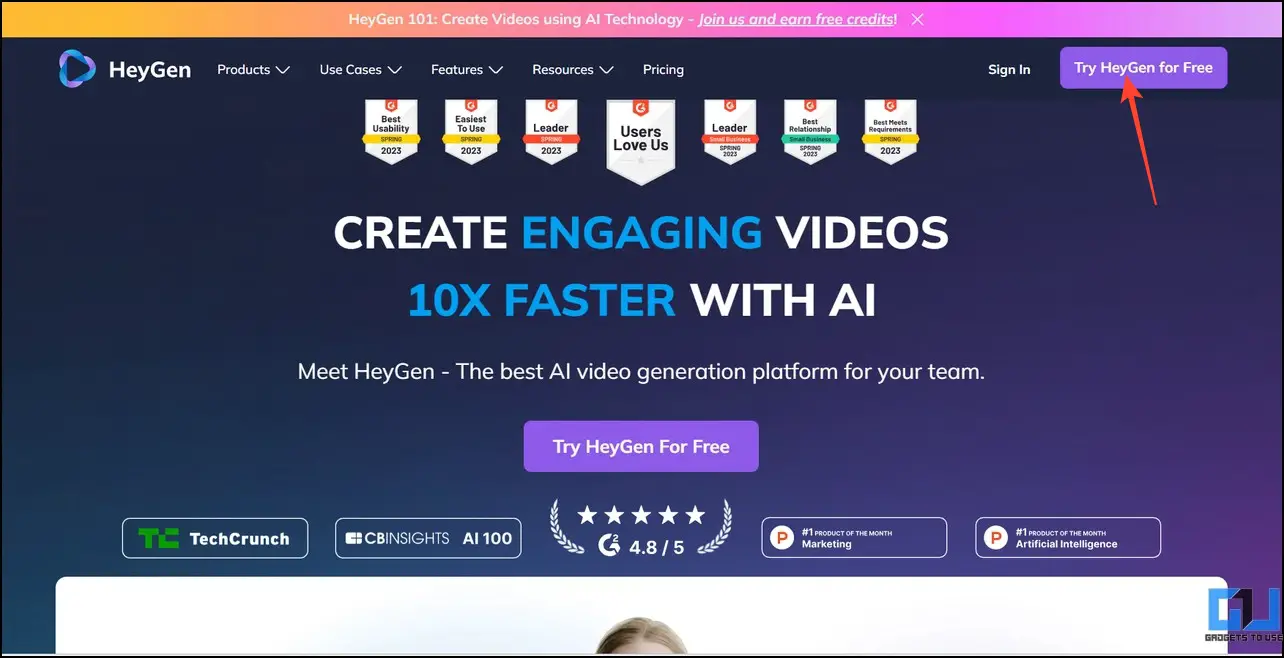
HeyGen AI is an evolving video generation platform that works similarly to D-ID Studio. This online tool allows you to create amazingly realistic AI video avatars from still images. Unlike other tools, it doesn’t require any video editing experience and offers an easy-to-understand interface to get your work done. Here’s how it works:
1. Open HeyGen AI Studio, Try it for free button.
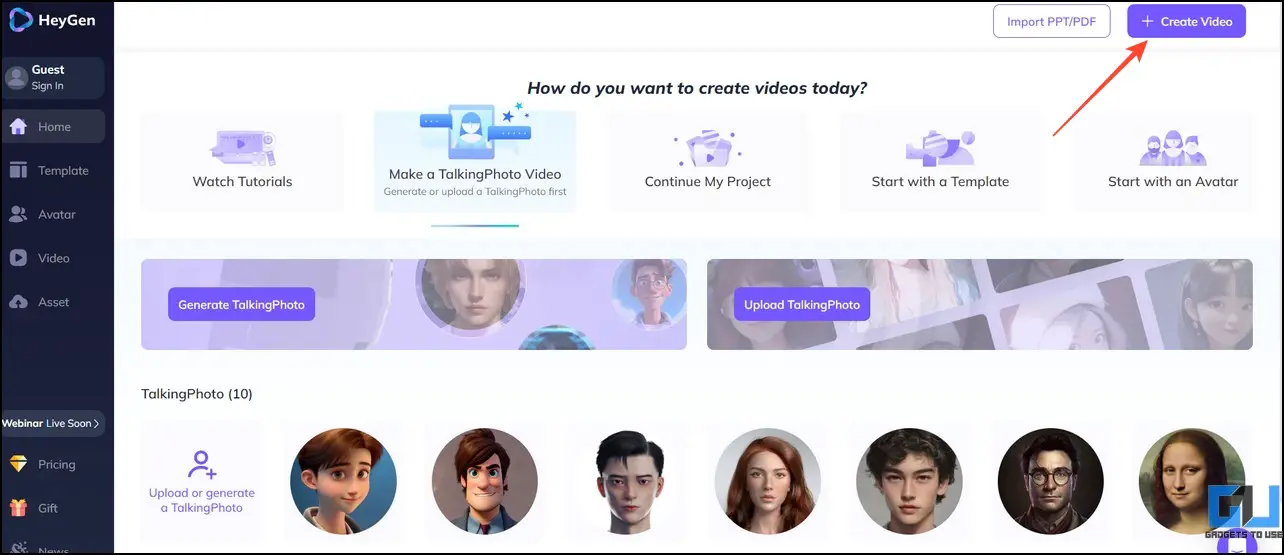
2. Then click make a video.
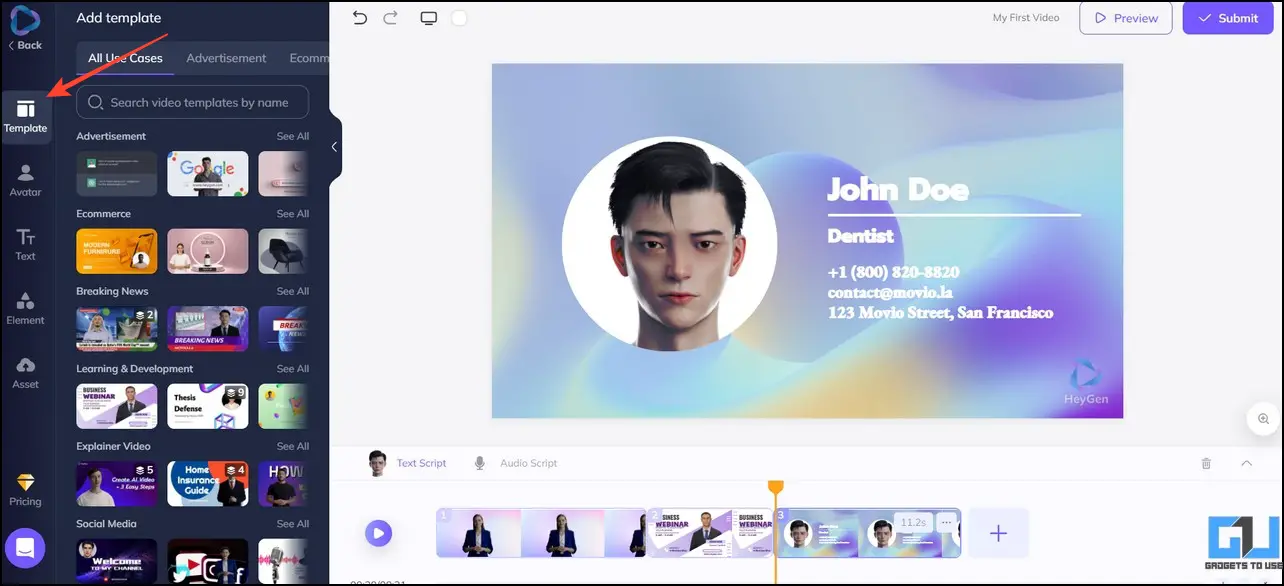
3. Browse and select the desired one video template From the left sidebar.
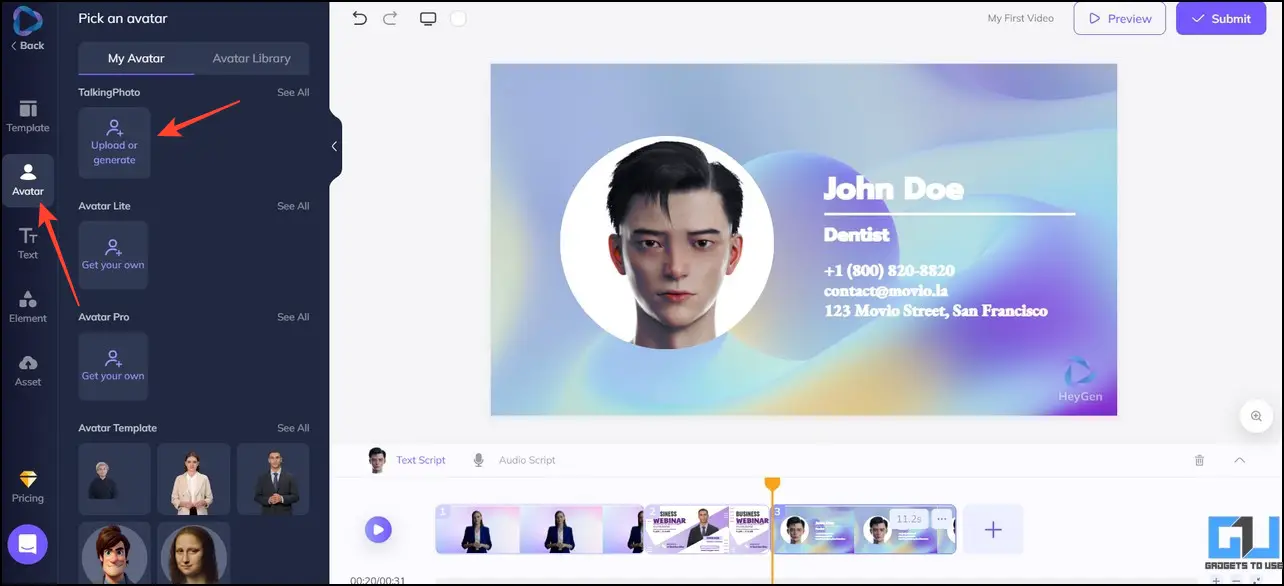
Four. switch to avatar tab and, upload Click the button to upload your photo.
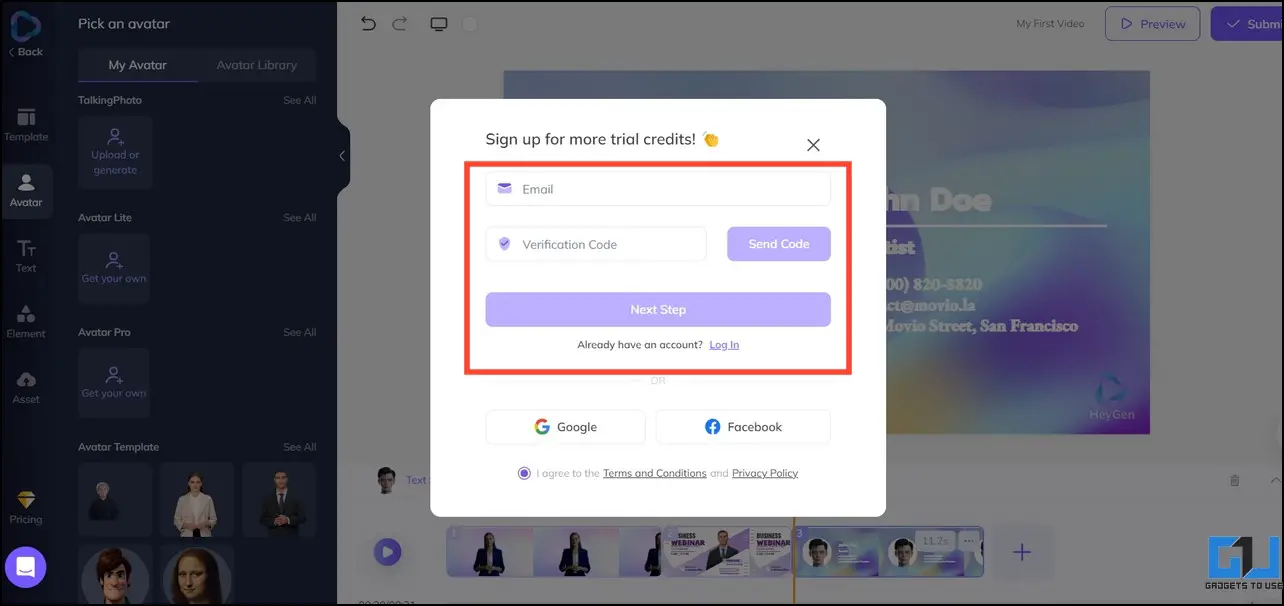
Five. To quickly create an account, sign in using your Google or Facebook sign-in when prompted.
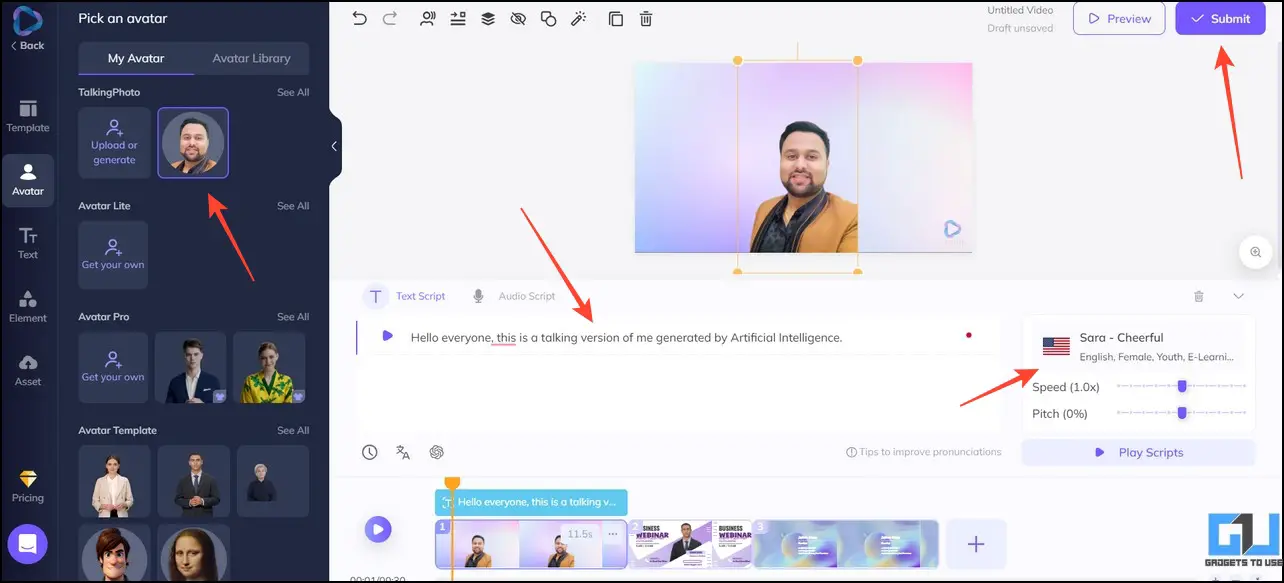
6. Select an uploaded photo, enter a text script, and select your preferred language and voice.click send process the video.
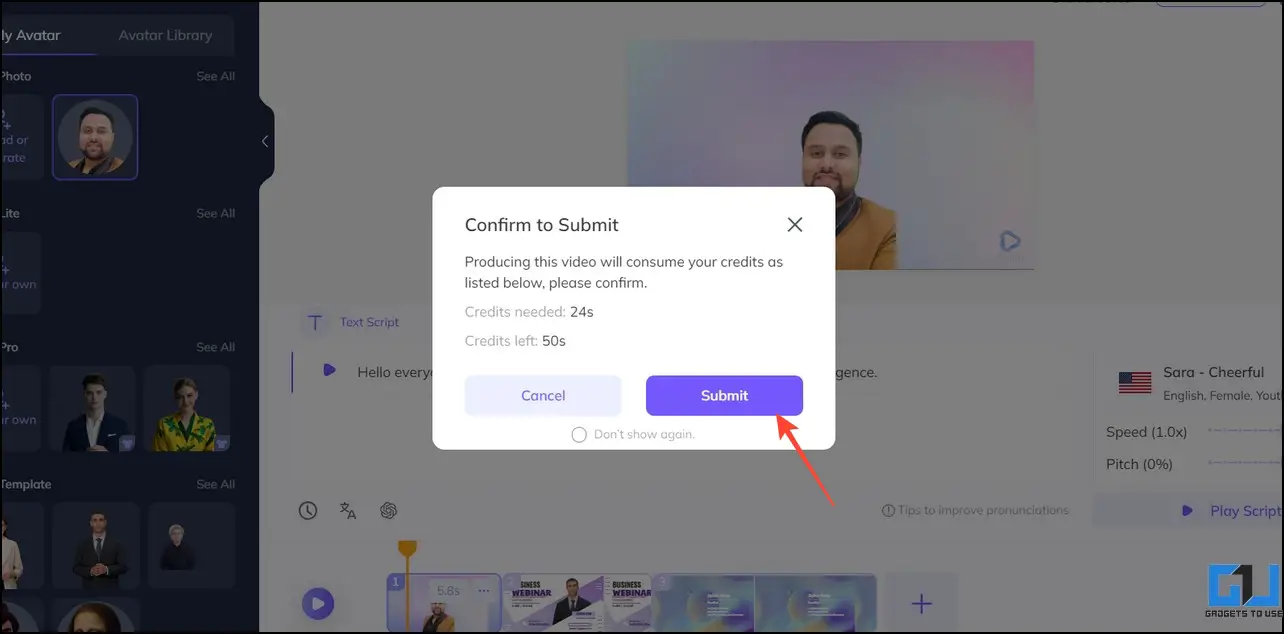
7. click send Press the button again to confirm the action.
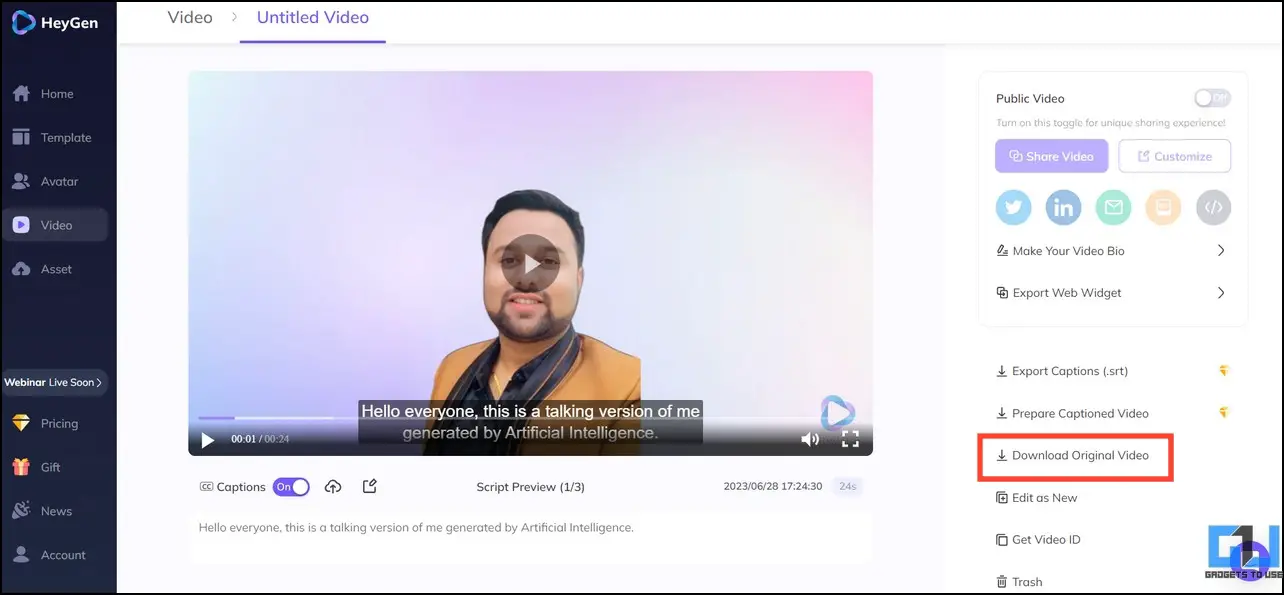
8. Wait a few seconds for the AI to generate your video avatar. Once generated, play Click the button to preview.
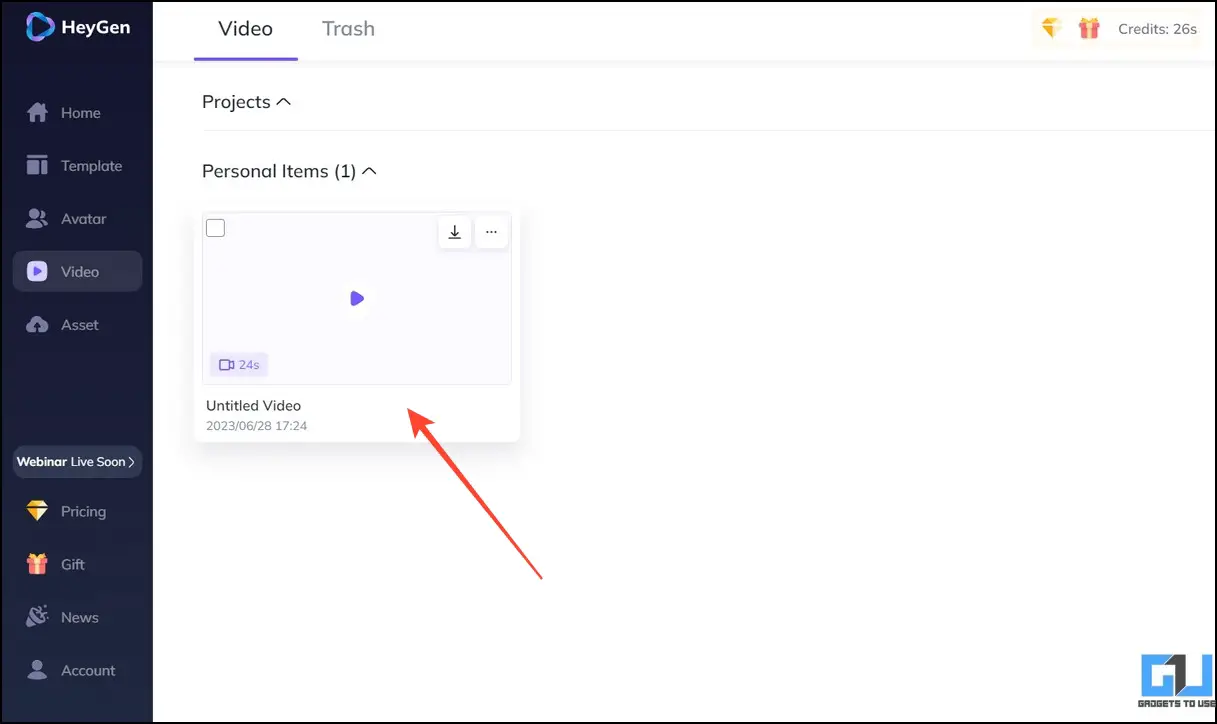
9. Once satisfied with the results, download video Click the button to save it to your device.
Strong Points
- Provides various visual elements to beautify the created AI video
- Huge library of AI templates for creating videos
Cons
- Only 1 minute can be created on the free plan
- The generated video will have a watermark
- Limited video export formats
Method 4 – Make your photos sing with AI
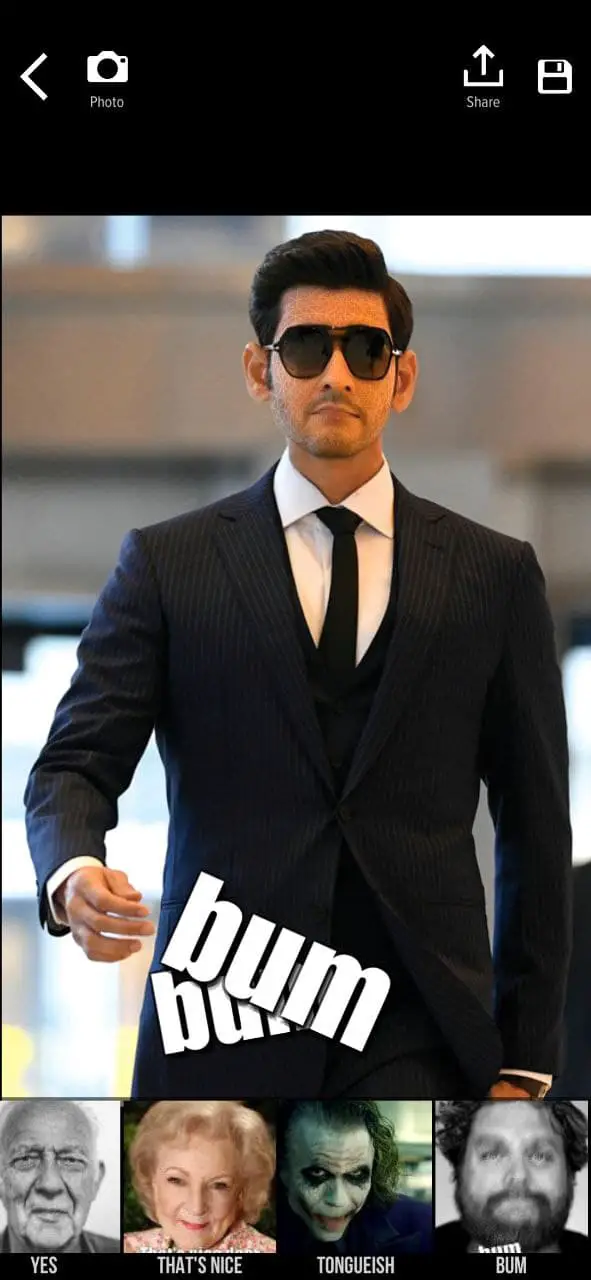
If you use social media, you’ve probably seen people making trending lip-syncing videos of their favorite songs. What if you could use AI to create something in just a few taps? Sounds interesting, right? Read our dedicated guide on the best apps to make your photos sing with AI.
Method 5 – Create a speaking AI video avatar in Unboring
Unboring is another popular alternative that allows you to turn any photo into an animated video. There are several AI presets that you can apply to your images to have fun singing and dancing. Follow the simple steps below to create an AI video avatar using Unboring.
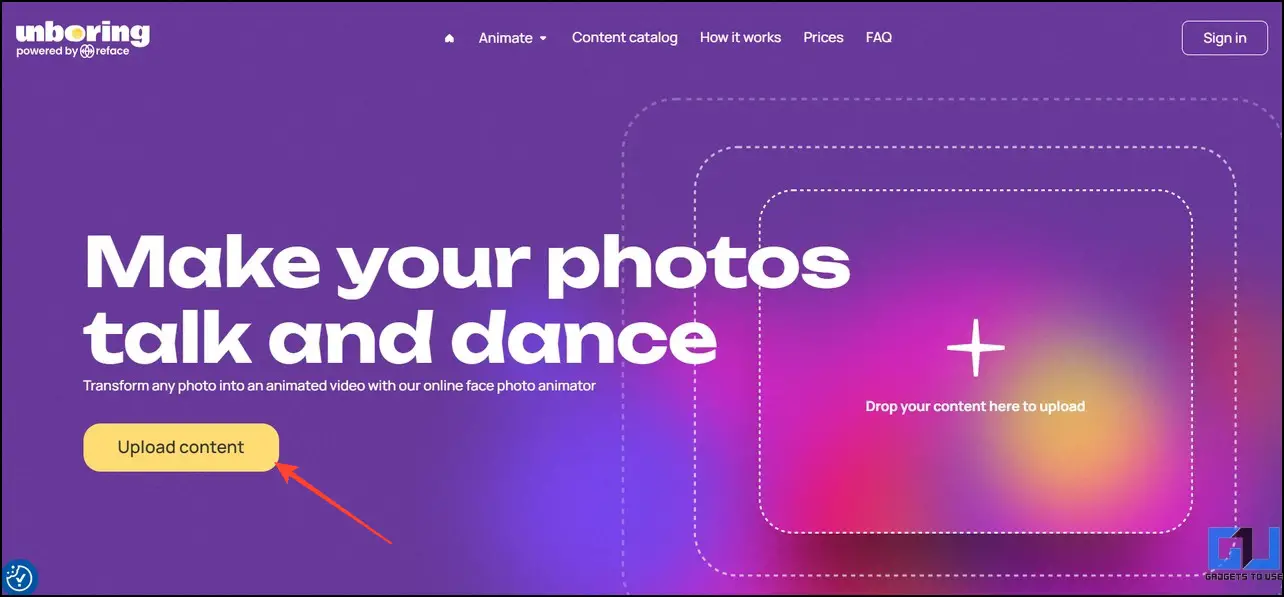
1. Open Unboring in your browser and upload content button.
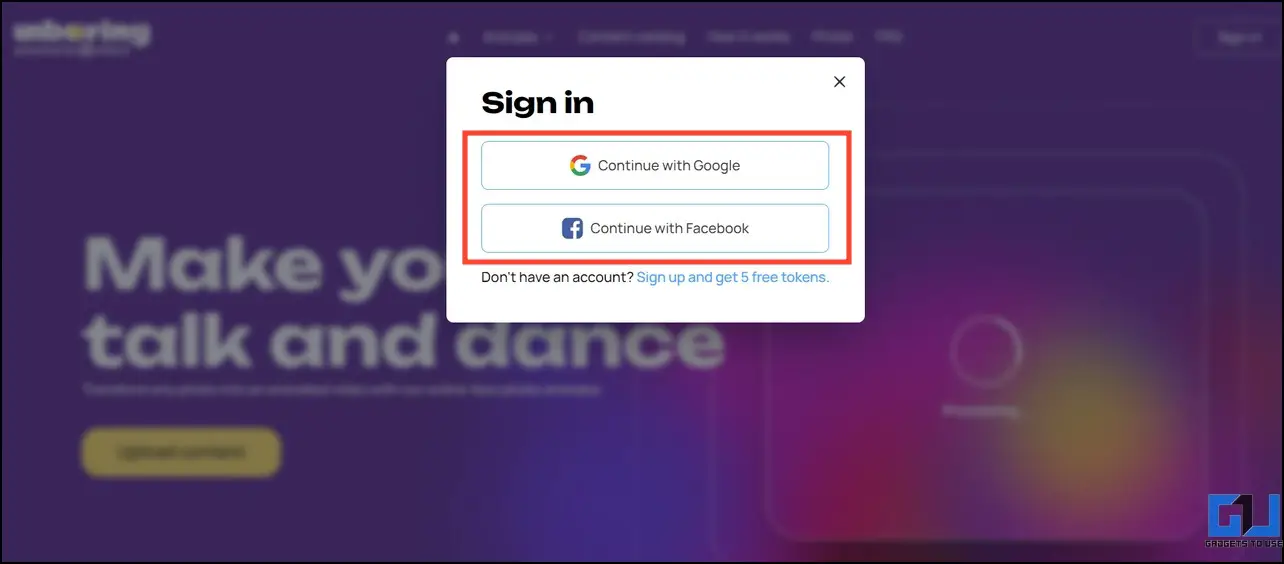
2. login Access the online app when prompted.
3. Browse AI animation presets on the right and select your favorite to apply to your uploaded headshot.click animate process the changes.
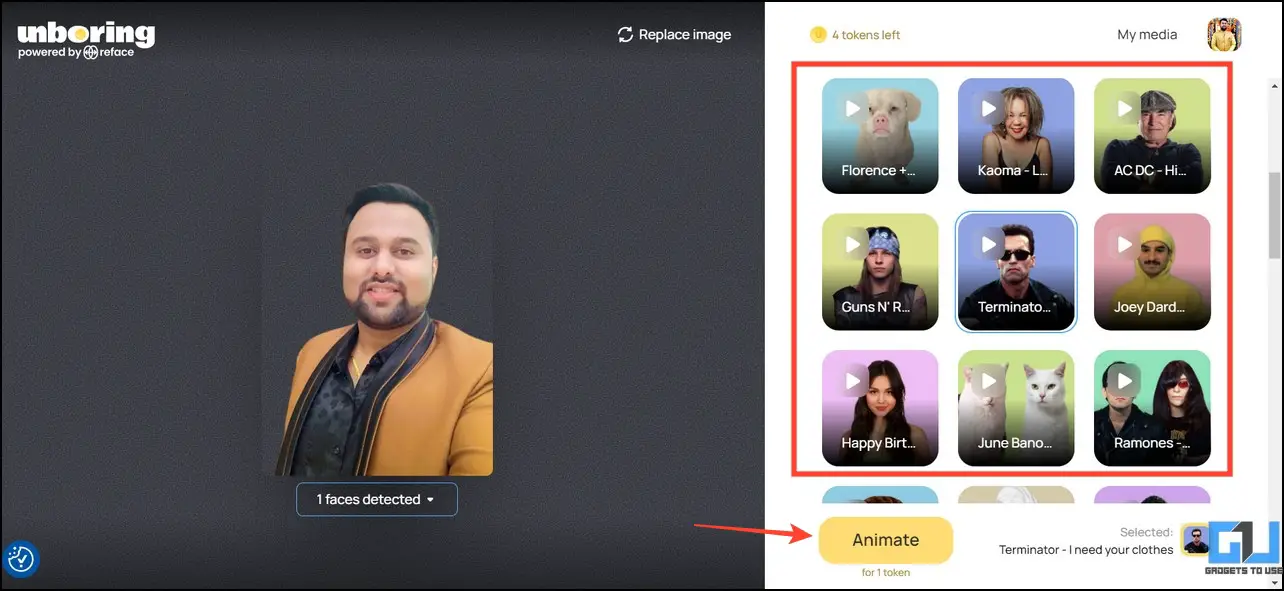
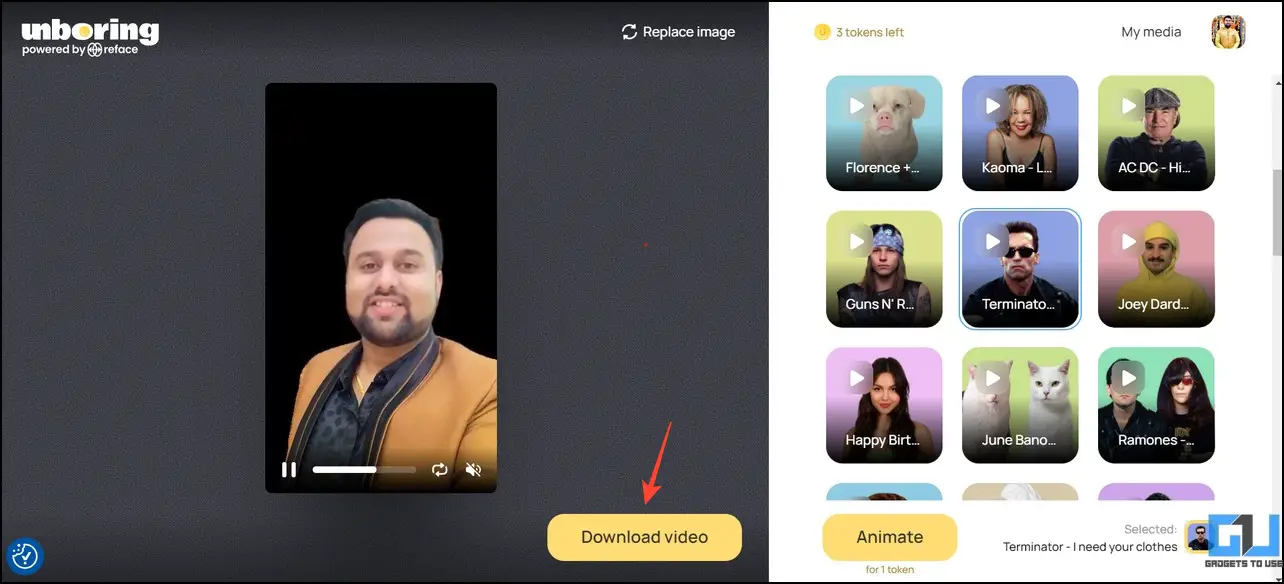
Four. To preview the generated video, play button.finally click download video Save your AI video avatar to your device.
Strong Points
- Create funny videos that mimic dialogue from popular movies
- This AI video avatar can be shared directly on various social media platforms
Cons
- The free plan gives you 5 free tokens for 2 days.Each video creation consumes 1 token
- Can’t provide custom scripts to AI avatars
- You can only change the style of your video up to 2 seconds
FAQ
Q. How do I create a speaking AI avatar of myself?
Instantly create AI avatars talking to yourself from still images using various free AI tools such as Canva, D-ID Studio, HeyGen AI, and more. If you like this tool, you can purchase a monthly subscription to unlock even more video editing and creation features. Check the steps above for more information.
Q. Can I create an AI avatar for my YouTube video?
yes. You can use the tools mentioned in this description to create full-length YouTube videos using AI video avatars. However, the free plan limits you to a few minutes of video creation. Test and buy subscriptions to the best AI tools.
Q. Which is the best speaking AI avatar tool?
I really like using Canva to create a talking video avatar because of its simple interface. The ability to add different visual elements makes it unique and helps users create engaging videos for their projects.
summary
Now you can easily create your own AI avatar videos. If you found this article interesting please spread the word to your friends and subscribe to her GadgetsToUse for helpful explanations. Also, don’t forget to check out the links below for AI-related guides.
You may be interested in:
You can also follow us for the latest tech news at: google news Join us for tips and tricks, smartphone and gadget reviews. GadgetsToUse Telegram groupor to subscribe to the latest review videos GadgetsToUse Youtube channel.


