

How can I fix Canva not working? This is a scary question for designers, students, or millions of people like you who use Canva. Canva is a stable program for the most part. However, you may run into issues such as:
- Canva download not working
- Canva is slow or unresponsive
- For example, Canva is not loading or displaying correctly.
If you encounter these or other problems, don’t worry, there may be a very simple solution.
Canva has emerged as the go-to tool for designers, marketers, and individuals looking to create stunning visuals with ease. However, like any software, it is not immune to technical glitches that can disrupt your creative workflow. If you run into problems with Canva not working, don’t worry. This comprehensive troubleshooting guide addresses some common issues and offers expert solutions to help get Canva back on track.
How to fix Canva not working
This tutorial will show you how to fix Canva not working. Here are the solutions you can try:
- Check your internet connection
- Check Canva server status
- Log back into your Canva account
- turn off VPN
- try another browser
- reset the internet
- Clear cache and cookies
- Disable browser extensions
- Switch to Canva Pro
- Support contact
Storing your work in the cloud has many benefits, but it can cause problems if you lose access to your account or the Canva website itself. Let’s go back and take a closer look at the fixes.
Check your internet connection
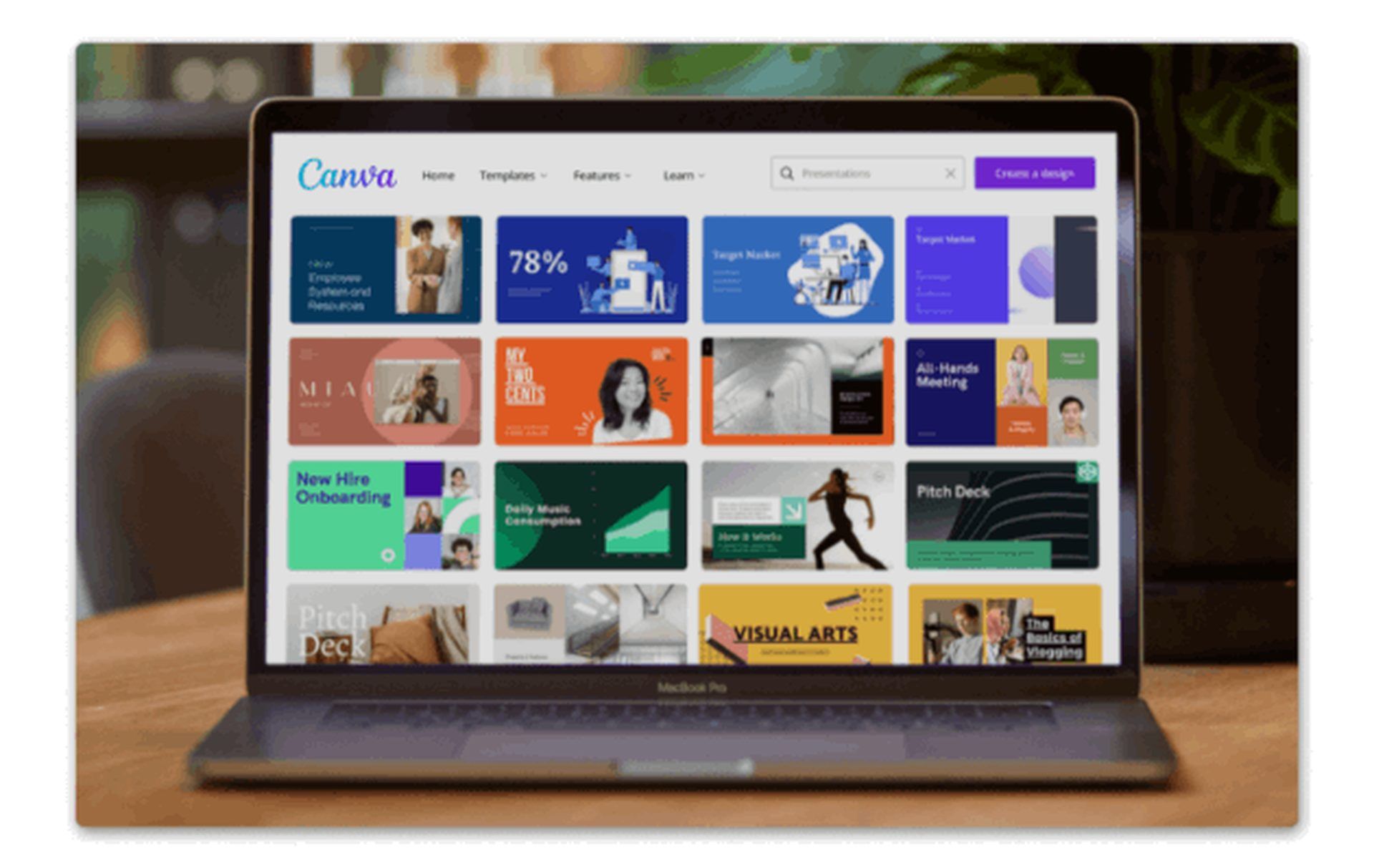
Always start with the basics before delving into complex solutions. Make sure you have a stable internet connection. Canva is an online tool and heavily relies on a stable internet connection for smooth operation. Make sure you are connected to a trusted network and try reloading the Canva webpage or restarting the Canva app.
Check Canva server status
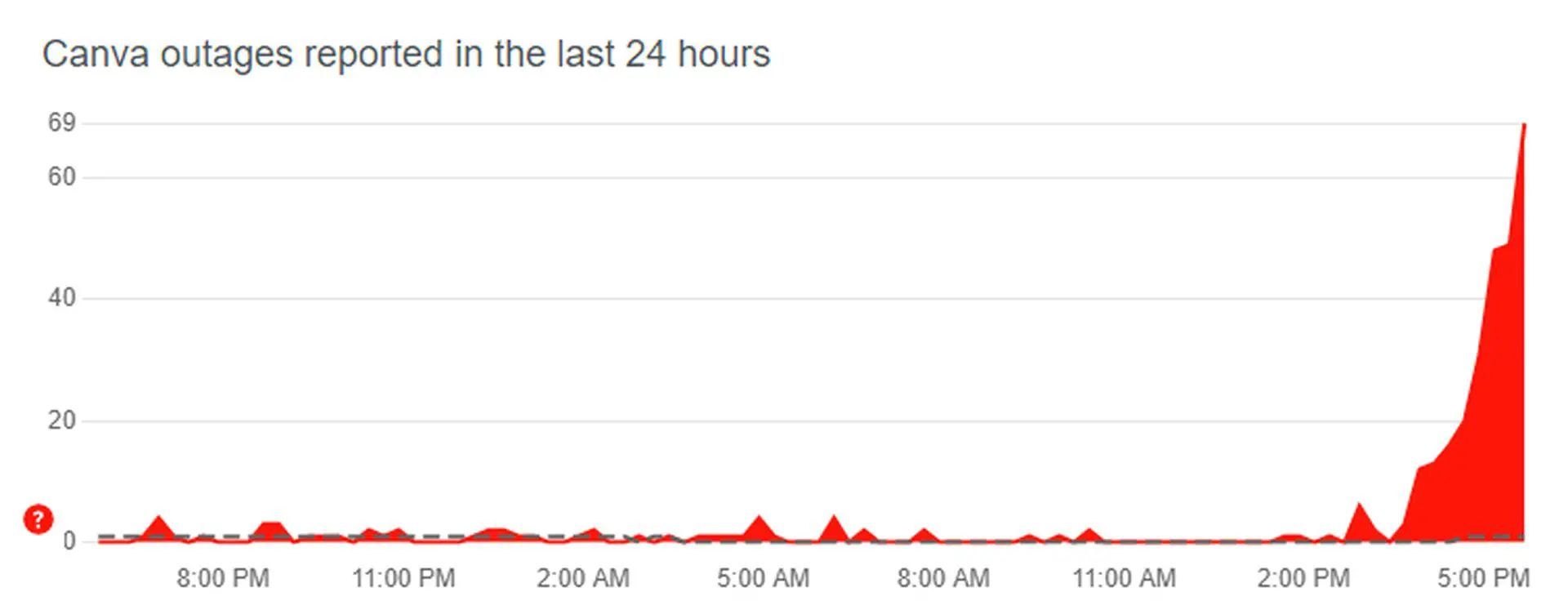
This problem is probably not your fault. Downdetector is a useful tool for checking Canva’s accessibility in case of failure. This is one of the most common reasons for Canva not working issues.
Log back into your Canva account
If you can access your account but are having trouble loading projects, try signing out and signing back in. Doing so will repair your browser’s connection to the Canva servers and force your account to auto-renew and be up to date with recent changes.
turn off VPN
A Virtual Private Network (VPN) offers all the privacy benefits, but it can interfere with communication between your browser and Canva servers. To rule out VPN as a culprit, try disabling the service and loading Canva again.
try another browser
If you’re having trouble using Canva with your browser of choice, you can always try a different browser. Chrome, Firefox and Opera are the most popular browsers. So you should use these. This means developers are more likely to optimize their sites for these browsers.
reset the internet
Canva browser issues can indicate a slow or unstable internet connection. You can check your internet connection speed using a third-party tool such as Fast.com.
Clear cache and cookies
Cluttered browser caches and cookies can hamper Canva’s performance. To resolve this, follow these steps:
- of google chrome:[設定]>[プライバシーとセキュリティ]>[閲覧データのクリア]Go to. Select Cached images and files and Cookies and other site data, then click Clear data.
- of Mozilla Firefox:[オプション]>[プライバシーとセキュリティ]>[Cookie とサイト データ]Go to. Click Clear Data and make sure both options are selected. Then click Clear.
- of safari:[設定]>[プライバシー]>[Web サイト データの管理]Go to. Search for “canva.com” and click “Remove All”.
This is one of the most common fixes for Canva not working issues.
Disable browser extensions
Conflicting browser extensions can interfere with Canva’s functionality. Temporarily disable all extensions and see if Canva starts working. If this happens, re-enable the extensions one by one to identify the problematic extension. Consider removing or updating the extension that is causing the conflict.
Switch to Canva Pro
If you don’t want Canva’s regular issues to slow down your productivity, consider upgrading to Canva Pro.
Our premium package gives you unlimited access to support. If you have trouble meeting deadlines, this can be a huge relief. Power users are the first to be called upon when trying to solve critical problems.
Support contact
If none of the above steps resolve your issue, please reach out to Canva’s support team for assistance. Visit the Canva Support page or contact customer support via email or live chat. Please provide detailed information about the problem, including any error messages you receive, to expedite the troubleshooting process. This is the last resort to fix Canva not working issues.

Here are some other things you can do to avoid Canva acting weird:
- Make sure you have a fast and reliable internet connection.
- Please use a supported browser and operating system.
- Keep your software up to date.
- Close unnecessary programs and tabs when using Canva.
- Avoid using Canva on shared devices.
- If you run into problems, try restarting your device.
Canva is a great tool that can speed up your design process, but technical issues can cause downtime. By following these expert troubleshooting suggestions, you can restore Canva to full functionality. Check the obvious: URLs, caches, cookies, extensions, browser versions, local storage, the browser itself. If you’ve exhausted all other options, Canva support staff can help. However, if you need a photo editor right away, there are other options you can try right now.
Alternatives to Canva
Photo editors are good, but AI-powered photo editors are better. Here are some of the best AI photo editors you can use as Canva alternatives.
- photography art
- Luminar AI
- Google photo magic editor
- The middle of a journey
- Pixel cut AI
- cut out
- Pixlr editor
- Adobe Photoshop AI
- Imagen
For more information on them, check out our article on how to use the best AI photo editors.
Oh, are you new to AI? too complicated? Continue reading…
Image courtesy: Kamba
AI101
You can still ride the AI train! We’ve created an in-depth AI Glossary of the most commonly used artificial intelligence terms, explaining the basics of artificial intelligence and the risks and benefits of AI. Please feel free to use it. Learning how to use AI is a game changer. AI models will change the world.
In the next part, we will introduce you to the best AI tools to use for creating AI-generated content and more.
AI tools we reviewed
Almost every day new tools, models, and features come out to change our lives, but we’ve already reviewed some of the best.
Want to learn how to use ChatGPT effectively? Here are some helpful tips and tricks, including how to upload PDFs to ChatGPT, without switching to ChatGPT Plus. However, when trying to use the AI tools, you may encounter errors such as “ChatGPT is currently at capacity” or “Too many requests in the last hour. Please try again later.” Granted, these are really annoying errors, but don’t worry. we know how to fix them. Is ChatGPT plagiarism free? It’s a difficult question to find a single answer. If you are afraid of plagiarism, please use the AI plagiarism checker. You can also check other AI chatbots and his AI essay writer for better results.
Artificial intelligence generated images are still being debated, but people are still looking for the best AI art generator. Will AI replace designers? Read on to find out.
- AI video tools
- AI presentation tool
- AI search engine
- AI interior design tool
- Other AI tools
Introducing Instagram AI Chatbot: Soon you’ll be able to get advice from 30 different Instagram personalities
Want to explore more tools? Check out the great things below.


