

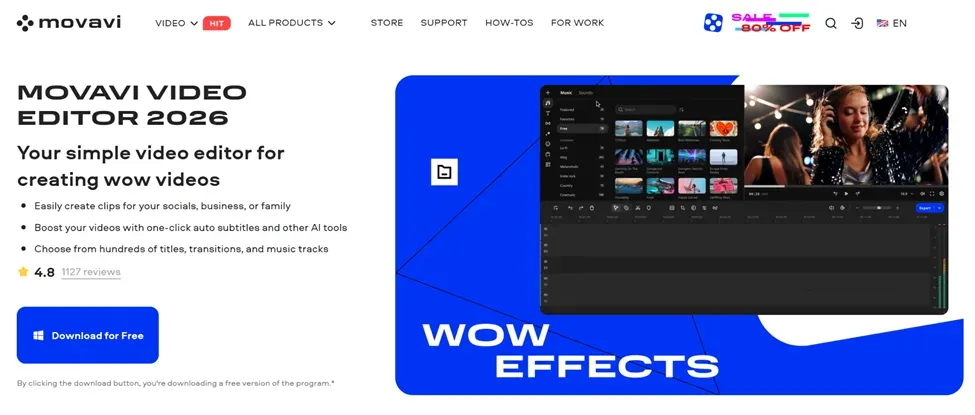
Movavi has been quietly pushing its desktop editor toward a very specific goal. It’s about letting the software handle the boring parts so you can focus on your ideas. Movavi Video Editor is still a classic timeline-based video editor, but recent updates have made it much closer to an everyday AI video editor than a traditional “cut and trim” app.
If you’re creating YouTube videos, short social clips, tutorials, or branded content and don’t want to wrestle with complexity, Movavi positions itself as a friendly choice for Windows and macOS, with enough smart tools to keep up with your packed upload schedule.
Part 1: Key AI features of Movavi Video Editor
1.1 AI background removal and motion tracking: Fast and socially responsive visuals
Movavi’s AI background removal has been around for a while, but it’s one of those features that immediately feels next-gen when you try it. Instead of fiddling with a green screen, drop your clips onto the timeline and use the background removal tool to let the AI automatically crop out your subject. This feature was introduced as part of a larger AI push in version 23, where Movavi introduced AI-powered background removal and AI denoising all at once.
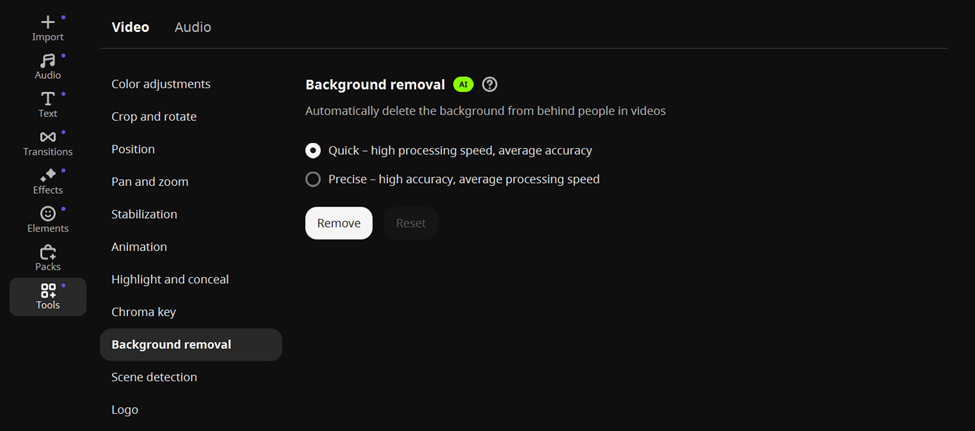
For creators, this is a simple but powerful shortcut. You can put yourself in front of a screenshot, product UI, gameplay, or branded background. Combine this with AI motion tracking and you can add titles, emojis, and speech bubbles to moving objects with just a few clicks. Movavi’s motion tracking uses AI to track objects in your footage, so overlays stick to them as you move. This is perfect for instructional YouTube videos, product demos, and “follow the cursor” educational content.
1.2 AI denoising and smarter audio tools
Audio cleanup is another area where Movavi Video Editor relies on AI. AI Noise Removal was rolled out in parallel with Background Removal, with the aim of automatically cutting out traffic noise, wind, and other background sounds.
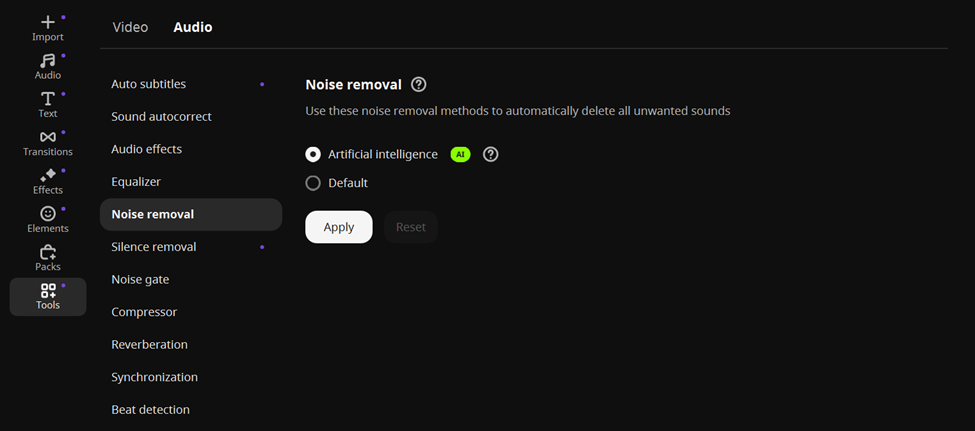
On top of that, Movavi has long offered one-click audio enhancement buttons and manual audio controls, allowing you to increase clarity, reduce volume, and combine multiple audio effects without ever touching another DAW.
If you’re recording at home, in a small office, or on the go, this is more important than it sounds on paper. Instead of exporting the video and sending it to another app, then re-exporting and importing the audio again, you can fix most audio issues in the same timeline.
1.3 Continually evolving automatic subtitles
Movavi’s fastest advancement over the past two years has been in automatic subtitles. In October 2024, the team shipped the “Automatic Subtitles” feature. The app uses AI to recognize audio, generate subtitles, and sync with videos. It also features tools to fine-tune your lines for perfect precision.
That alone already makes life easier for YouTubers, educators, and marketers who need accessible content and improved retention rates. No more manual entry. Get a complete subtitle track in one pass and adjust instantly.
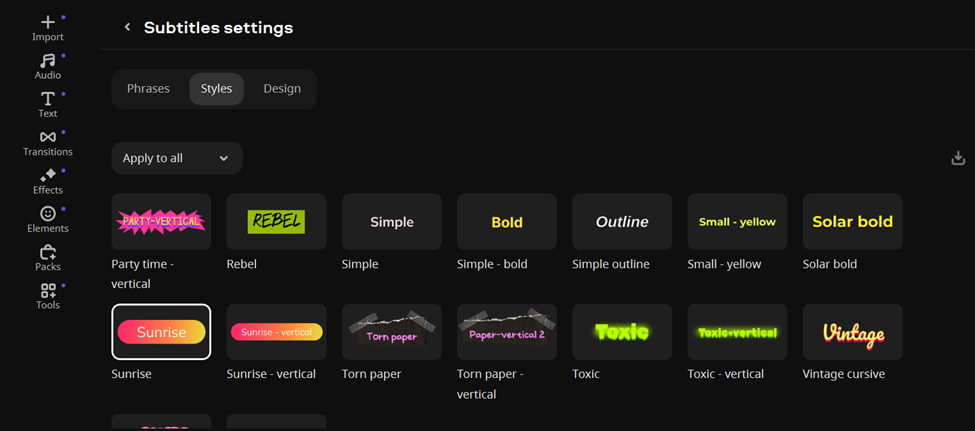
A major update in October 2025 continues that foundation with a complete captioning workflow. Version 26 adds over 30 new subtitle styles, so[スタイル]Change the style of auto-generated captions with a single click on the tab. Also, if you want to make fine adjustments,[デザイン]Advanced controls are available on tabs. We also introduced instant translation of automatic subtitles into English and the ability to export captions as SRT files.
1.4 Silence removal and ultra-fast playback for smarter pacing
Another recent addition that feels very “everyday AI” (although it’s not strictly an AI feature) is Silence Removal. Introduced in mid-2025, this feature automatically detects pauses in audio and cuts them based on a configurable threshold and minimum pause length.
Instead of looking for gaps in the waveform, press a button to get a cleaned-up vocal track and tweak it as needed. Combine this with the new speed control for up to 100x playback and you have a workflow that’s well-suited for time-lapses, tutorials, and “build in 5 minutes” type content.
Part 2: Daily editing experience and changes in quality of life in 2025
Movavi’s AI capabilities sit on top of a timeline that has quietly become more comfortable over the past few versions. In version 24, the timeline has been revamped to provide clearer layouts, easier cutting with the blade tool, and better color correction controls for non-experts.
From 2024 to 2025, Movavi continued to make small improvements. These include a snapping feature that automatically aligns clips on the timeline, simplified track management, faster effects installation, smoother previews, and improved performance as your projects grow.
This trend continues in the October 2025 cycle, as follows:
- Transitions, stickers, titles, and other effects load faster without having to wait for content packs to initialize.
- Trimming works by simply moving the mouse to the edge of the clip and dragging instead of entering a dedicated trim mode.
- Previous builds optimized exports and reduced file sizes, making repeated uploads and revisions more manageable for creators using laptops.
All of this is consistent with Movavi’s positioning as everyday AI video editing software rather than a niche pro suite. Full-fledged tools like AI motion tracking and background removal are available, but they’re built into a UI that doesn’t punish you for being a beginner.
3.1 YouTube and Social Creators
If you’re looking for the best video editing software for YouTube for the average person, Movavi makes a strong case. You can cut talking head videos, remove silence, clean up audio, add B-roll, apply motion tracking callouts, and generate subtitles. Everything in one place.
For Shorts, Reels, and TikTok, background removal and AI motion tracking are especially useful. Quickly build a “floating head-over-screen recording” format or create overlay stickers that follow moving products. Direct SRT export also helps keep subtitles consistent when reusing content across platforms.
Movavi Video Editor isn’t meant to replace high-end color grading suites or highly complex compositing tools, but that’s the point. It’s social media and YouTube editing software tailored for speed, consistency, and reduced friction. It’s basically an iMovie alternative to Premiere Pro.
3.2 What’s great about Movavi Video Editor and what’s not?
Strengths:
- AI features that actually take the pain out of you
- A steadily refined timeline
- Captioning pipeline continues to improve
Limitations:
- No deep node-based compositing or advanced color grading
- The UI is friendly, but the growing number of tools means complete beginners will need some time to explore.
- It’s not a completely free product, so if you just want a zero-cost tool, you’ll want to compare it to other free video editing software first.
Conclusion: Is Movavi Video Editor worth using in 2025?
If you remove the marketing buzz and look at what Movavi Video Editor has added over the past few years, the pattern is clear. That means less effort and more output. AI background removal, AI noise removal, motion tracking, automatic subtitles, silence removal, and speed tools are all designed to help you get from “I recorded something” to “I can publish this today.”
For those who want an AI video editor that is familiar and doesn’t require a steep learning curve, Movavi is a very solid choice. It doesn’t aim to be the most complex AI video editing software. Instead, it aims to be something you open every day, complete your edits, and move your life forward.


