So-called zoom-out videos (or “infinite zooms”) are trending on social media right now, and not without reason. The rapid development of artificial intelligence allows us to create stunning visuals within seconds and broadens creative choices further and further. After Midjourney (as well as Photoshop Beta), introduced the possibility of enlarging a source image and filling the surrounding area with consistent visual material, the boom of new stylized content was inevitable. However, it’s only easy to execute, if you know a trick or two. That’s why, we prepared a thorough step-by-step guide on how to make your own impressive zoom-out video. It includes multiple workflows and a fair share of learnings, we gathered by trial and error. Let’s get right to it!
As mentioned above, there are several AI tools, that allow expanding the canvas of an image and filling it with generated content (Adobe Firefly in Photoshop (Beta) is among the best ones, obviously). Yet, for the sake of the experiment’s simplicity, I will be using only Midjourney in this tutorial. If you have never heard of this neural network before, make sure to understand the basics first, before reading further. We explained, how to use the products of their independent research lab here, and also elaborated on the process of prompting in another article. I chose Midjourney because I like the quality and photorealism of the pictures their AI is able to produce, and also due to the (almost perfect!) consistency of the new zoom effect.
After we get the required visuals, I will also explain multiple ways, how to animate them. And this is my example of what you can get in the end:
Makes the imagination fire, right?
Getting the hang of the “Zoom Out” feature
„Zoom Out“ is one of the special features, that Midjourney included in their latest 5.2 release. It works exactly as it sounds, and allows you to extend the canvas of an image beyond its original boundaries while keeping the source picture intact. Simultaneously, the deep-learning image generator fills in the created empty space with what it assumes to be an organic extension. (You can also guide it – more below).
In practice, it’s a simple and intuitive tool. Use the Discord channel and “/imagine” command, as usual, to generate 4 image variations, based on your text prompt. Then choose your favorite one and upscale it by clicking the proper “U (1-4)“ button. Now, a bunch of new possibilities will appear underneath the created picture, as you see in the example below:
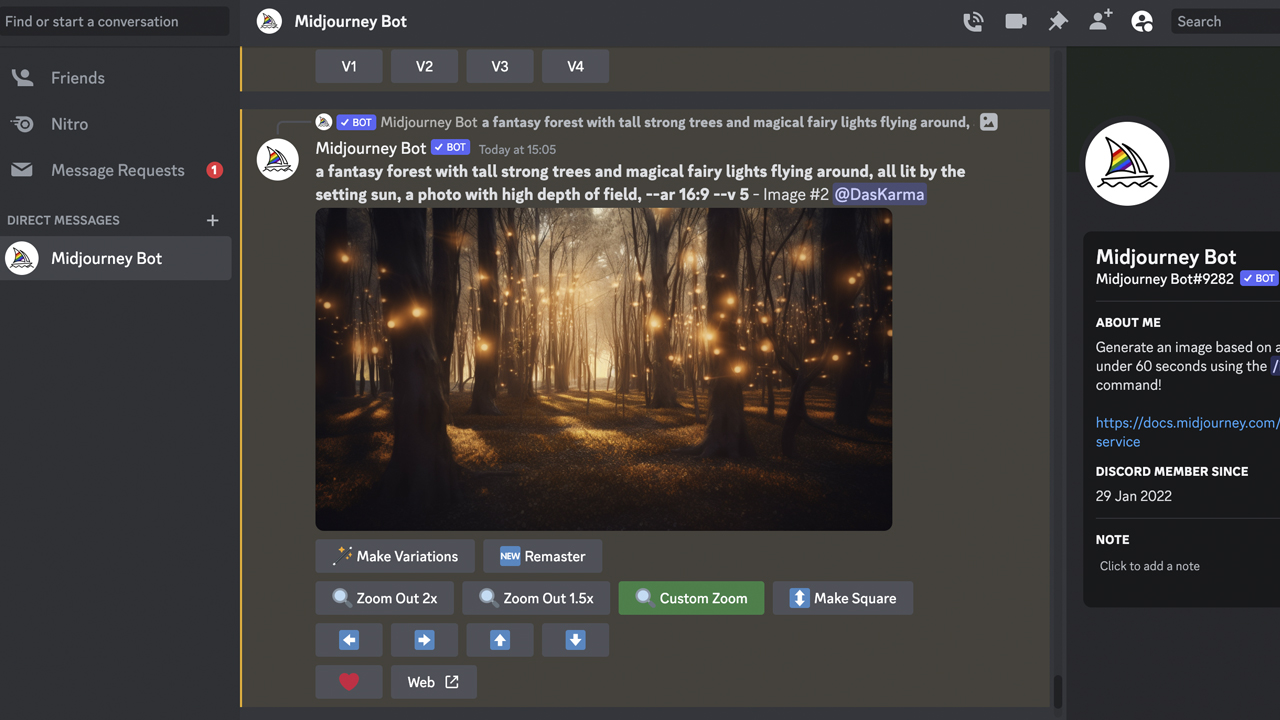
If you click on either of the “Zoom Out 2x” and “Zoom Out 1.5x” buttons, the AI will scale down your original picture 2 or 1.5 times accordingly, imagining some matching content around its corners out of its own deep-learning head. (That’s right: the resolution of the newly generated visual will always stay the same and depend on the aspect ratio you chose in the previous step).
“Custom Zoom”, on the other hand, gives us the possibility to intervene and guide artificial intelligence’s next result, feeding it another prompt. For example, you can write, that the image you wish to zoom out on, should become a framed picture on the wall. Or something like my request here:
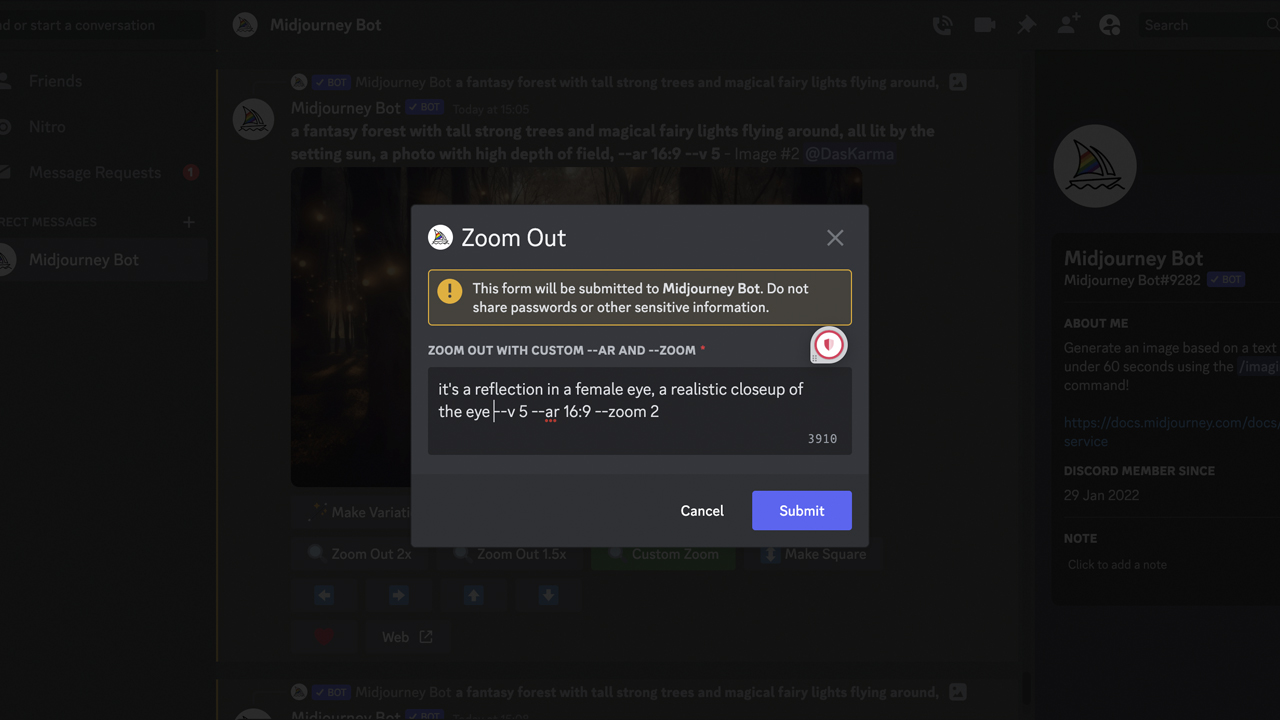
In this pop-up window, shown above, “-ar” stands for your custom aspect ratio, and “-v” for Midjourney’s version. As you see, here you can also play with the “-zoom” parameter, variating values between 1-2. However, in order to make the video animation magic work afterward, I recommend leaving those settings unchanged. Just go on with the double zoom-out, and everything will be alright.
On a side note, the arrow-shaped buttons represent another fresh feature, namely the possibility to pan your image in any direction. It uses a similar principle and can also be turned into a flashy transition or inspire an idea for a cool shot, but that’s another topic. For now, let’s make a couple of zoomed-out images first.
Making a zoom-out video: the idea comes first!
Sounds quite easy, doesn’t it? That’s why the Internet is nowadays full of creative artworks, exploring this feature. What can make your zoom-out video stand out? A story, of course. So, my idea was to use generated pictures for a clip, which would tell a short story and could be even turned into an endless loop afterward. Whether I succeeded – you decide.
The most important (and exciting!) thing in the creative phase is to write a concise concept in advance. From a storytelling perspective, I suggest you ask yourself the following questions:
- What a zoom-out effect can generally reveal in your video?
- How many plot twist points do you need for your idea to unveil?
- Which pictures could visualize the story at its best, and in what order?
Tackle it as an ordinary film concept, and write down the needed images exactly like you do with different shots in a scene breakdown. Now take this list to Midjourney, and let’s get to prompting.
Of course, you can ignore my tips and rely entirely on the AI’s fantasy, by just clicking “Zoom Out 2x” on randomly generated pictures. The results will also stun you, no doubt here. Yet, in my opinion, the whole process becomes more exciting, when you augment your human narrative skills with artificial intelligence, and not hand over all the fun to it.
Gathering the visuals for a zoom-out image
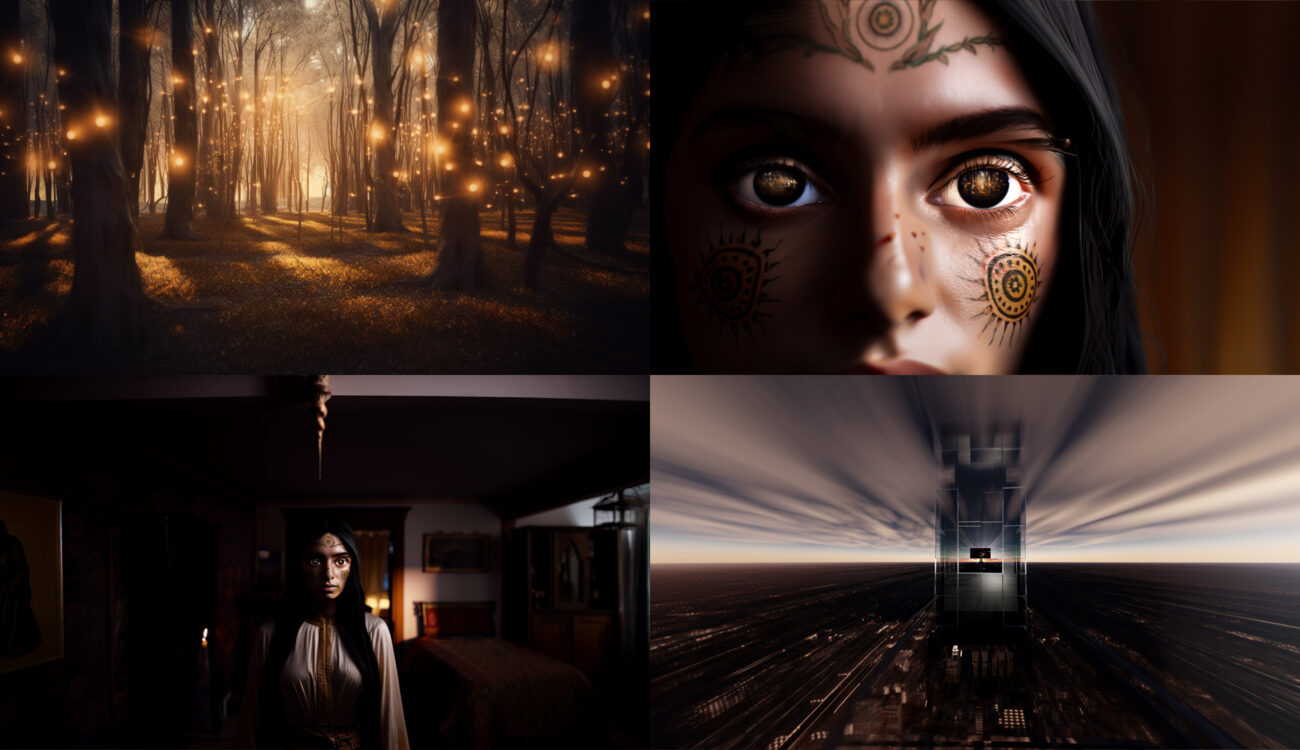
My story begins with a landscape shot of a beautiful magical forest, which then turns out to be only a reflection in the eyes of a girl. So, I started by generating the proper opening image and added a custom prompt upon the application of the first zoom-out effect (the one I showed above). After multiple iterations and tryouts, Midjourney came up with some decent results:
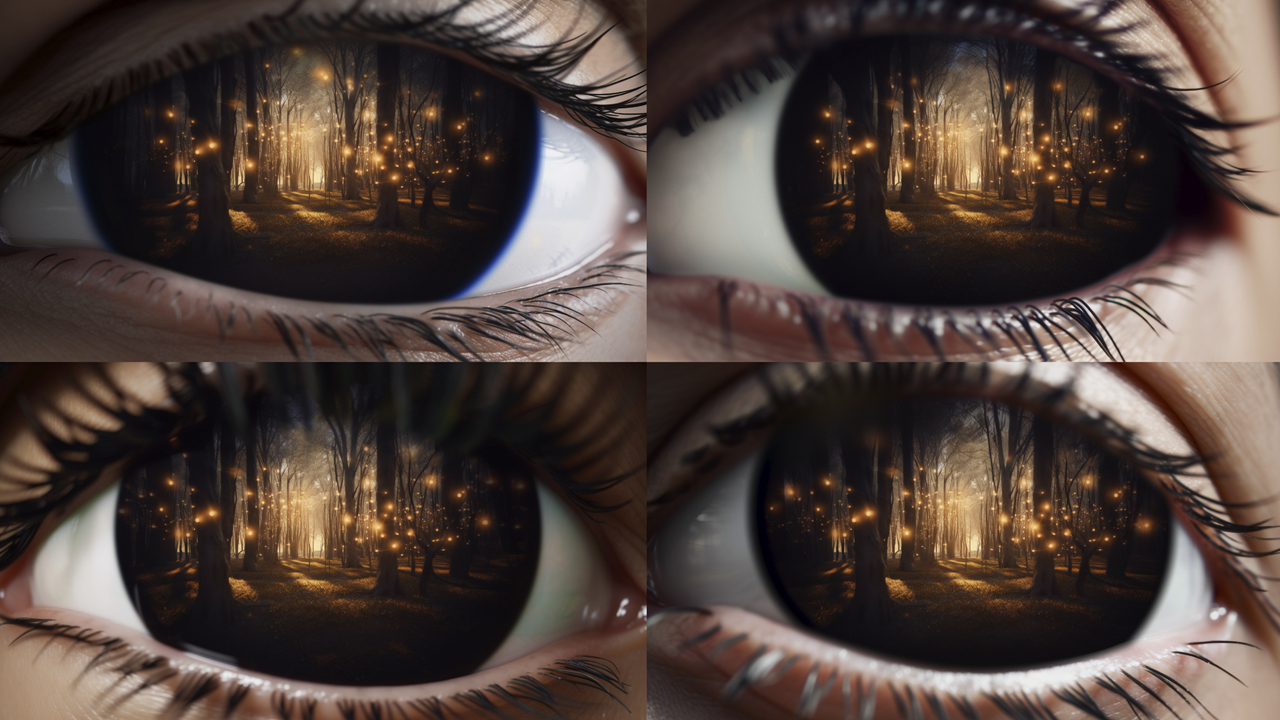
So far, the first two images are ready, and this is actually enough to create an animation. Yet, if you want your video clip to have a greater impact on viewers, I suggest generating at least 5 pictures, zooming further and further out. Therefore, undergo the same process multiple times with all of your “shots”.
For example, from the close-up of the eye to the portrait of the girl I required 4 steps with 2x zoom-outs in between. It wasn’t just an effortless button-clicking action, to be fair. You have to repeat each of the attempts until you get a satisfactory result with a realistic-looking perspective, the least amount of weird artifacts, and believable lighting. So, prepare yourself for a long evening full of tedious image generation. As the saying goes: no pain, no gain. To cheer you up, look at the amazing output examples, Midjourney presented me with (a sarcasm sign required):
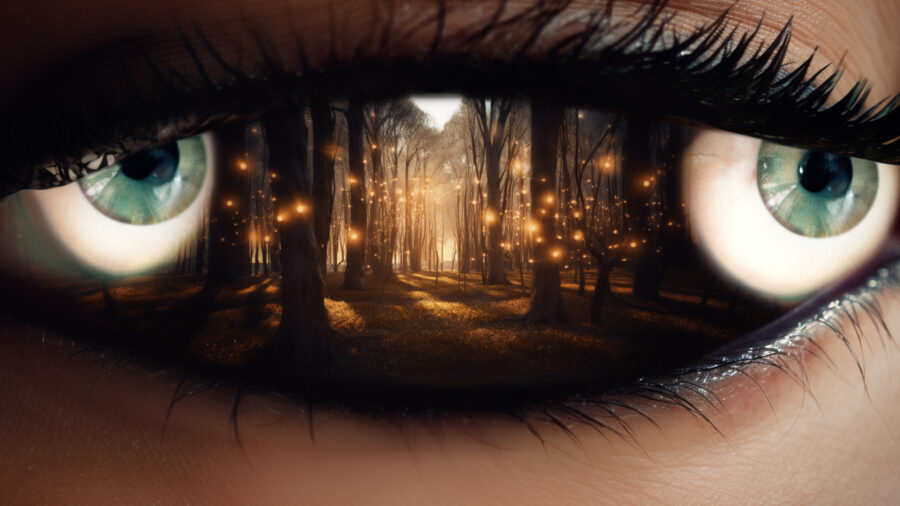
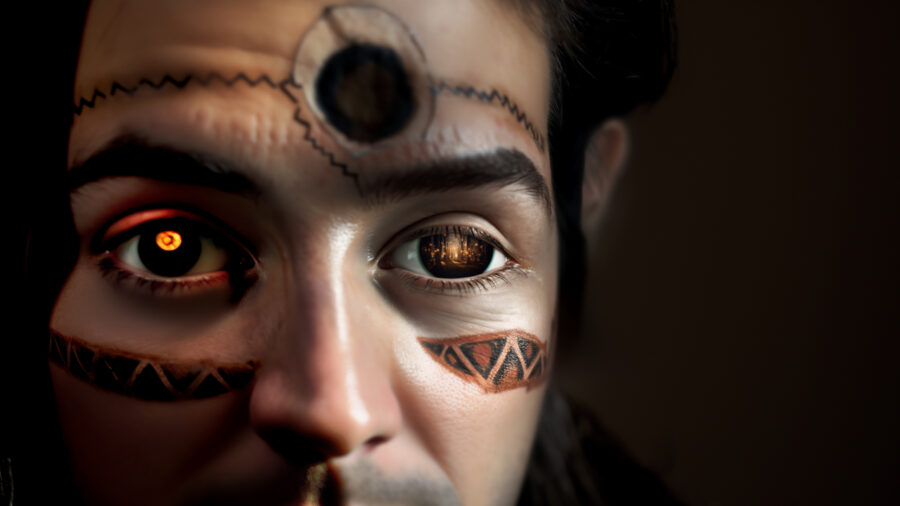
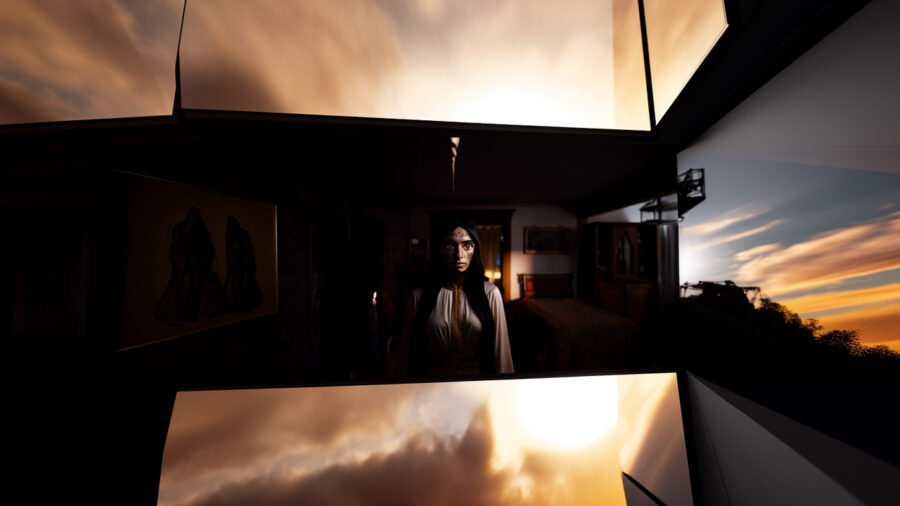
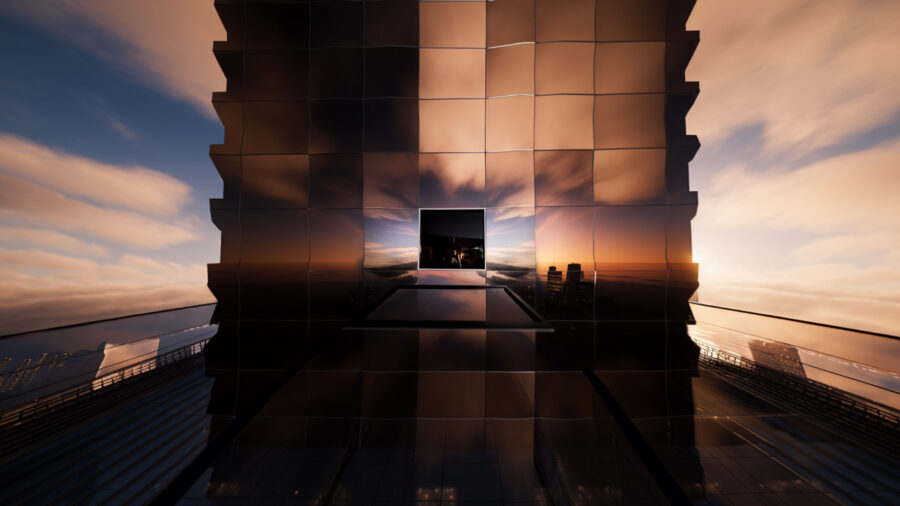
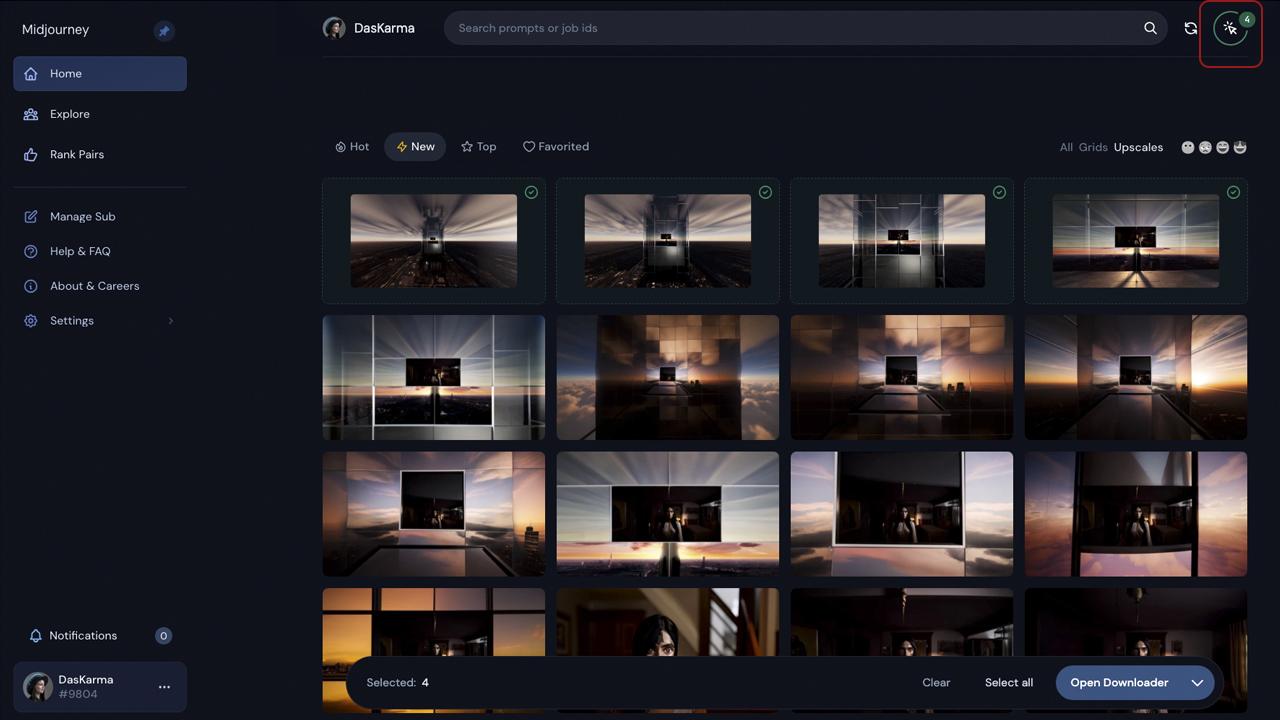
After you finish generating all the images for your zoom-out video, save and rename them. You can either do it one by one directly from Discord or proceed to your own gallery page by clicking “Web”. I find the latter more convenient, as my chat usually looks like a mess. After logging in on the Midjourney website, choose “Select mode” in the upper right corner, as shown in the screenshot below. Mark all the final visuals and hit “Open Downloader”. The rest is self-explanatory.
All set? Let’s make a movie then!
A few ways for animating your zoom-out video
Here comes the tricky part. After all the tests, I must admit, I still didn’t find the most elegant and trouble-free way to create an infinite zoom-out video from AI-generated pictures. A couple of functioning workflows follow, yet all of them include impediments and limitations. So, if you’re aware of any better solution to this challenging task, please let me know in the comments below. I’ll appreciate every input and would be earnestly thrilled!
The first issue comes from Midjourney itself. When you align the generated images one upon another and scale them in a matching way, you will see, that the neural network doesn’t handle edges and corners well. Take a look at this illustration:
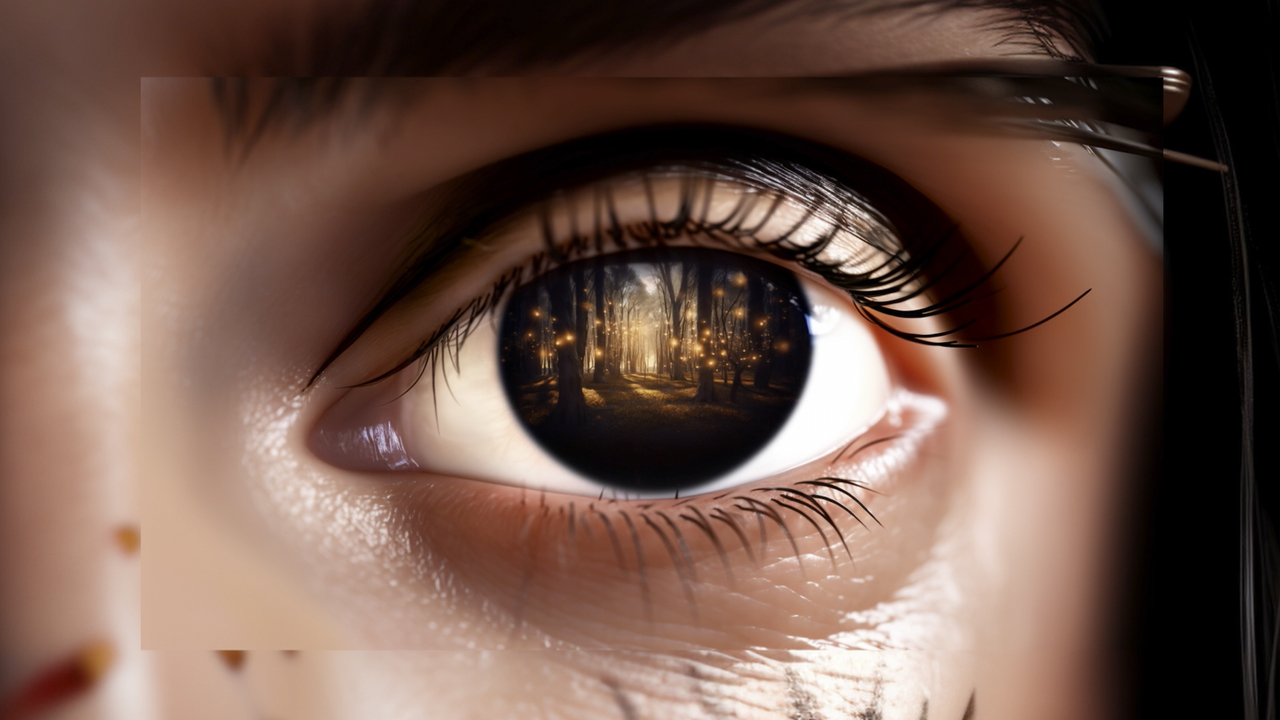
You see, what I’m talking about? Although it’s an easy fix, you have to bear in mind, that one of the steps of your following process (regardless of what tool you use) would be to mask out those imperfections on every image.
Now, to software. One option would be stitching your pictures together in some graphic design program, like Adobe Photoshop, and getting a colossal Frankenstein of visuals in the end (which can then be animated with simple keyframes). Though, the filmmaker’s path, obviously, brings us to the familiar haven–the editing software.
Here, you can basically go for any program, and the workflow will stay the same. Yet, if you’re a beginner and have never cut a video before, consider DaVinci Resolve for this purpose. Firstly, it has a free version and quite intuitive interface. Secondly, you can learn the basics very fast. For example, we have various DaVinci courses on MZed.com, like “Advanced Editing with Davinci Resolve” by Ollie Kenchington. (Additionally, we will also release “The Beginner’s Guide to DaVinci Resolve 18“ from Ollie on MZed really soon).
How to create a zoom-out video in the editing software
In this part of the tutorial, I’m using DaVinci Resolve and assuming, that you’re not a beginner. After setting up your project, create new video tracks, matching the amount of images, you’re about to animate. Then place your pictures like in the screenshot below, where the upper one is our closest shot, and the final visual concludes this staircase on the bottom:
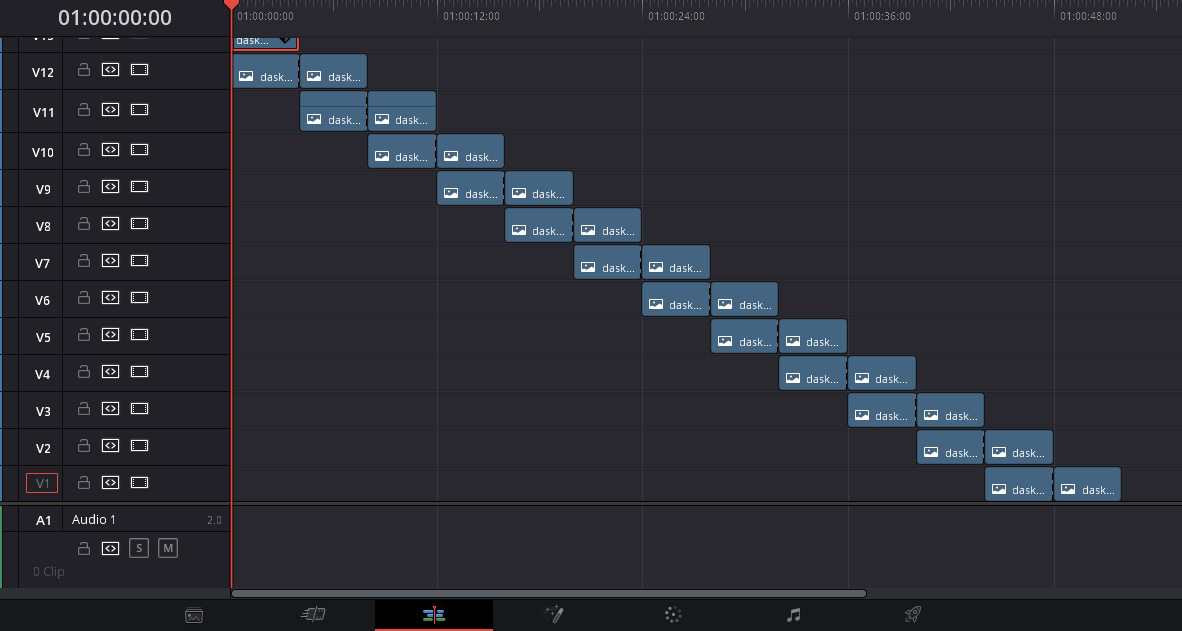
As you see, every upcoming 2x zoomed-out picture should always underline the previous one, before it has its own moment of fame on the timeline. I cut the shots in half to visually emphasize this moment, but you don’t have to do it. Just remember, that the second picture stays twice as long, as the first one, and the rest will have the same length, as the second one. Now, let’s set add some keyframes. I’m using a simple “Zoom” in the “Transform” controls in Edit Page.
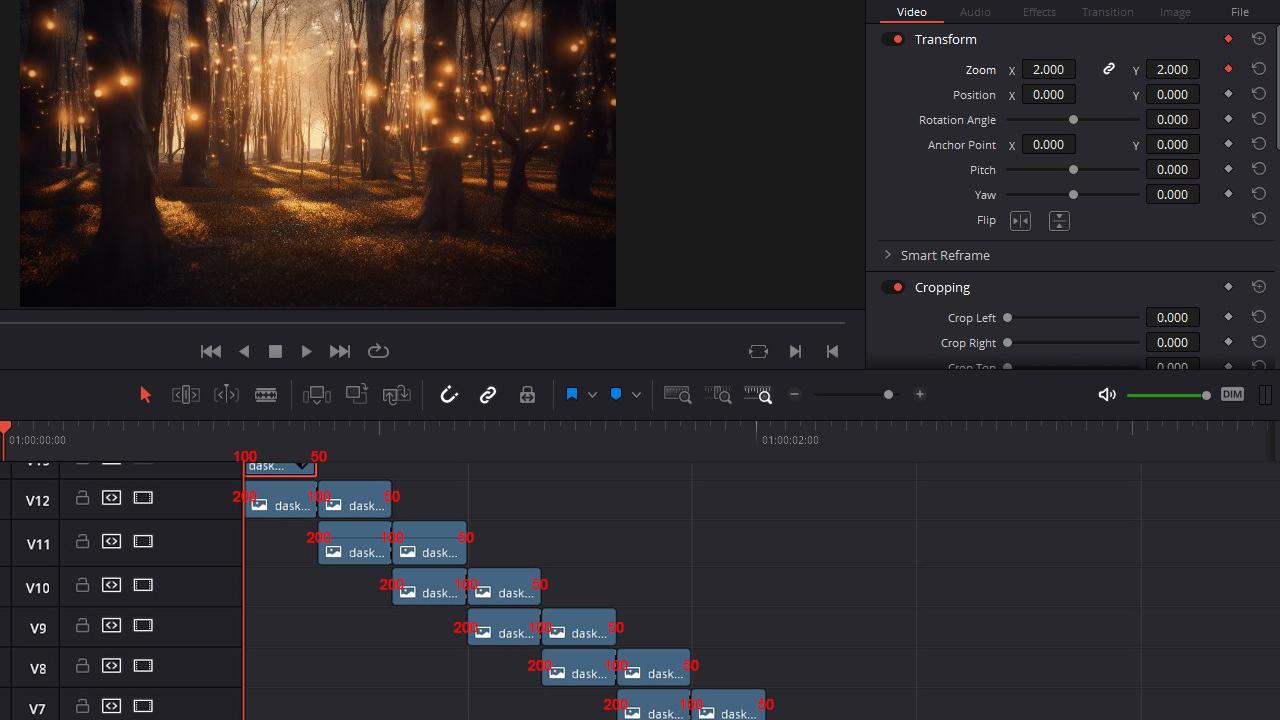
The first picture should get keyframes on the very first and very last frame of the image, scaling down from 100% to 50%. Starting from the second row, every other shot will get 3 “zoom” points: 200% in the beginning, 100% in the middle (where two overlapping shots meet), and 50% in the end frame. Copy and paste them to all the following images, and what you initially get, will look something like this:
Ignore the edges for a moment. Do you see, that the video stumbles slightly at several points? That’s the problem we can’t really overcome, if we want our clip to contain a reasonably consistent pace. Two overlapping images should have the same zoom speed but also coincide in length, and that‘s the only way to achieve it. (Correct me please, if it’s my misconception).
Yet, if you plan to play around with speedramps anyway, we can hide those bumps and smooth out the zoom. To do so, highlight all the clips on the timeline, right-click, and select “New Compound Clip” from the pop-up menu (in Adobe Premiere Pro it is called “to nest”). That way your “staircase” turns into one video file, which you can easily adjust how you like. For example, add a speedramp by using the “Retime Controls” and “Retime Curve” tools (also right-click on the clip to see them). I went with a wave-looking one in the end:
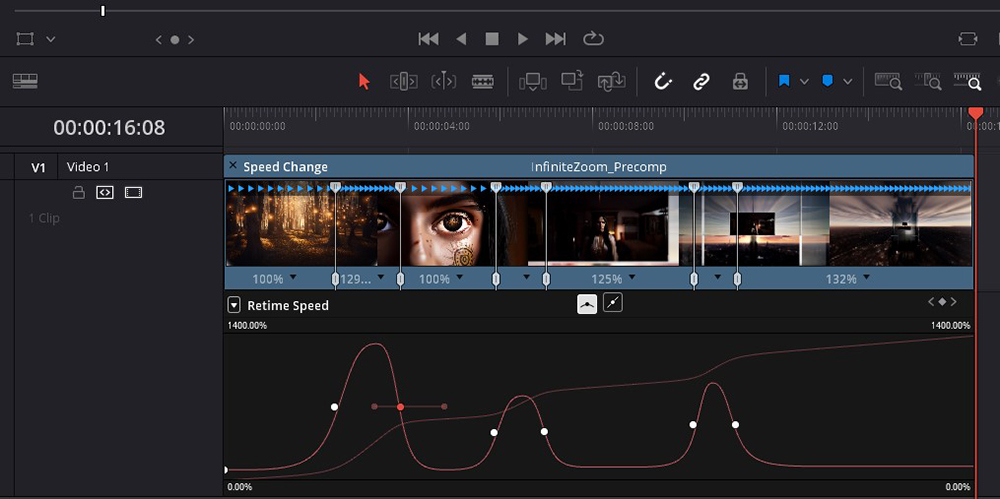
On top of that, I used the compound clip to add some motion blur and to cover the harsh image’s corners. The easiest fix for this issue is to crop each picture slightly, pulling a soft feathered mask over the lines. To hide the created blank spaces, you will also have to crop in on the whole video clip. Add some music, and enjoy the final result:
Not too bad, right?
Another way to a more consistent zoom-out flow
Of course, we can avoid those slightly visible jolts in our animation, if we want to. However, it will reveal another problem – this time, of a mathematical nature. You see when the underlying image scales simultaneously with the smaller one, it needs to be twice as fast, in order to finish in time. So, if we want the zoom effect to stay smooth, the duration of the upcoming clip should be 1,5 of the previous one. Sounds confusing, but it’s pure science. For better visualization, here is what the length and placement of clips will look like in this case:
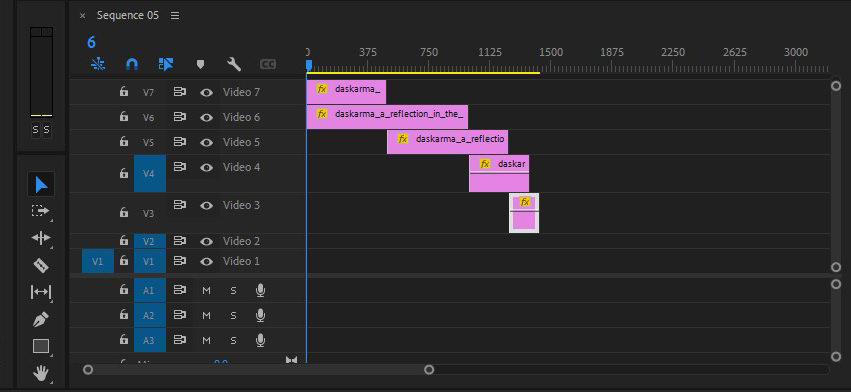
Such a video will have a consistent zoom flow without any jolts, yet it will also accelerate more and more toward the end. That’s mathematics, and trying to beat up mathematics is like coming with a knife to a gunfight. Not possible.
The biggest issue here is that at some point, the editing software will come to its limit, not able to bisect the clips any further. On the bright side, if your zoom-out video consists only of a few images (up to 5-6, for example), it might become your go-to method. Here is the result, I was able to get, thanks to this workflow (after masking out the rough corners, of course):
How to animate a zoom-out video in After Effects
A further way, which I really like and which will get you the most fluent results, is to use Adobe After Effects (or any other animation software of your choice). In fact, the final video at the top of my article was created following this workflow. If you’re not accustomed to using After Effects, don’t worry, I’m not good at VFX either. It shouldn’t stop you from trying it out, though, because this process turns out to be quite simple. Let me guide you step by step.
First, create a composition with the aspect ratio of the picture. The length of it should match the length of the final video you’d like to get. Drag the sorted images onto different layers upon each other. Our closest shot (the forest in my example) should lie on top.
Turn all of the pictures into 3D layers by clicking this little button, I marked in the screenshot below:
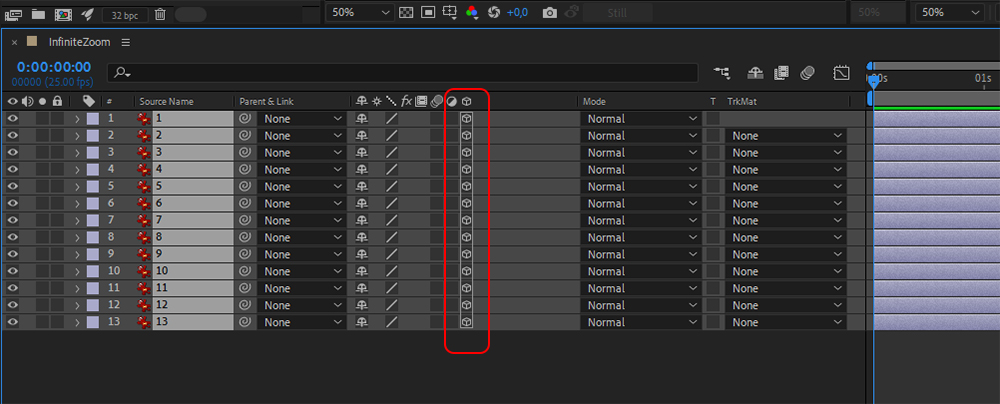
Let’s also create a camera in this 3D space. Right-click on the timeline – new – camera. You can use the standard camera settings, so no need to change anything in the pop-up window.
As the next step, we link our images to each other, using the so-called pickwhiping. Starting with the first picture, click and hold the spiral icon near the layer, and drag a blue line from it to the next zoomed-out image, like in this illustration:
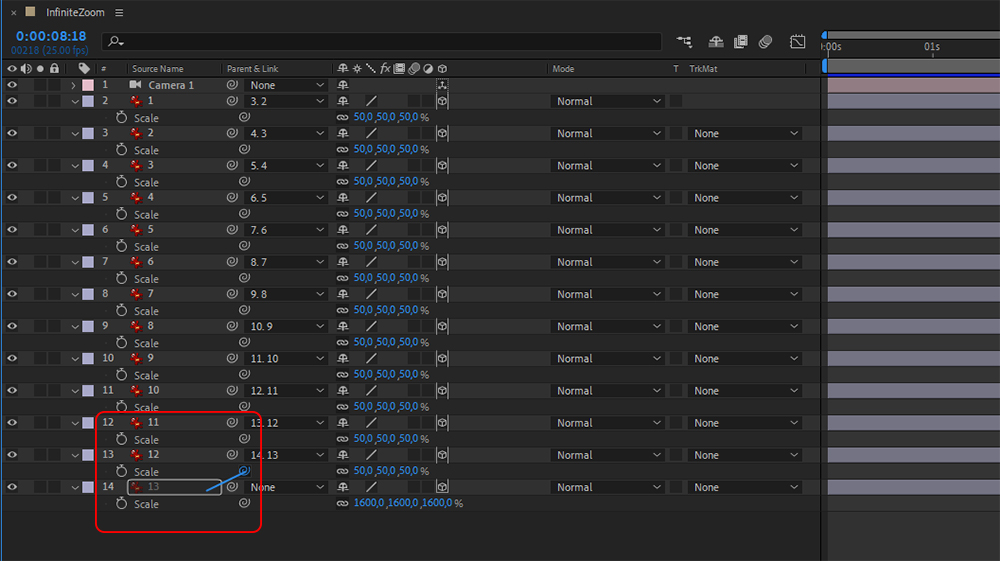
As the layers are connected now, we can do several easy iterations at once. Firstly, scale them properly. The end picture should be the biggest one (I set it to 1600%, for instance, because my video consists of a lot of images). Provide each next clip with a value of 50% from the previous one. You can see, what those settings should look like, in the screenshot above, as I already carried out this step.
Secondly, we can precisely align the images and mask out all the imperfections. In my case, Midjourney made a bunch of mistakes with framing as well (just look at the example below), and it was a pain in the back to correct them in editing software. In After Effects, on the contrary, I can slightly move one image, while the others move along because we pickwhipped them before. As for the picture’s edges, you can create a mask by dragging with a shape tool from the top panel on a selected layer. (Double click works just as fine). You can add a soft feather to the mask in its properties, exactly like we did in DaVinci.
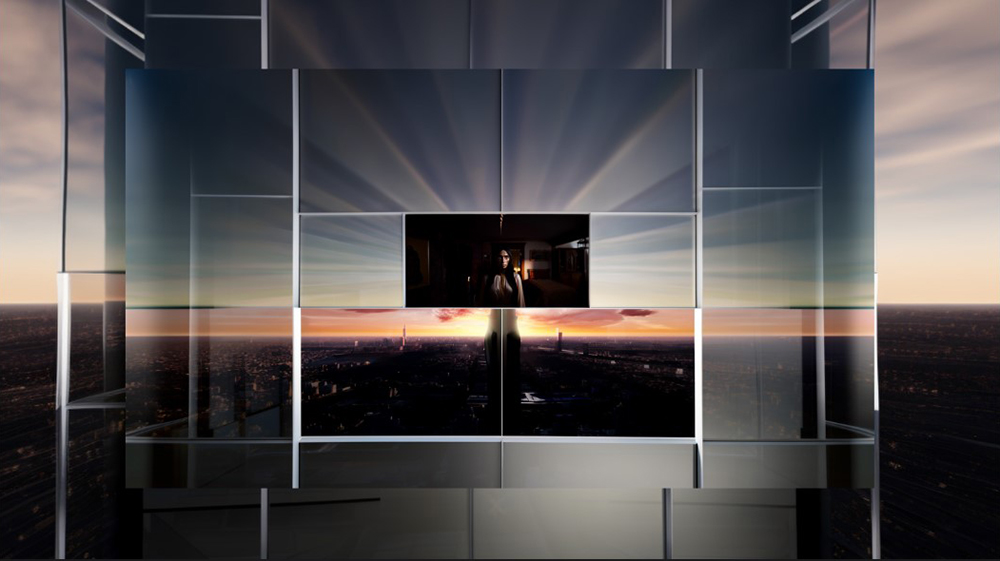
All set and ready for animation. Now we ought to move our previously-created camera within the 3D space. You can either use the dolly tool (an arrow pointing down) or execute a simple keyframe animation of the camera position. For the latter, go to your closest image, find a perfect central framing, and hit the stopwatch icon. Then, change only the Z-position value to zoom out to the final image and set another keyframe.
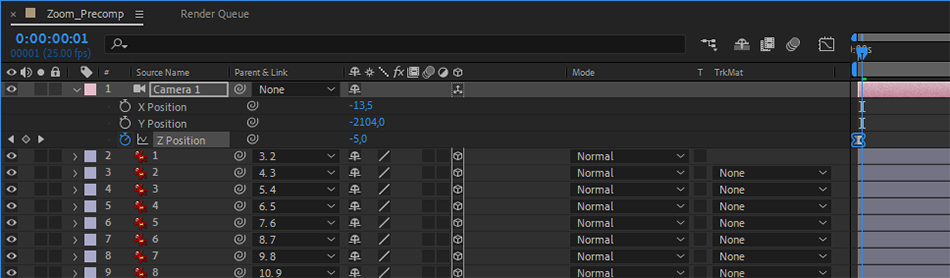
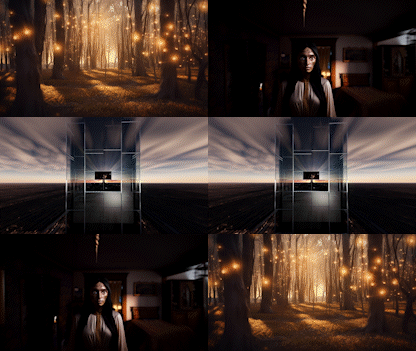
The basic movement is done, and you can adjust it, as you like. Interpolating between keyframes, enabling motion blur, inserting speedramps, slowing down the beginning, accelerating the rhythm towards the end. I also duplicated the created video and reversed the second part in order to have a seamless loop as the final result.
A few tips and observations along the lines
- If you want to have a more cinematic look in your images, make sure to add some filmmaking parameters to your text prompt in the AI generator. For example, name the lens, that you find particularly nice for this kind of shot (like “50mm”). Such terms as “high depth of field” also work quite well, at least in Midjourney.
- When you don’t customize the prompt and just click “Zoom Out 2x”, the neural network will try to include parts of your previous wording in the expanded picture. Let’s say you wanted your image to be a window frame, which then should find its place on a glass façade. In that case, don’t forget to remove the words “window frame” at some point, or you’ll end up with a cabinet of curiosities, containing endless mirror reflections.
- You cannot use the “Make Variations” or “Remaster” functions in Midjourney while creating a zoom-out. Although they are great for polishing the image output, they will also mess up your original picture, so the zoom transition won’t work afterward. A pity, really.
- Don’t overcomplicate. My concept was initially too long and too tricky for AI (including glass, human character, and 3 different setups with 13 images in general, so, in order to make everything perfect, I even ran out of paid hours, which I never managed to do before!)
- To create the zoom-out video, use the software, you’re familiar with. But at the same time, don’t be afraid to try out new things and develop your skills.
Conclusion
What a long ride! I hope, you enjoyed it and now know all the nuances about the creation of infinite zooms with the help of artificial intelligence. If something was unclear, please don’t hesitate to ask.
I’m curious, what story would you like to tell with this new tool? Is there any other creative way to utilize AI’s latest features? Have you come up with a procedure, that is simpler, than my described workflows? Let us know! Have fun experimenting, and don’t forget to share your zoom-out video result in the comments below!
Image source: created with Midjourney for CineD.
Full disclosure: MZed is owned by CineD