
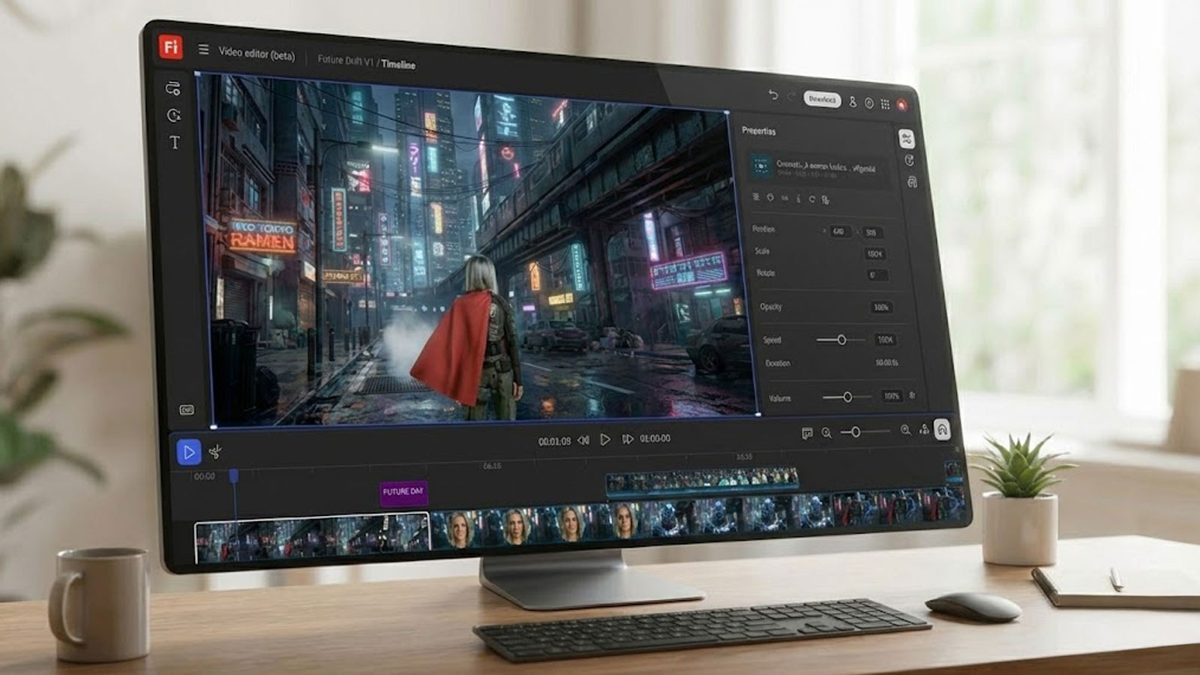
AI-generated videos seem to be everywhere these days. Social media is full of clips of varying quality, and you may have even tested a version of the feature yourself. Text-to-video generation has been around for several years, but the number of AI tools at creatives’ disposal has exploded, especially in the last 12 months. In 2025, Adobe expanded its Firefly generation AI suite with the introduction of Firefly video models. It extends the image editor to include image-to-video conversion capabilities, allowing users to generate motion clips from still images, text prompts, or a combination of both.

adobe firefly
Unlimited image generation available until March 16th
See website ↗
Whether you’re looking for a free AI video generator or a paid, full-featured video editor, Firefly video models are designed to help you create commercially safe content, perfect for conceptual mockups and B-roll footage. And with a free version accessible through the Firefly web interface, Adobe has made it easy to get started and explore some of this new AI-powered functionality. In fact, Adobe is currently offering unlimited image generation with Firefly until March 16th. Firefly allows you to create unlimited generations for all image models, but Firefly video models require access to Firefly Pro or Firefly Premium.
All of this said, while Firefly as a platform is very accessible, it’s not always intuitive to find certain features or use new tools for the first time. And when a platform is as packed with features as Adobe’s suite is, it can be difficult to even grasp the breadth of functionality at your disposal. So here’s a guide to help you get the most out of Firefly online video editor. More than just video editing tips, we’re going to show you our favorite features of video editing software.
Pro Tools: Get the most out of Adobe Firefly
While video models are the latest addition, Adobe Firefly also functions as a comprehensive AI photo and image editor, offering a set of tools designed to prepare assets before animating them. You have complete control over what is produced from which assets throughout the process. For creators who need a versatile photo editor, the Firefly platform can help in several key areas.
Advanced image manipulation and background control
The standout feature of the Firefly toolkit is (and always has been) its background removal feature. This incredibly powerful AI-powered tool allows you to remove backgrounds or remove backgrounds from images with high precision while preserving the original resolution.
- transparency: Instantly make backgrounds transparent or use the transparent background maker to create pretty assets for compositing.
- Color adjustment: For product photos, users can remove the white background or change the background color to fit specific brand guidelines.
- Delete object: The “Generative Fill” feature works as an AI object removal feature that allows you to remove people from photos and remove unwanted objects from photos. To do this, simply brush over the person and let the AI interpret the surrounding pixels.
- Upscaling and restoration: Photo enhancer and photo unblur feature can unblur photos online and make photos HD. This is essential when dealing with low-resolution source files or old photo restoration projects.
- Geometry tools: Standard technical editing is handled through image croppers and image flippers. With Firefly, you can crop, mirror, or flip images to modify your composition online before applying motion.
Stylization and creative assets
In addition to standard editing, Firefly also lets you turn photos into paintings, photos into comics, and images into pixel art. These artistic filters are especially useful for creating consistent thumbnails and stylized B-roll. You can also add text to your photos directly within the interface to create title cards and promotional overlays.

generative mood board
For large projects, firefly board It offers a generative approach to the concept. This workspace allows you to set the direction of your design by combining images, textures, and text. Streamline your creative process by allowing you to:
- Remix style: Quickly explore different artistic directions and backgrounds.
- Asset conversion: Modify specific parts of assets in your board to see how they interact with other elements.
- Collaborative visualization: Centralize your AI-generated assets and text prompts to refine a consistent visual language before moving to full video production.

Step-by-step: Animating static assets
Lost it? Feeling a little overwhelmed all of a sudden? That’s completely normal. If you’re completely new to the Firefly interface and want to try out what the tool can do, check out our step-by-step guide on how to get started with Image-to-Video functionality. It’s a relatively simple but powerful tool that anyone can use to produce great results, so it’s a good place to start.
1. Go to your video workspace. Log in to the Adobe Firefly web interface. Select “Generate” in the sidebar, Image to video (or video generation) module.

2. Upload your source image. Use the upload field to import JPEG or PNG files. This can be a photo, digital illustration, or image previously generated within Firefly.
- Migration notes: To define specific start and end points for your animation, upload the primary image as the start keyframe and the secondary image as the end keyframe.

3. Configure output specifications. Define the technical parameters in the settings panel.
- Aspect ratio: Choose from widescreen (16:9), vertical (9:16), or square (1:1) based on your target platform.
- Solved: Currently, this tool supports output up to 1080p (FHD).
- Direction: Images provide a visual base, while text prompts are used to direct specific actions. We use effects such as “flickering light” and “subtle movement of trees in the background.”
4. Adjust motion and style controls.
- Camera movement: Control virtual lens movement by manually selecting camera actions such as pan, zoom, and tilt.
- Style preset: If you want a specific aesthetic, change your rendering by applying presets like 2D animation, line art, claymation, and more.

7. Generate and export: Click Generate to process your request. After checking the preview, you can further adjust prompts and motion settings before downloading the final MP4 file.

I have a video. What do you do now?
congratulations. I created an Image-to-Text video using Adobe Firefly. But generative AI will never fully replace human creativity. So what else can you do with this new media you’ve created? Adobe has other apps for that. While Firefly’s core functionality is similar to other generation apps on the market (though more powerful in many important situations), Adobe’s primary value proposition for Firefly is its integration into the Creative Cloud ecosystem.
Firefly video generation tools offer native aspect ratio controls and generative editing within the same interface you use in applications like Premiere Pro and After Effects. This streamlined approach allows you to quickly create social media assets and placeholders within your professional video editing timeline.
Price and availability
A free version is available, but to get the most out of the tool, you’ll need to subscribe to either the Creative Cloud or Firefly tier as a standalone product. Access to the Firefly video model is based on a tiered subscription system divided using “generated credits”. The free tier is limited, but a paid plan is required for continued use. If you exhaust your monthly allotment of Generative Credits, Adobe gives you the option to purchase additional credit packages or upgrade to a higher subscription tier to maintain full functionality.
Firefly itself has three subscription tiers: Standard, Pro, and Premium. Click here for more information.
- Firefly Standard – AUD 16.49 per month
- Firefly Pro – $32.98 per month
- Firefly Premium – $329.99 per month
- Creative Cloud Pro – AUD 113.49 per month
Be sure to start by March 16th to take advantage of unlimited generations benefits. For more information on the full range of Firefly licenses, please visit the Adobe website here.


