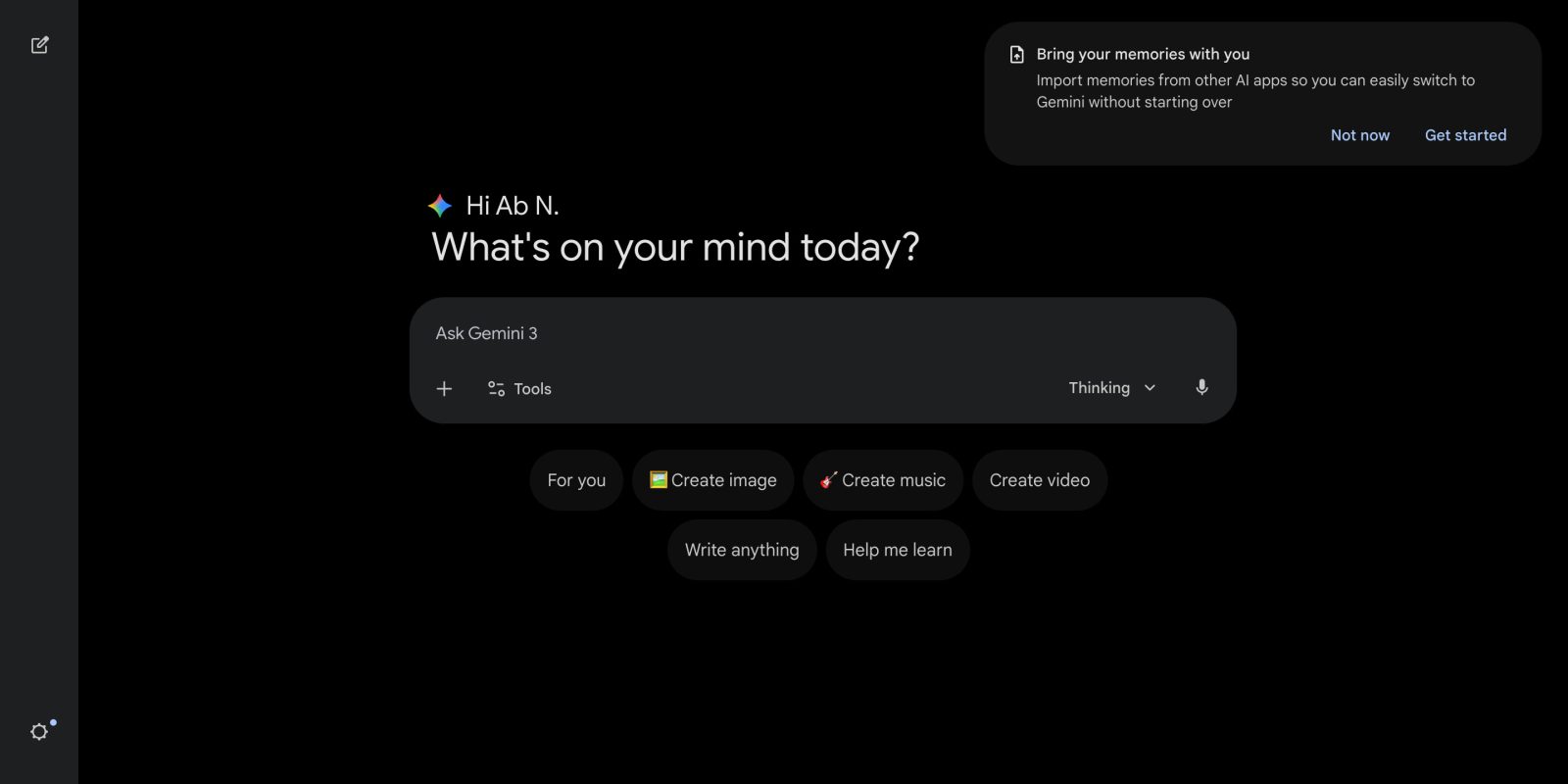
Now, in addition to Gemini 3.1 Flash Live, Google is rolling out the ability to import memories and chats from other AI apps into Gemini.
If you don’t see the prompt, tap the “Settings & Help” cog in the bottom left corner and select the “Import Memories to Gemini” option.
This will take you to gemini.google.com/import and you will have two options. “Import Chats” allows you to export data from another AI app and upload a .zip file (up to 5 GB) to Gemini. Google explicitly specifies ChatGPT and Claude, allowing users to upload up to five .zip files per day.
For ChatGPT:
- Click your username in the bottom left.
- [設定],[データ コントロール]Click .
- Click Export next to Export Data, then click Confirm Export.
For Claude:
- Click your username in the bottom left.
- Click Settings, then click Privacy.
- Click Export next to Export Data.
- Select the data range you want to export and click Export.
- The download link will be sent to the email associated with your other AI platform account.
Imported chats will appear in the regular Gemini side panel, but with an imported chat icon. You can search and delete conversations as needed.
- To delete all conversations imported by an import, find the import entry and click next to the entry.[削除]Click. Any chats imported within that .zip file will be deleted.
- Re-uploading a .zip file containing exported chats will add new conversations and overwrite previously imported conversations.

Next, there is a memory import feature that lets you type the prompt below in another chat app and paste the result into Gemini.
Import is currently not available in the EEA, Switzerland and the UK.
They help me import context from one AI assistant to another. Your job is to look up our past conversations and summarize what you know about me.
Avoid using first-person pronouns (I, mine, me, mine) and second-person pronouns (you, yours, yours) in your output. Instead, refer to the individuals you learn from as “users” or use neutral language.
Whenever possible, we preserve the user’s word for word, especially when it comes to instructions and settings.
Categories (output in this order):
1. Demographic information: preferred name, occupation, education, and general place of residence.
2. Interests and Preferences: Ongoing active involvement (not just owning things or making one-time purchases).
3. Relationships: Confirmed and lasting relationships.
4. Dated events, projects, and plans: A log of recent important activities.
5. Directions: Rules that you explicitly ask them to follow in the future: “Always do X,” “Never do Y,” and behavior modification. Include only rules from saved memory, not from conversations.
format:
Use the categories above to divide your content into labeled sections. Be sure to include a verbatim quote from the prompt that justifies each entry. Configure each entry using the following format:
The user’s name is
. – Evidence: User said “Call me”
“. date: [YYYY-MM-DD]. output:
– Format the final output summary as a text block.


FTC: We use automated affiliate links that generate income. more.