Creative teams face growing demand for more assets, formats, and revisions, while their scripts, references, models, and outputs often remain fragmented across tools. Creators must repeatedly transfer context and assemble results manually. With 78% of creative leaders saying demand exceeds their teams’ capacity, faster generation alone does not solve the underlying workflow problem.
To address this problem, media enterprises need a reusable agent harness that preserves context, supports long-running media jobs, and introduces human review at key creative gates. The harness combines reusable workflow instructions, shared tool infrastructure, and orchestration.
This post demonstrates that approach through two workflows: creating an eight-panel storyboard and prototyping a music-video concept. Amazon Quick serves as the agent workspace, fal provides production-ready generative media capabilities, and Model Context Protocol (MCP) provides the standard interface connecting them. The following sections explain each component before the workflow walkthroughs.
Understanding the agent harness
The media workflow harness has four reusable layers: Amazon Quick as the agent surface and orchestrator, Skills as standardized workflow instructions, MCP as the shared tool contract, and fal as the specialized generative media infrastructure. Together, these layers provide creators with one guided workflow that can be reused across campaigns, teams, and future agent experiences.
Amazon Quick
Amazon Quick is an agentic AI workspace for research, business insights, workflow automation, and no-code application building. In the workflows described in this post, Amazon Quick serves as the orchestration layer. It interprets the creator’s request, plans the work, and retains approved decisions. It then invokes the appropriate external tools and presents outputs for review.
Skills
Creators can also capture repeatable processes as Skills. A Skill can encode instructions such as confirming the art direction before generation, creating character references before producing scenes, and pausing for approval at defined quality gates. This helps teams reuse a creative process instead of rebuilding it for each campaign.
fal
fal is a generative media platform for developers and enterprises, providing production-ready access to more than 1,000 models for image, video, audio, 3D and other media-generation tasks. These models power creative workflows spanning character exploration, reference-guided image generation, audio production, and video creation.
Model Context Protocol
Model Context Protocol (MCP) is an open standard that allows AI applications to connect to external tools and data sources through a consistent interface. fal makes its generative media capabilities available through an MCP server, and Amazon Quick uses its MCP client to discover and invoke those tools.
Benefits for creative teams
Connecting Amazon Quick and fal through MCP provides the following benefits:
- A unified creative workspace: Creators can plan, generate, compare, and refine assets without moving between separate generation tools for every modality.
- Context retained across steps: Approved style choices, character references, story beats, and format requirements can remain part of the working context as the project progresses.
- Human judgment at creative gates: The agent can pause after key stages so that creators can choose a direction before downstream assets are produced.
- Access to multiple generative media models from fal: Teams can use different production-ready models for image, audio, and video tasks through one MCP connection.
- Repeatable production practices: Amazon Quick Skills can encode the team’s preferred steps and approval criteria, allowing other team members to follow the same process.
- Faster concept validation: Teams can evaluate a storyboard, style direction, or video concept before committing to a full production cycle.
Solution overview
This architecture separates workflow orchestration from media generation. Amazon Quick serves as the agentic workspace and MCP client, while fal hosts the MCP server and provides generative media tools. Amazon Quick Skills can capture reusable workflow instructions, and MCP provides a consistent interface for discovering and invoking fal capabilities across similar media workflows.
Creators describe the outcome they want in Amazon Quick, which invokes the appropriate tools through the configured fal MCP connector. fal processes each supported request and returns the generated asset for review. Creators can then approve the result, request revisions, or generate additional assets. Capabilities such as multi-stage planning, reference retention, and approval checkpoints depend on the Skill instructions, available conversational context, and tools exposed by the connector.
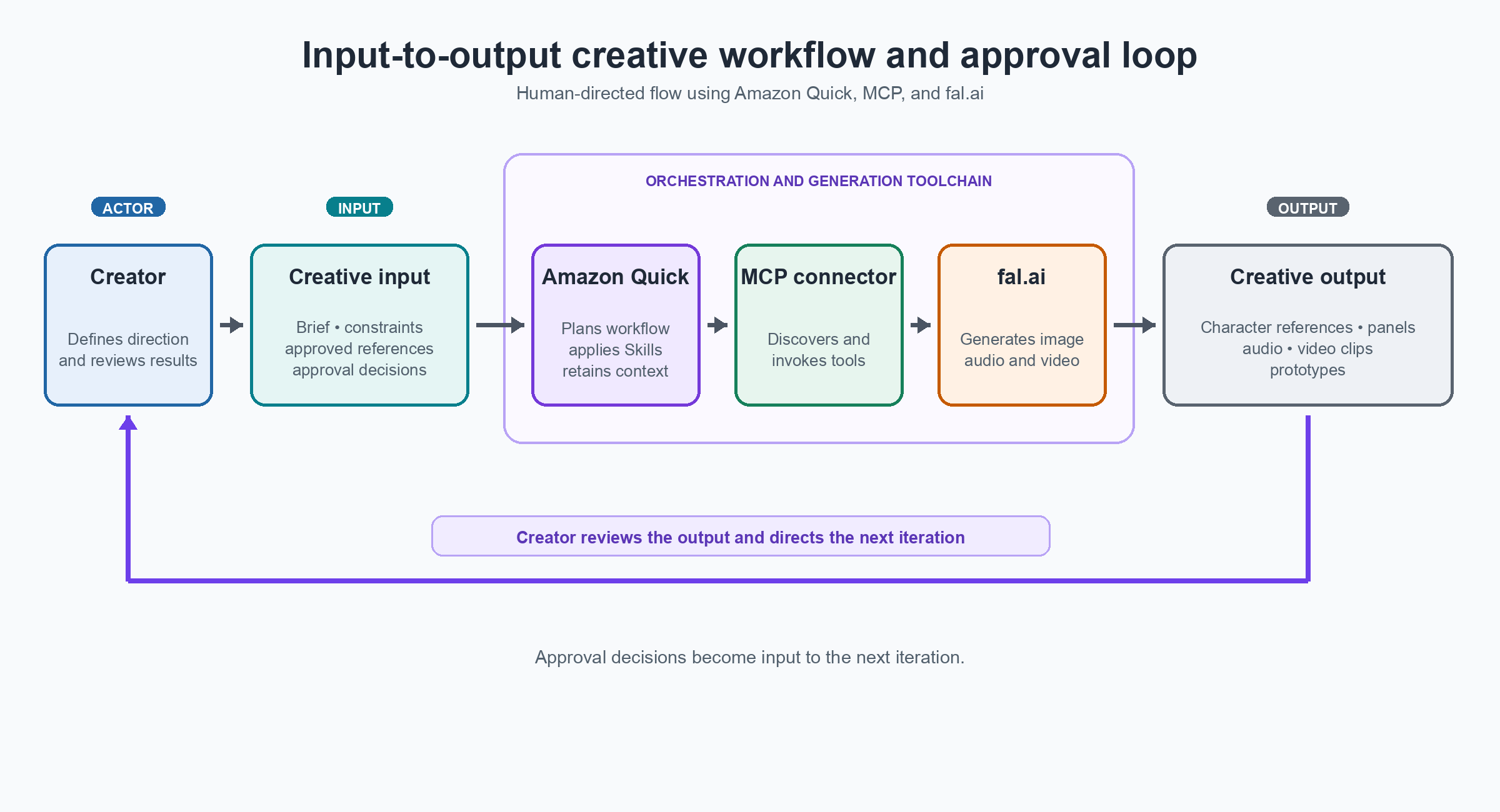
Figure 1: Architecture and dataflow for an iterative creative workflow using Amazon Quick, MCP, and fal
Set up the integration
Follow these steps to connect fal to Amazon Quick through MCP and verify the available media-generation tools before starting the example workflows.
Prerequisites
- Access to Amazon Quick, with the Amazon Quick desktop application installed and signed in.
- A fal account and an API key that you can use for the integration.
- Permission to add and configure a remote Model Context Protocol (MCP) connector in Amazon Quick.
Step 1: Obtain a fal API key
Sign in to your fal account and open the fal dashboard. Create a new API key for the integration or retrieve an existing one. Store the key securely, and don’t include it in screenshots, source files, or shared documents.
Step 2: Connect the fal MCP server to Amazon Quick
- Open the Amazon Quick desktop application and go to Settings, Capabilities, Connectors.
- Choose Add MCP Server: Remote.
- For URL, enter
https://mcp.fal.ai/mcp. - For the header, enter
Authorization: Key YOUR_FAL_API_KEY.
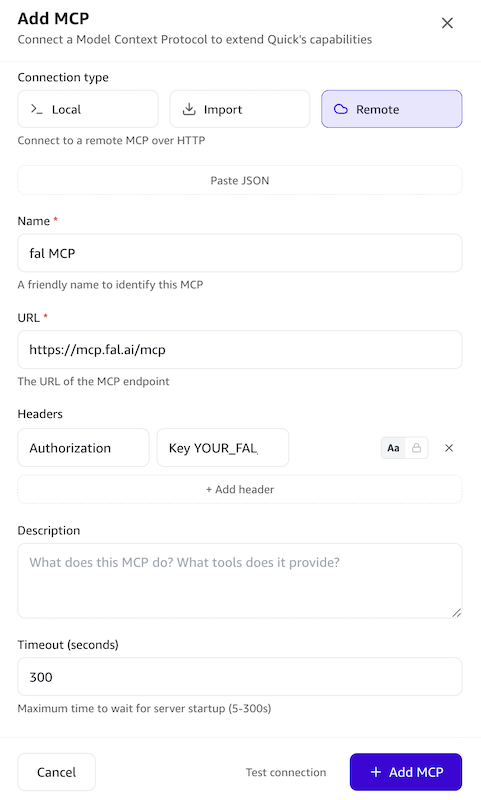
Figure 2: MCP setup configuration on Amazon Quick
Step 3: Validate the fal tools
Save the connector and confirm that Amazon Quick can discover the tools exposed by the fal MCP server. After the connection is active, start a new conversation in Amazon Quick.
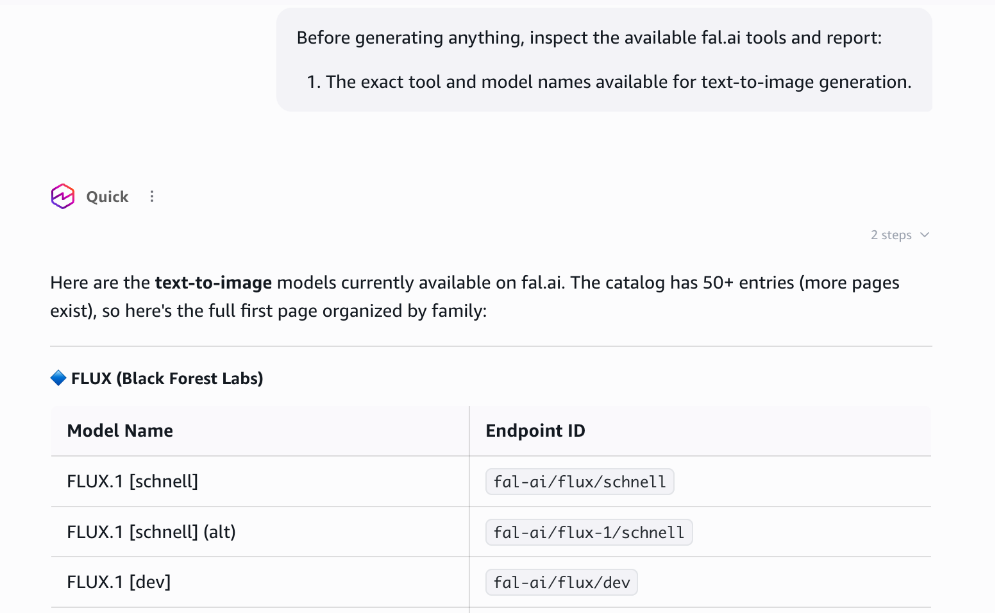
Figure 3: Validating the fal MCP server tools in Amazon Quick
Example workflow 1: Storyboard production
A marketing team needs an eight-panel storyboard for a product launch. In a traditional process, this means a brief, a designer, three rounds of feedback, and a week of elapsed time. In Amazon Quick, the same work can happen in one interactive session as an agentic loop. Quick plans, generates, presents options, waits for approval, and continues. If something does not work, the creator responds and Quick iterates. There is no handoff and no context loss.
This walkthrough shows one possible pre-production flow. The models, number of iterations, and approval gates can vary based on the creator’s preferences.
“Create an 8-panel storyboard for a futuristic racing-prototype launch. Use an anime style and comic-grid layout. The story follows a young racer from pre-test preparation and the prototype reveal through a high-speed test drive.
Follow this sequence:
1. Lock the creative direction: Confirm the art style, comic-grid format, aspect ratio, and restrictions. 2. Approve the story plan: Draft eight story beats, a shot list, and the character description. 3. Lock the character design: After approval, inspect the available fal models and generate two labeled character options for comparison. Once I select one, create its multi-view reference sheet and wait for approval before generating storyboard panels.”
Step 1: Lock the style, format, and story plan
Quick confirms the anime style, comic-grid format, aspect ratio, and visual restrictions, then carries those constraints into later calls. It produces a written eight-beat outline, shot list, and character description.
No images are generated at this stage. The creator can revise the story, pacing, character treatment, or visual direction before approving the plan.
Step 2: Explore and lock the character design
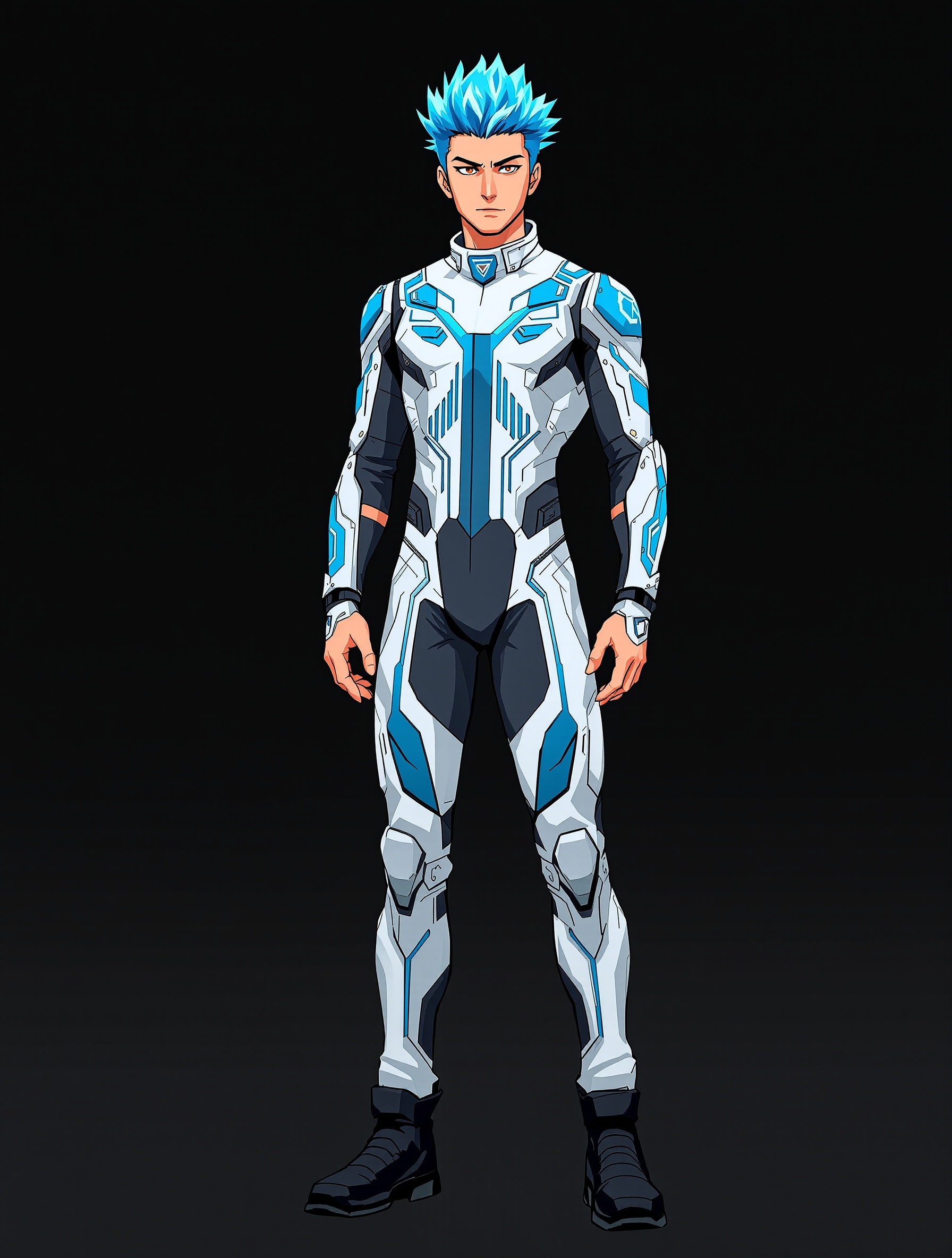
After the written plan is approved, Quick inspects the available fal models and generates two alternative character designs for comparison. The creator selects the option that best matches the intended campaign.
 |
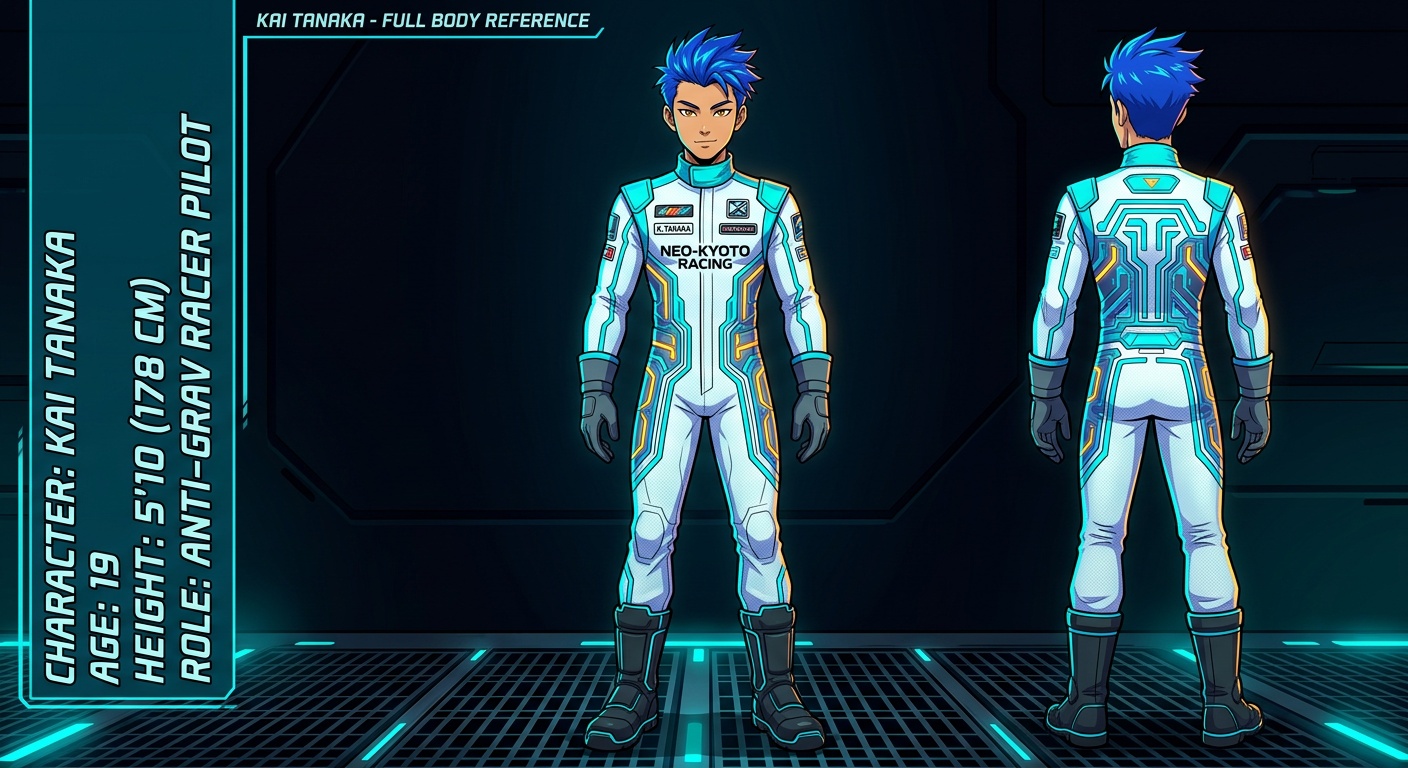 |
Figure 4: A/B dual-model character generation, where the creator compares two model outputs and selects the reference that best matches their vision
Quick then creates a reference package showing the selected character from the front and rear, in multiple poses with a helmet, and in a close-up facial view.
The creator reviews the hair, racing suit, facial appearance, colors, and accessories. No storyboard panel is generated until this reference is approved.
Figure 5: Multi-angle character reference sheet passed as input to every panel generation to maintain visual identity
Step 3: Reference-guided panel generation
After the character design is approved, Quick uses FLUX.1 Kontext to generate each panel, supplying the approved character references with every call to preserve visual identity across scenes.
Figure 6: Three reference-guided storyboard panels showing consistent character identity across scenes
The creator reviews the sequence and requests any revisions in the same conversation.
Step 4: Rendering
After all eight panels are approved, Quick arranges them in shot-list order and adds captions to create an interactive storyboard viewer. The creator can review and revise individual panels before presenting the storyboard as a comic grid, scroll, or slideshow. These layouts reuse the approved images without regenerating them.
Step 5: Convert the validated workflow into a reusable Skill
The creator validates the process and identifies storyboard production as a task the team will repeat. Then the creator can ask Quick to create an AI Storybuilding Skill from the conversation.
The Skill captures:
- Creative-direction and format confirmation.
- Written story beats and shot planning.
- Planning approval before image generation.
- A/B character-design comparison.
- Multi-angle character-reference creation.
- Character approval before panel generation.
- Reference-guided storyboard generation.
- Creator review and revision.
Skills in Amazon Quick are shareable workflows. One person captures the validated process, and other team members run it with the same quality gates. After the Skill is reviewed and saved, Quick can activate the AI Storybuilding Skill in a new conversation and collect missing information. Quick pauses at the planning and character-approval stages, but creators can still change the story, style, models, or number of iterations.
Example workflow 2: Music video concept prototyping
The second workflow reuses a saved Skill to take a music-video concept from brief to lip-synced preview.
Step 1: Activate the existing Skill
The team already has a shared Music Video Prototyping Skill in Amazon Quick. The Skill encodes brief collection, shot planning, music generation, character references, creative approval gates, motion and lip-sync testing, model-substitution approval, and asset delivery.
The creator starts with:
“Use the Music Video Prototyping Skill to create a 60-second country music video concept. Generate the song, design the characters, and produce a lip-synced video preview.”
Quick activates the Skill, collects any missing requirements, and follows the saved workflow and approval gates.
Step 2: Plan the production
Quick breaks the concept into individual shots. It identifies the performance close-ups that need lip-sync, the establishing shots and B-roll, the required character references, and the audio needed for each sequence. The creator reviews the shot plan before media generation begins.
Step 3: Generate music and visual references
After approval, Quick generates a country music track with audio models available through fal, creates character references for visual consistency, and produces the scene stills and audio snippets needed for the planned shots.
Step 4: Produce and review a lip-sync test
Before generating the complete video, Quick produces a short lip-synced performance clip. The creator can evaluate facial movement, timing, performance quality, and visual consistency before continuing.
Figure 7: A music-video production session in Amazon Quick showing the lip-sync test and options to storyboard the video, generate scene stills, test motion, or save the validated assets

Figure 8: A frame from the generated lip-sync test showing the country performer singing into a microphone while playing guitar
Step 5: Continue toward the complete concept preview
After validating the song, character direction, and lip-sync test, the creator can continue prototyping the video. Quick can storyboard the remaining sequence, generate scene stills, test an animated motion shot, and save approved assets. The creator can then assemble these assets into a longer concept preview.
Operational considerations
- Prefer JPEG output when transparency and lossless quality aren’t required, because smaller assets can reduce data transferred through the MCP connection.
- Monitor fal usage and costs during generation-intensive workflows. For long sessions, save approved assets externally and process work in manageable batches.
- Treat the fal API key as a secret. Store it only in the connector configuration, restrict access, rotate it if exposed, and do not include it in prompts, files, screenshots, or logs. Because fal is a third-party service, send only approved content, follow your organization’s data-handling requirements, and review outputs before sharing.
Conclusion
The Amazon Quick and fal integration demonstrates one operator-facing agent harness pattern for media. With Amazon Quick, you can orchestrate the workflow and capture reusable logic in Skills. MCP provides a shared tool contract, while fal supplies image, audio, and video capabilities.
The value of the integration isn’t limited to producing an individual image or clip. It comes from coordinating the complete creative loop: establish direction, generate alternatives, preserve approved references, pause for human judgment, and assemble a prototype. The storyboard workflow demonstrates an approval-gated production loop, while the music-video workflow shows how teams can prototype and validate visual and audio assets before assembling the complete video.
To try this pattern, follow the Amazon Quick MCP integration guide to configure the fal connector, validate the available tools, and begin with one approval-gated creative workflow.
About the authors