Google launches new AI tool “ gemini omni. It’s built by Google DeepMind, Google’s leading team working on artificial intelligence (AI). This tool allows you to create and edit videos using only simple text instructions called “prompts.” You don’t need to know anything about video editing. No expensive software required. All you need is your phone or computer, the Gemini app, and the appropriate prompts.
In this article, you’ll learn what Gemini Omni is, what’s special about it, and how to create good prompts so you can create your own videos.
What is Google Gemini Omni?
Gemini Omni is a family of native multimodal “any-to-any” AI models launched by Google DeepMind that can process and generate text, images, audio, and video simultaneously.
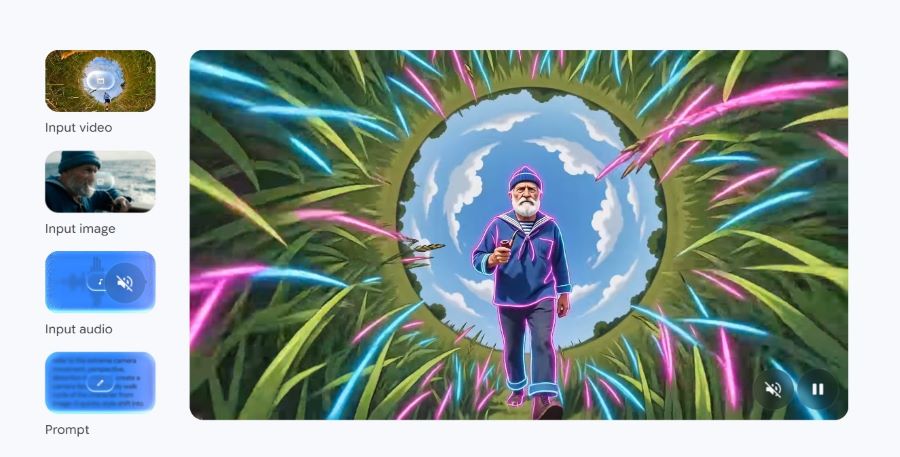
Simply put, this means Gemini Omni can understand your instructions and use its knowledge of the world to translate them into actual video. It can process various inputs such as video, images, audio, and text simultaneously and generate a single output from all these inputs. The main purpose of Gemini Omni is to allow you to create anything from any input, including videos.
Also Read: ChatGPT Photo Editing Prompts: Beautify Your Images with Trending Instagram Prompts
How is Gemini Omni different from other AI tools?
Source: DeepMind
There are many AI tools available to create AI videos, but Gemini Omni is very different from the others. With this multimodal AI tool, you don’t need to be specific about prompts or have knowledge of editing video tools. Rather, you just need to enter simple text in a few simple steps. This new AI model, Gemini Omni, provides output as per the response.
How to create good prompts for Google Gemini Omni
The most important skill you’ll learn in Gemini Omni is how to write good prompts. A “prompt” is a simple instruction given to the AI.
Here are some recommendations that you can include in your prompt when creating videos from Gemini Omni.
1. Shot framing and camera movement
Think about how you compose your shot. Should it be wide-angle, medium-angle, or close-up? How do you want the camera to move? Should it be a gentle glide or a sudden lunge? Experiment to find the approach that suits your scene.
For example, you could write, “A close-up shot of a person’s hand. The camera slowly switches back to a wide shot.”
2. Video style
Tell Gemini Omni how you want the scene to feel. Is it realistic or cinematic? Down-to-earth or majestic? Tell Gemini Omni what effect you want to create and let the model figure out the details.
For example: “Please make this look like an old Bollywood movie” or “Please make this look like a cartoon”.
3. Lighting
Describes how the lighting in the scene should be. Is the light coming from the sun, a streetlight, or off-screen? What effect does it have? Is the lighting clearer, warmer, or dreamier?
4. Location
Describe your landscape to Gemini Omni. However, you don’t need to go into every little detail. Omni works according to your overall intent.
So instead of writing a long description about a village, you can simply write “A quiet Indian village at sunset.”
5. Action
Please explain what is happening in the scene. Who are the characters and objects? How do they move and interact?
Also Read: ChatGPT Photo Editing Prompts: Vintage 90s Aesthetic Prompts to Give Your Photos a Classic Look
How to use Gemini Omni: Step-by-step guide
Source: DeepMind
Step 1: Open Gemini app or Google Flow
Gemini Omni can be used internally. gemini app on your phone, computer, or indoors. Google flowa creative studio tool for video creators. You can also find it from YouTube short For creating short videos.
Step 2: Upload a video or image (if required)
If you want to edit an existing video, upload it. If you want to create something from scratch, you can start with just a text prompt.
Step 3: Create your first prompt
Let’s start simple. Explain what you want to show in your video. Use the five elements listed above (shot, style, lighting, location, and action) to guide your lighting.
Example prompt: “Young farmer walking through a green wheat field at sunrise, medium shot, warm golden light, slow and peaceful movement.”
Step 4: Edit step by step through the conversation
Ask Gemini Omni to make specific updates, such as background changes or new captions, without re-prompting the entire scene. Omni saves your video across multiple edits, keeping what works and allowing you to focus on what needs to be changed.
So after the first result, you can just say, “Now change the background to a river.” The rest of the scene remains the same.
Step 5: Change the camera angle
You can prompt Gemini Omni to follow specific video recording instructions. If you would like to shoot continuously, please specify “1 continuous” or “1 time.” Try certain angles like “Static”, “Lockoff”, and “Fixed”. Try different moves like “push in,” “punch in,” and “dolly zoom.”
Also Read: ChatGPT Photo Editing Prompts: Summer Mountain Travel, Scenic Adventure Photo Prompts
Example of a real prompt from Google
Below is an example of a real prompt shared by Google DeepMind on the official guide page for Gemini Omni prompts.
- Change objects in the video: “Turn the butterflies into bees.” And in the next step, “Turn the bees into a swarm of tiny fireflies.”
- Sync lights with music: “The lights in the apartment begin to turn on in time with the music.”
- Change camera angle: “Please change the camera angle to look over the violinist’s shoulder.”
- Change the video style: “We apply a brightly colored crayon aesthetic, featuring rich, waxy textured strokes and playful hand-drawn character designs.”
These examples show that prompts can be short and direct. There’s no need to write long paragraphs. Clear and simple instructions are most effective.
What special features are available in prompts?
Source: DeepMind
Many special features are available for prompts, including:
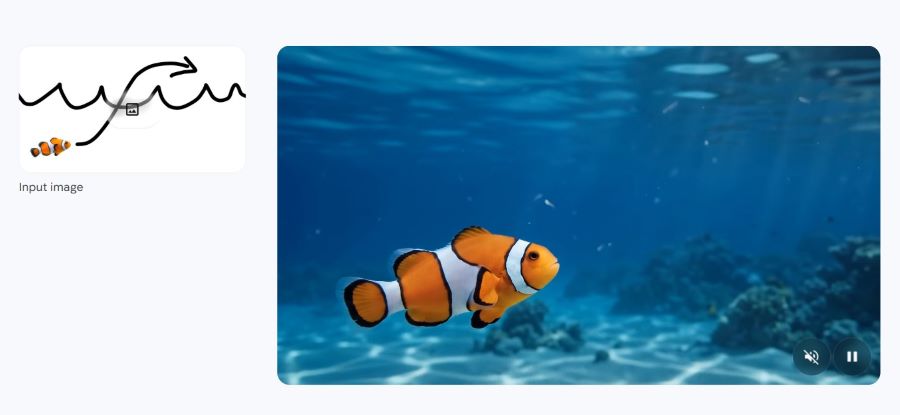
1. Use reference images or videos
Convert all your references, including images, text, video, and audio, into a single, cohesive output. This means that if you have a photo of your business or your face, you can ask Gemini Omni to include it in your video.
2. Apply new visual styles
If you want to reimagine the look of your scene while preserving the original motion and detail, you can ask Gemini Omni to apply new styles like animation, claymation, watercolor, and more.
3. Add a storyboard
If you already know the narrative flow of your video, you can share your visual storyboard with Gemini Omni to generate a video based on your key beats. This is useful for teachers and storytellers who are planning.
4. Keep text consistent
If you want your characters, objects, or environments to be consistent throughout your video, add a reference image and Gemini Omni will use it throughout your scene.
Where can I use Gemini Omni?
Gemini Omni is available on three platforms.
1. Gemini app (gemini.google.com) – Perfect for everyday use on your phone or computer.
2.Google Flow (flow.google) – Perfect for filmmakers and video creators looking for more creative control.
3. YouTube Shorts – Perfect for creating short videos and instantly sharing them online.
Note: Some features require a Google AI subscription and availability may vary by country and plan.
Google Gemini Omni is a powerful yet easy-to-use AI tool that is changing the way AI videos are created. Whether you’re a student, small business owner, teacher, or content creator, this tool allows you to create professional-looking videos without any prior knowledge of video editing tools. So start this
Start simple, experiment often, and let Google Gemini Omni do the heavy lifting.
First published: May 23, 2026, 13:48 IST