

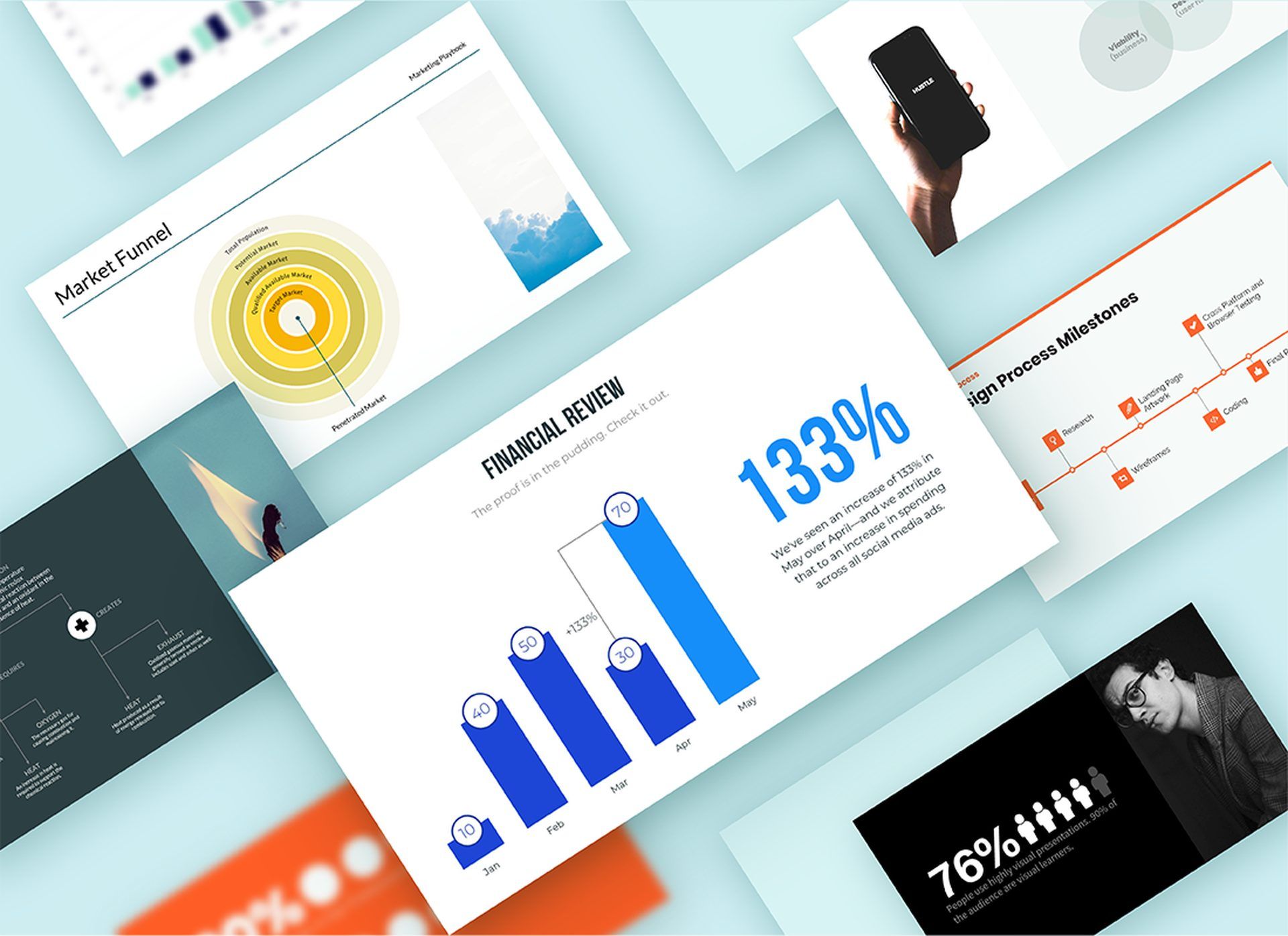
If you’ve ever struggled to create a professional and attractive presentation, check out Beautiful.ai. Beautiful.ai is different from other presentation tools because it doesn’t give you a blank canvas to work on. Instead, it offers a library of smart templates that adapt to your content and style. Simply choose a template, add text, images, charts or videos and let Beautiful.ai do the rest. Beautiful.ai automatically adjusts layouts, colors, fonts and animations to make your slides look great.
This blog post will show you how to easily create professional and engaging presentations using Beautiful.ai.
Beautiful.ai: Presenting has never been easier
What does Beautiful.ai do? Beautiful.ai is a web-based tool that lets you create stunning presentations in minutes. Use artificial intelligence to automatically design your slides based on your content and settings. Don’t worry about fonts, colors, layouts and animations anymore. Beautiful AI does it all.
Beautiful.ai is not only easy to use, but powerful and versatile. Customize your slides with your own branding, icons, logos, and fonts.
Can beautiful AI be converted to PowerPoint? yes! In addition to collaborating with your team in real time, you can also convert presentations to PDF or PowerPoint to share online or offline.
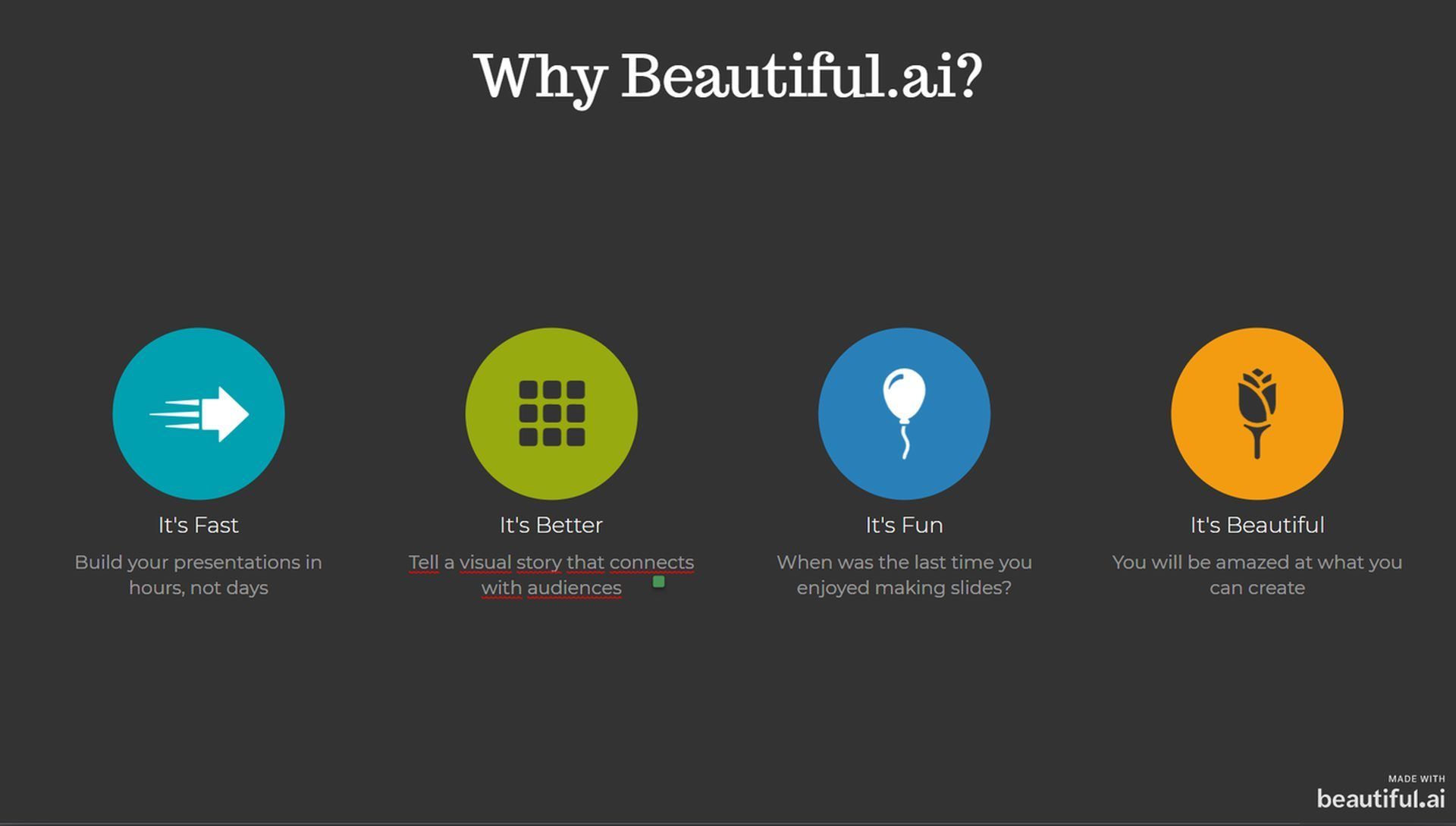
Why Beatiful.ai? According to a presentation Beatiful.ai automatically created, here’s why.
- fast
- Better
- fun
- beautiful
Beautiful.ai works on any device and browser, so you can create and present from anywhere. There is also an integration with Slack
It also has an AI-powered bot that can generate presentations. Are you interested?then let’s meet designer bot.
DesignerBot lets you design slides in an instant, and is also useful for brainstorming and generating text and images on the fly. Just submit a request and DesignerBot will create a custom deck for you within minutes.
How many people are using Beautiful.ai? The AI-powered presentation tool has over 1 million active users. Beautiful.ai is ideal for anyone who wants to create meaningful suggestions and reports without wasting time on design. Whether you’re a marketer, salesperson, entrepreneur, educator, or student, Beautiful.ai can help you communicate your ideas more effectively and impress your audience.
If you want to see how Beautiful.ai can transform your presentation, you can sign up for a free account and start creating your first slide today. You’ll be amazed at what you can do with a little AI.
Everything you need to know about GPT5
How to use Beautiful.ai?
Here are the steps:
- Sign up for a free account at Beautiful.ai.
- Choose a template from the gallery or start from scratch.
- Add content to your slides. You can use text, images, icons, charts, maps, videos, and more.
- Customize your presentation by changing themes, styles and transitions.
- You can preview and share your presentations online, or download them as PDF or PowerPoint files.
Let’s take a closer look at each step.
Step 1: Sign up for a free account
To use Beautiful AI, you need to sign up for a free account. You can use your email address or sign in with Google, Facebook, or LinkedIn.
After signing up, you’ll see your dashboard and access to presentations and templates.
Step 2: Choose a template or start from scratch
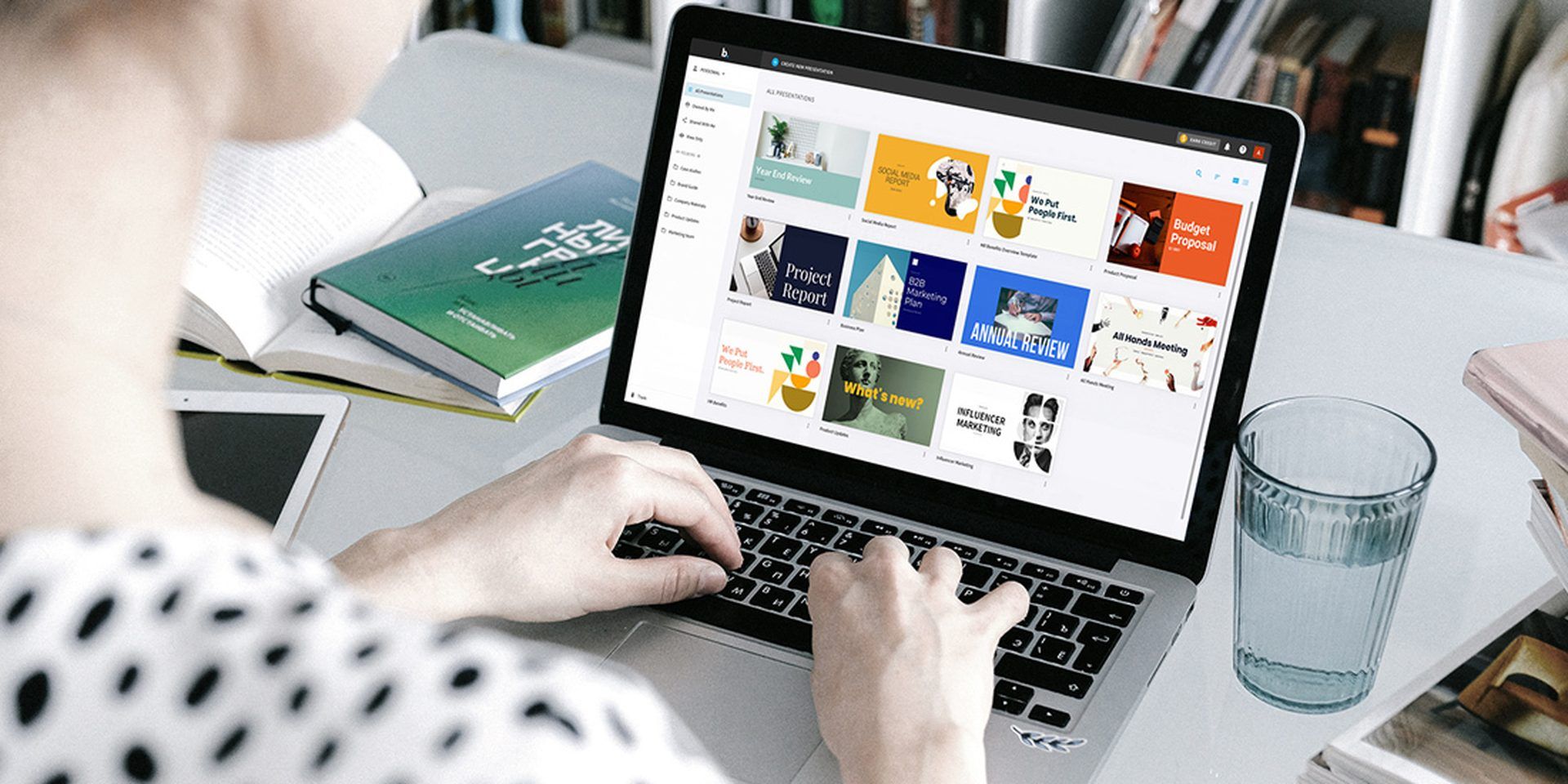
Beautiful AI offers a variety of templates for different purposes and audiences. You can browse the gallery and choose the one that suits your needs. Alternatively, you can start from scratch and create your own presentation.
To select a template, click the New Presentation button in the top right corner of your dashboard. You’ll see a list of categories such as Business, Education, Marketing, and Sales. Click the category that matches your topic and select a template from the subcategories.
For example, if you want to create a presentation about social media marketing,[マーケティング]Click[ソーシャル メディア戦略]Choose. A preview of the template and its slides is displayed. Click “Use this template” to start editing.
To start from scratch, click the “Blank Presentation” button in the top right corner of your dashboard. A blank slide appears with a title placeholder. You can add slides by clicking the “+” button in the lower left corner of the screen.
Step 3: Add Content to Your Slides
After choosing a template or creating a blank presentation, you can start adding content to your slides. You can use different types of content such as text, images, icons, charts, maps, and videos.
To add text, click the text box and type your message. You can format the text using the toolbar at the top of the screen. You can change font size, color, alignment, style, and more.
To add an image, click the image placeholder and select an image from your computer or from the library of stock photos provided by Beautiful AI. You can resize or crop the image using the handles in the corners of the image.
To add an icon, click the icon placeholder and select an icon from the library of icons provided by Beautiful AI. You can change the icon color and size using the toolbar at the top of the screen.
To add a chart, click the chart placeholder and select a chart type from the menu. You can choose from bar charts, pie charts, line charts, area charts, and more. Data can be entered manually or imported from a spreadsheet file. Customize your charts by changing colors, labels, axes, legends, and more.
To add a map, click the map placeholder and select a map type from the menu. You can choose from world maps, country maps, state maps, and more. You can zoom in or out on the map using the slider in the bottom right corner of the map. You can also add pins and labels to your map using the toolbar at the top of the screen.
To add a video, click the video placeholder and paste the URL from YouTube or Vimeo. You can adjust the size and position of the video using the handles in the corners of the video.
in the bottom left corner of the screen[スマート スライドを追加]You can also click the button to add other types of content such as quotes, testimonials, timelines, diagrams, etc. You’ll see a list of smart slide templates that you can use for various purposes.
Step 4: Customize Your Presentation
After adding content to your slides, you can customize your presentation by changing themes, styles, and transitions.
Step 5: Preview and Share
that’s all! All you have to do is check one last time and make any necessary adjustments. Your presentation is ready to share.
ChatGPT DAN prompt allows you to jailbreak ChatGPT
How can I download a PPT from Beautiful.ai?
What if you want to download your presentation as a PPT file and share it with others who don’t use Beautiful.ai?
- Open your presentation in Beautiful.ai and click in the top left corner of your screen.[エクスポート]Click the button.
- Select Editable PowerPoint as the export format for all presentations,[エクスポート]Click. Select pptx if you want to export a single page.
- Wait a few seconds while the presentation is converted and downloaded to your computer.
- Open the downloaded PPT file in PowerPoint or other compatible software and enjoy your slides.
Note: Some features and animations are specific to Beautiful.ai and may not work as expected in PowerPoint. Beautiful.ai allows you to view and edit presentations online anytime for the best possible experience.
How can I save Beautiful.ai as PDF?
Do the following:
- Open your beautiful AI project and click the Share button in the upper right corner of the screen.
- Select the “Download” option in the pop-up window that appears and select “PDF” from the drop-down menu.
- Choose a file name and location for your PDF file and click the Download button. Your beautiful AI will be saved as a PDF file in the location of your choice.
that’s it! Beautiful AI saved as a PDF file. Now you can share it with anyone or print it for offline use.
Beautiful.ai Pricing Plans
Here are the pricing plans for Beautiful.ai:
- Pro: $12/month
- unlimited slides
- AI content generation
- version history
- PowerPoint import/export
- Audience analytics
- Teams: $40/user/month
- co-working space
- Edit presentations with your team and organize them in shared folders.
- PowerPoint import
- custom company themes
- Centralized slide library
- custom template library
- Shared asset library
- Enterprise (custom)
- Unlimited team resources
- Create unlimited themes, templates and slides for your team.
- SAML SSO
- User provisioning (SCIM)
- audit event
- Dedicated onboarding
- team training
- Priority support
- Single presentation: $45
- all about pros
- billed monthly
Can I use beautiful AI for free? The answer is yes! Beautiful.ai has his 14-day free trial. But what if your trial expires and you need a free AI-powered PPT tool? Keep reading to find out.
Free Beautiful.ai Alternatives: Top 3
Here are the best Beautiful.ai alternatives that you can try for free:
We’ve talked about Tome AI before. Learn more about.
Image courtesy: beautiful .ai
AI101
New to AI? You can still ride the AI train! We’ve created an in-depth AI Glossary of the most commonly used artificial intelligence terms, explaining the basics of artificial intelligence and the risks and benefits of AI. Feel free to use it. Learning how to use AI is a game changer. AI models will change the world.
AI tools we reviewed
Almost every day new tools, models and features come out to change our lives, such as the new OpenAI ChatGPT plugin, but we’ve already reviewed some of the best.
Want to learn how to use ChatGPT effectively? Here are some tips and tricks without switching to ChatGPT Plus. When trying to use AI tools, you may encounter errors such as “ChatGPT is currently at capacity” or “Too many requests in the last hour. Please try again later.” Granted, these are really annoying errors, but don’t worry. we know how to fix them. Is ChatGPT plagiarism free? It’s a difficult question to find a single answer. If you are afraid of plagiarism, please use the AI plagiarism checker. You can also check other AI chatbots and his AI essay writer for better results.
Artificial intelligence generated images are still being debated, but people are still looking for the best AI art generator. Will AI replace designers? Read on to find out.


