3
Studies show that by 2026, video content is projected to account for more than 82% of all internet traffic. But the problem with most of them is that they are far from perfect, with blurry faces, pixelated footage, low resolution, and much more.
So, what’s the solution in this situation? The answer is an AI video upscaler.
It intelligently adds detail, sharpens the edges, and improves resolution instead of simply stretching the image. However, with so many free and paid options, knowing which video upscaler works can be overwhelming.
Fortunately, that won’t be the case! By the end of this guide, you’ll know exactly which tool works best for your videos.
How Free and Paid AI Video Upscalers Improve Videos
In simple terms, free AI video upscalers are good for quick, small edits, while paid upscalers deliver sharper and more professional results. With that in mind, here’s the detailed difference between the two types of tools:
| Features | Free AI Video Upscalers | Paid AI Video Upscalers |
| Resolution Upscaling | Free tools increase video quality up to 720p or 1080p only. | Paid tools can upscale footage to 4K and even 8K (by HitPaw VikPea). |
| Noise Reduction & Clarity | Basic AI removes grain and blur, but often softens faces and fine textures. | Advanced AI removes noise while preserving skin detail, hair, and background elements. |
| Frame Enhancement & Motion Smoothing | Motion often looks choppy because frames are only lightly enhanced. | AI-driven frame rebuilding makes movement smoother and more natural. |
| Color Correction & Visual Depth | Simple brightness and contrast adjustments are usually the limit. | Smart color correction, better lighting balance, and HDR-style depth improve the overall look. |
| Batch Processing & Export Options | Free versions only allow one video at a time and offer limited export formats. | Paid versions allow batch processing, multiple export formats, and higher-quality encoding for professional use. |
Top 10 AI Video Upscalers in 2026: Detailed Reviews
Before you pick a tool, it’s best to see how each one fits different needs. Some are built for professional creators who want high-resolution output, while others focus on free improvements for social clips.
Below are clear, honest overviews so you can compare what really matters.
1. HitPaw VikPea (Paid)
HitPaw VikPea is a professional AI video upscaler designed for people who want studio-quality results without complicated editing software. It uses advanced AI models to rebuild details, remove noise, and improve resolution in low-quality videos.
Whether you are restoring family footage, improving YouTube content, or upgrading training videos, HitPaw VikPea makes the process fast and beginner-friendly.
Main Functions
Upscaling Videos to 8K Resolution
This is the core strength of HitPaw VikPea. The software takes blurry, pixelated, or compressed footage and reconstructs missing details. Rather than just enlarging the video, its AI predicts what the high-resolution version should look like and upscales the videos to up to 4K/8K resolution.
AI Video Stabilization
HitPaw VikPea can not only improve resolution but also smooth out shaky footage and increase frame rate. It intelligently minimizes camera jitter and can convert low-frame-rate clips into smoother playback. This gives your upgraded videos a more cinematic feel.
Advanced Color Enhancement
Beyond upscaling, the software boosts color vibrancy and dynamic range. This improves washed-out footage and even converts SDR to HDR. These features help older or poorly lit videos look richer and more professional.
Generate Video from Text or Photo
HitPaw VikPea lets you create videos directly from written scripts or still images. You can type a short text, upload a photo, and the AI will generate a video with motion, visuals, and structure.
Video Editing Tools
In addition to enhancement, HitPaw VikPea includes practical editing tools such as background removal, trimming, and visual cleanup. You can isolate a person from the background, remove distractions, or prepare videos for social platforms and presentations without using separate software.
How It Works
Step 1: Go to HitPaw’s official webpage and download the HitPaw VikPea app. They have apps for both Windows and Mac, so download accordingly.
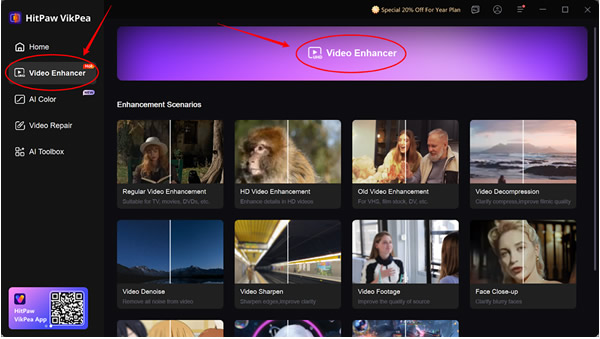
Step 2: Launch the HitPaw VikPea app and go to the “Video Enhancer” tab from the side panel. Inside the panel, upload the video you want to upscale.

Step 3: Next, choose which AI model you want to use. For video upscaling, the “Video Quality Repair Model” works best. Select it and then click on “Preview” to let the AI model do its magic and upscale to up to 8K resolution.

Step 4: Finally, preview your result. You can see how your video looks before and after. Once satisfied, you can export the video in the quality you want by clicking on the “Export” button.

Pricing
- Monthly Plan ($43.19): Best for short-term users who only need the video upscaler for a few projects. It includes full AI tools, watermark removal, background removal, and support.
- Yearly Plan ($99.99): Designed for regular creators who want to save money over time. You get all features plus a full year of updates and technical support, which makes it far cheaper than paying monthly.
- Lifetime Plan ($350.39): A one-time purchase for unlimited long-term use. Ideal for professionals who use video enhancement often and do not want ongoing subscription fees.
Pros and Cons
| Pros | Cons |
| Produces extremely sharp and natural-looking video upgrades | Full exports require a paid subscription |
| Works well for old, blurry, or compressed footage | May require a stronger CPU/GPU for faster processing |
| Simple interface that beginners can use easily |
2. VidHex (Paid)
VidHex is a cloud-based AI video upscaler built to restore detail in low-quality footage. You can use it for old clips that look blurry, dark, or overly compressed. The platform uses multiple AI models to enhance faces, reduce noise, improve motion, and upscale videos to higher resolutions like 4K and even 8K.
Pricing
- Free Plan: You can text all AI features, but you can only preview the first 3 seconds of a video.
- 1-Month Plan ($31.92): Includes 100 AI credits with full access to all enhancement features.
- 1-Year Plan ($69.93): Includes 1,350 AI credits for cloud processing.
- Perpetual Plan: One-time payment of $209.93 with 5,000 AI credits included.
Pros and Cons
| Pros | Cons |
| Upscales videos up to 8K resolution with detail improvement | No free tier for full features |
| Can brighten dark footage while revealing hidden details | May require good hardware for smooth processing |
| Advanced features can be overwhelming for beginners |
3. Aiarty (Paid)
Aiarty is a desktop AI video upscaler focused on restoring and upgrading poor-quality footage. It works offline, which makes it popular among users who want privacy or work with sensitive content. The software can sharpen details, remove heavy noise, interpolate frames for smoother motion, and upscale to HD or 4K.
Pricing
- Standard License ($79 per year): Works on 1 PC with full feature access and free updates for one year.
- Lifetime License ($165 one-time): Can be used on 3 PCs, with free updates for life and a one-time payment only.
Pros and Cons
| Pros | Cons |
| Strong noise reduction and restoration tools | 8K upscaling is slower and less optimized |
| Batch processing supports multiple files at once | Some tools may slightly soften fine details |
| Paid license required for full access |
4. Picwand (Paid)
Picwand is a browser-based AI video upscaler that also includes creative tools like text-to-video and image-to-video. Users often choose it when they want quick enhancements without downloading software. Short-form creators and marketers use Picwand to polish social videos and ads.
Pricing
- Monthly Plan ($14.90): Includes 100 AI credits per month. Best for short-term use or testing.
- Yearly Plan ($67.92): Comes to be only $5.66 per month and includes 1,500 AI credits. Ideal for consistent but moderate video creation.
- Perpetual (Lifetime) Plan ($103.53): One-time payment only with 3,000 AI credits. Perfect for users who want long-term access without monthly fees.
Pros and Cons
| Pros | Cons |
| Works directly in the browser. No install needed | Free features are limited in export quality |
| Reduces noise and stabilizes shaky footage | Not ideal for long videos or professional workflows |
| Higher output resolutions are often behind paywalls |
5. VideoProc (Paid)
VideoProc is a full video processing program that includes AI upscaling, stabilization, noise reduction, and editing tools. Many users like having everything in one place, from cutting clips to enhancing them. This makes VideoProc a good option for users who want both enhancement and traditional editing.
Pricing
- Premium 365 ($39.95 per year): Works on 3PCs and includes all AI tools for one whole year. Comes with 1 year of updates.
- Lifetime License ($65.95 one-time): You can use it on 1 PC, and it comes with all current and future AI tools. You get lifetime updates for the product.
- Family License ($89.95 one-time): Same as the lifetime license, but works on 3 to 5 PCs. Best for households or small teams.
Pros and Cons
| Pros | Cons |
| All-in-one video processing (edit + upscale) | It can feel complex for beginners |
| Stable offline performance | Upscaling is good, but not the best |
| Cannot export any video for free |
6. Cutout Pro (Free)
The first free video upscaler on the list is the Cutout Pro. It offers a free online upscaling service, best known for background removal and visual cleanup. A lot of people use it to sharpen short clips and remove noise, especially for product videos and presentations. For casual users, this tool delivers fast improvements with almost no setup.
Pricing
Cutout Pro uses a pay-as-you-go pricing model, where you pay based on how many minutes of video you enhance. Prices start at $9 for 1 minute and drop per second as you buy more time, going as low as $0.0057 per second on other plans.
Pros and Cons
| Pros | Cons |
| Free background removal and clarity tools | Limited export resolution |
| Useful for product and short social videos | Only offers upscaling to HD quality |
| Need the paid version for 4K upscaling |
7. Clipfly (Free)
Clipfly is a simple browser-based upscaler designed for quick video fixes. Users rely on it to improve brightness, contrast, and color in short clips. Because everything runs online, it is convenient for people who want fast results without downloads.
Pricing
- Basic (Free): A starter plan for simple video editing with limited assets, 1 GB storage, and 1080p exports.
- Pro ($49.99/year): Designed for creators who edit often, offering AI models, monthly credits, more storage, and access to premium features.
- Business ($389.99/year): Provides large monthly credits, multiple user access, and advanced AI tools like movie generation. Perfect for teams and agencies.
Pros and Cons
| Pros | Cons |
| Easy to use and fully web-based | Does not truly rebuild video details |
| Good for quick social media edits | Limited export quality up to HD only |
| Not suitable for long videos |
8. Upscale.media (Free)
Upscale.media started as an image upscaler but now also supports basic video enhancement. Short clips can be sharpened and upscaled to higher resolutions, making it helpful for light improvements. Casual users appreciate how simple the interface is for simple upscaling.
Pricing
- Free Plan: Gives you 3 free credits and 3 downloads, which is enough to test how the video upscaling works.
- Subscription Plan ($44.99 to $69.99 per year): Best value for regular users, offering up to 6,000 credits per year at a low cost per credit.
- One-Time Payment ($7.99 to $54.99): Best value for regular users, offering up to 6,000 credits per year at a low cost per credit.
Pros and Cons
| Pros | Cons |
| Free and very easy to use | Not designed for long or large files |
| Can upscale short videos to HD and 4K | Lacks advanced restoration tools |
| Doesn’t offer batch processing |
9. Kapwing (Free)
Kapwing is an online video editor that includes AI tools to improve brightness, color, and sharpness. A majority of creators use it to edit and enhance videos in one place, especially for YouTube Shorts and social posts. While it does not deeply restore blurry footage, it is useful for polishing already decent clips.
Pricing
- Free ($0): A starter plan with 10 credits per month, 720p exports, and watermarked videos. Best for basic editing and short content testing.
- Pro ($16 per user per month): Removes watermarks, allows 4K exports, bigger uploads, and unlimited projects.
- Business ($50 per user per month): Adds advanced AI tools like voice cloning, lip-syncing, dubbing, and large auto-subtitling limits.
Pros and Cons
| Pros | Cons |
| Combines editing and enhancement in one tool | Free version adds a watermark |
| Supports HD and 4K exports | No deep AI upscaling |
| Not ideal for restoring damaged videos |
10. VidMage (Free)
VidMage is a lightweight AI video upscaler focused on improving clarity in low-resolution clips. It is often used for quick fixes when a video looks soft or slightly blurry. For casual users, the simplicity and quickness are what make the tool stand out.
Pricing
- Free Plan ($0): Gives limited daily face swaps on the web and short preview access on Mac, good for testing.
- Monthly Plan ($9.99/m, then $14.99/m): Includes 400 credits per month, unlimited live face swap on Mac, and full premium features on web and desktop.
- Yearly Plan ($5.83 per month, billed yearly): Offers the same 400 monthly credits as the monthly plan but at a much lower price.
Pros and Cons
| Pros | Cons |
| Fast and easy to use | Cannot upscale to true 4K |
| Good for small social media videos | Limited noise reduction |
| Not designed for professional video work |
FAQs
1. Can an AI Video Upscaler Really Turn Old Videos Into HD or 4K Quality?
Yes, an AI video upscaler can improve old videos by rebuilding missing details and sharpening the frame. While it cannot create a perfect original, it can make footage look much clearer, smoother, and more watchable.
2. Is a Free Video Upscaler Good Enough for Social Media and Casual Videos?
For short clips and simple posts, a free video upscaler is usually enough. It can improve brightness and sharpness. But it may limit resolution, add watermarks, or struggle with more complex or longer videos.
3. Can an AI Upscaler Video Tool Handle Both Short Clips and Long Videos?
Yes, most AI upscaler video tools can process both short and long videos. However, paid versions work faster, support larger files, and keep quality more consistent when enhancing longer or higher-resolution footage.
Conclusion
Choosing the right AI video upscaler in 2026 comes down to quality, speed, and how professional you want your final video to look.
Now, even though free tools are useful for quick edits here and there, they aren’t the perfect choice for frequent video edits. With paid tools, you can upscale to 8K, with one tool standing out of all of them: HitPaw VikPea.
It offers over 9 AI models that help you turn even the worst videos into the best you’ve ever seen. So, if you want the best results in just a few clicks, visit the official HitPaw website and start enhancing your videos.